
Chickxel guide
You don't need to read from start to finish. Follow the first-time path, or choose the task you want to do and read only what you need.
First-time path
- Install and launchChoose the right download for your operating system and handle the first-launch warning.
- Learn the screenFind the canvas, toolbar, timeline, and other main areas.
- Draw an imageLearn the basic controls for colors, brushes, and selections.
- Save and exportSee how projects, PNG files, and Unity files are saved.
If you know the feature name, enter it in the search box on the left. The table of contents separates common tasks from feature reference.
Common controls
Basic controls that work the same everywhere in the app.
Changing number fields
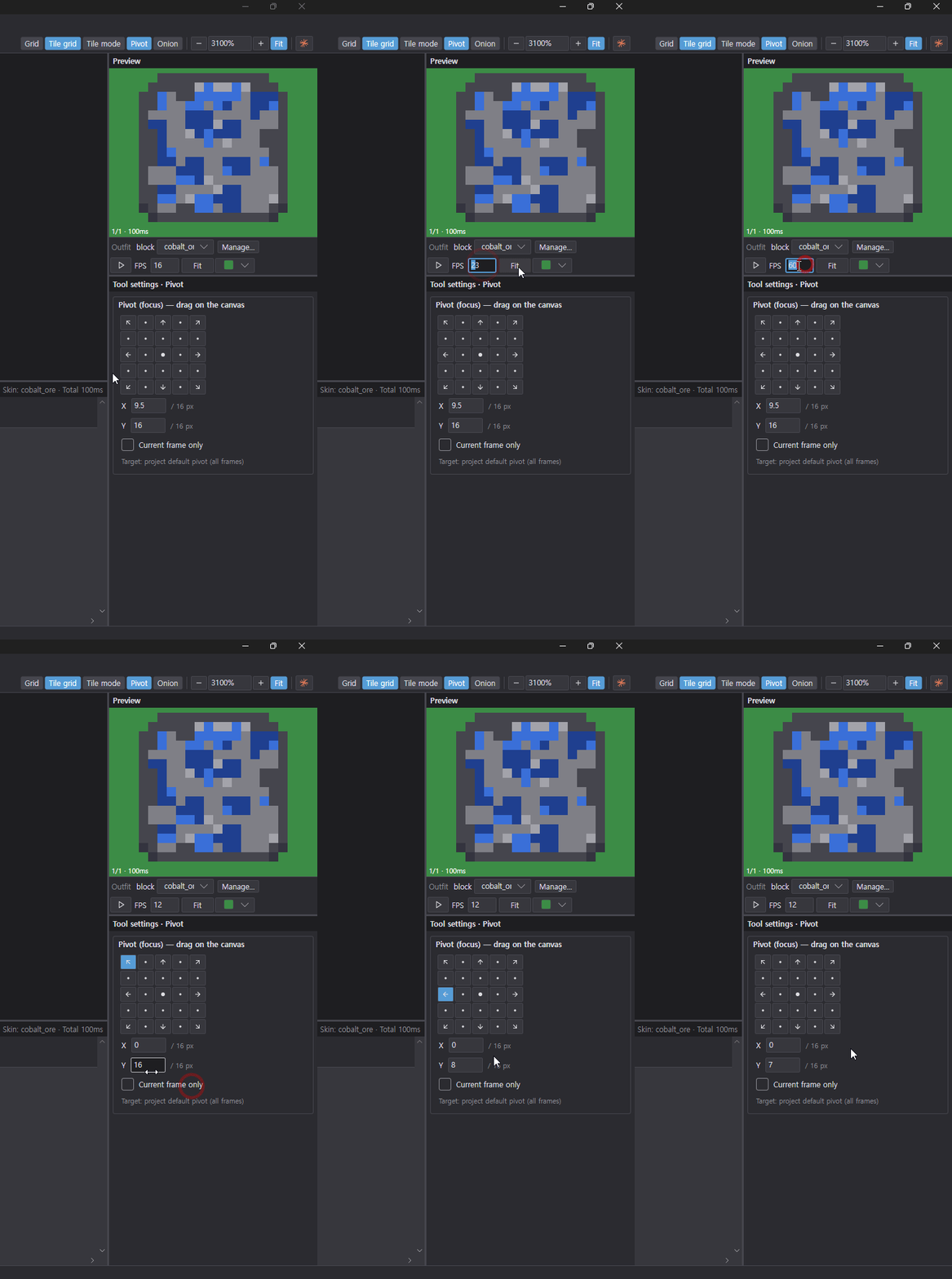
Size, coordinates, FPS, zoom, effect strength — every number field in the app supports the same three methods. Use whichever fits the moment.
- Click and typeClick the field and type a number. Clicking elsewhere confirms it.
- Drag left or rightGrab the field and drag sideways to change the value. Shift is 10× slower, Ctrl steps by 10. When you hit the edge of the screen, the cursor wraps around so you can keep dragging.
- Right-click and pickRight-click the field for a list of common and recent values. The current value is marked with a dot.
Drawing with AI
Claude Code or Codex on your own computer drives Chickxel with your own account (no API key). Say something like "draw a 32×32 wooden barrel" and it draws right into the open image.
- Open AI chatCtrl+L or the AI button in the top bar. Pick the Claude or Codex tab and log in once.
- Describe what you wantInclude size, subject and colors for the best results. Progress shows while it draws.
- Undo if you don't like itEach reply is one undo step. Use Ctrl+Z or "Undo this step" under the reply.
In our testing, Codex's Astra model (gpt-6-astra) drew the best results. See the AI chat chapter for details.
Pixelate
Turn AI-generated art or any image into clean pixel art.
Comparing cell by cell in the enlarged view
See the cell grid Chickxel actually used laid over the source, then check the result and the source side by side at the same size, one cell at a time.
- Show gridThe source view draws the cell borders the selected candidate used, so you can see right away whether the cells line up with the color blocks.
- EnlargeClick the result or the source in the large preview to open both at the same size.
- Inspect a cellClick a result pixel or a source cell to highlight where that color is used and which result pixel the source cell became.
Turning images into pixel art
Drop in an image and Chickxel finds the pixel size, snaps to the grid, removes the background and reduces the colors. It builds one candidate per preset and shows them side by side with their scores, so you just pick the one you like.
- Add an imageOpen AI > Pixelate AI image… and drag an image in or paste it with Ctrl+V.
- Pick a candidateOne candidate is built per checked preset, each shown with its score. The enlarged view compares the result and the source cell by cell.
- InsertInsert it as a new layer in the current document or in a new tab.
Settings and scoring are covered in the Pixelate AI images chapter.
Removing and adding colors
Check each color in the result, remove the ones you don't need, and pick missing ones from the source.
- Show where a color is usedClick a color swatch or a result pixel to highlight where that color is used.
- Remove a colorRight-click to remove it; its pixels take the nearest remaining color. Right-click again or use Restore all to bring it back.
- Add a colorClick the + at the end of the swatches, then click a source cell to add that color to the result as a pinned color.
Animation effects
Layer effects on without touching your pixels to create motion.
Stacking effects
Stack as many effects as you like — outline, shadow, shine, shake, explosion, fade and more. They're layered on without changing your pixels, so you can toggle or reorder them anytime, and saving bakes the result into the sheet.
- Open the effects windowRight-click the layer name in the timeline and choose Effects….
- Pick and stack effectsDouble-click a live-preview effect card or drag it into the list. Effects stack from the top of the list down, with a before/after preview.
- Set the frame rangeDrag in the frame strip under the preview to set each effect's range. Frame extension can add the animation frames for you.
Effect types and settings are covered in Layer effects.
Effect clipping
Turn on Clip to effect above under Apply to in an effect's settings, and that effect applies only to the pixels the effect above it produced — not to the original sprite. For example, clip a color overlay under an outline to paint just the outline with a gradient while the sprite stays untouched.
- Add a base effectStart with an effect that creates new pixels, such as outline or reflection.
- Add an effect right below itPut the effect you want on top of it — color overlay, shine, afterimage and so on — directly below the base effect.
- Turn on Clip to effect aboveIn the lower effect's settings, turn on Apply to > Clip to effect above. It shows indented in the list and the timeline.
Save a base effect together with its clipped effects in the Custom tab of the effect types to reuse it later.
Using palettes
Import palettes and fit your sprite's colors to them.
Importing Lospec palettes
Browse the Lospec palette list — palettes made by pixel artists around the world — right inside the app and import them. Each palette comes with example art drawn in its colors.
- Open Palette webChoose Palette web (Lospec)… from the menu button on a palette header.
- BrowseSort by popular or newest and filter by color count or tag (e.g. gameboy, pico8). Type a palette name to find it right away.
- ImportUse as palette replaces it, or Add to current palette adds only the colors that are missing. You can keep several palettes stacked.
- FavoritesClick the star on a palette you like to add it to your favorites. Choose Favorites in the sort box to browse and import them — example art included — even without internet.
Reference site: lospec.com/palette-list (internet required — favorites work offline; palette copyrights belong to their authors)
Recoloring with a palette
Replace every color in a sprite with the nearest color in a chosen palette, in one step. Try the same sprite in a different mood, or bring a whole game onto one palette.
- Pick a paletteOpen the palette with the colors you want — palettes imported from Lospec work too.
- Open Convert to palette colorsChoose Convert to palette colors… from that palette's menu button.
- Choose a target and dithering, then OKPick the current cel, all frames of the current layer, or all layers and frames, and optionally turn on dithering (Bayer 4×4). Dithering is used only where the blend the eye sees of two palette colors is closer to the source. Check the before/after preview; one undo reverts it.
Skins
Draw several looks per part and swap them.
Managing skins
Split a character into parts like head, body and arms, draw several skins for each, and swap them with one click. Cells left empty in other skins inherit the first skin's art, so you only redraw the parts that change.
- Create a group and partsSplit the character with a new group (Ctrl+Shift+N) and new parts (Shift+P).
- Add skins and drawAdd skins from the skin chip in the timeline or the Skin manager, and draw only the parts that change.
- SwapPick a skin from the outfit row under the preview or the skin chip, or jump with Alt+[ / Alt+].
Skins can be exported as separate files per skin or as a Unity Sprite Library. See Part (group) layers · skins for details.
Tile and item skins
Skins aren't only for outfits. Put a tile and the items that drop from it in one group as parts, and make each material — wood, dirt, ore — a skin. Every variant then lives in one file at the same size and position.
- Group them as partsPut the block tile and its items in one group as parts (e.g. tile, item_1, item_2, item_3).
- One skin per materialMake a skin per material like plank, dirt or ore, and every part in the group switches together. The Skin manager shows each part's look at a glance.
- Export in one goSaving exports per-skin sheets or a Unity Sprite Library, so the game only needs to switch the skin name.
Unity integration
Values you set in Chickxel carry straight into Unity.
Pivot sync
The pivot you set in Chickxel is written into the Unity .meta sprite pivot when you save. No adjusting in Unity — the anchor you want, like a character's feet or a weapon's grip, lines up the same in the game.
- Pick the Pivot tool (K)Drag the anchor on the canvas, or use the 9-direction buttons and X/Y fields in the tool settings.
- Choose the targetWith a part selected, that part's pivot changes; otherwise the project default pivot (all frames). Turn on Current frame only to set it for one frame.
- Save to update UnitySaving writes the pivot into the
.metaalongside the PNG sheet. Transform (Ctrl+T) also starts rotating around this pivot.
Export
In the Ctrl+E export window, set the sheet layout, how skins are packed, whether to split files, and the Unity import settings. Even when it exports several files, one .chickxel keeps them together.
- Open the export windowCtrl+E. A preview of the sheets and the list of files to be written appear on the right.
- Set layout, skins and splittingChoose cell layout and spacing, whether to pack all skins in one image or one file per skin, and whether to split by tag, part or skin. Unity Sprite Library and import settings (
.meta) are set here too, and you can save favorite settings as presets. - Save to export them togetherEvery save rewrites the PNGs and
.metawith these settings. The file browser hides the exported PNGs and shows the single.chickxel; hover to see the exported file names, and searching by those names finds it too.
Getting started
Chickxel is a pixel art editor for games (especially Unity 2D). Frames, layers and tags (animations) are stored in a .chickxel project, and saving also produces a PNG sprite sheet and a Unity .meta. You don't need to install .NET or anything else.
Installation
| OS | Download (latest version) | Run |
|---|---|---|
| Windows 10/11 | Chickxel-windows-x64.zip | Unzip and double-click Chickxel.exe |
| macOS 12 or later, Apple Silicon (M1 and later) | Chickxel-macos-arm64.zip | Unzip, move Chickxel.app to the Applications folder, then double-click it |
| macOS 12 or later, Intel | Chickxel-macos-x64.zip | Same as above |
To see which chip your Mac has, open Apple menu → About This Mac. Changes from earlier versions are listed on the releases page.
Installing from the terminal
macOS — paste this into Terminal to download the file for your chip, install it to /Applications/Chickxel.app and launch it.
ARCH=$(uname -m); [ "$ARCH" = x86_64 ] && ARCH=x64
curl -fL -o /tmp/Chickxel.zip "https://github.com/1000Pro-1997/Chickxel/releases/latest/download/Chickxel-macos-$ARCH.zip" \
  && rm -rf /Applications/Chickxel.app && ditto -x -k /tmp/Chickxel.zip /Applications \
  && xattr -dr com.apple.quarantine /Applications/Chickxel.app; rm -f /tmp/Chickxel.zip; open /Applications/Chickxel.app
Windows — paste this into PowerShell to install to %LOCALAPPDATA%\Programs\Chickxel, create a Start menu shortcut and launch it.
$d = "$env:LOCALAPPDATA\Programs\Chickxel"; $z = "$env:TEMP\Chickxel.zip"; $x = "$env:TEMP\Chickxel-x"
Invoke-WebRequest "https://github.com/1000Pro-1997/Chickxel/releases/latest/download/Chickxel-windows-x64.zip" -OutFile $z
Expand-Archive $z $x -Force; New-Item -ItemType Directory -Force $d | Out-Null
Copy-Item "$x\Chickxel-windows-x64\Chickxel.exe" $d -Force; Unblock-File "$d\Chickxel.exe"; Remove-Item $z, $x -Recurse -Force
$s = (New-Object -ComObject WScript.Shell).CreateShortcut("$env:APPDATA\Microsoft\Windows\Start Menu\Programs\Chickxel.lnk"); $s.TargetPath = "$d\Chickxel.exe"; $s.Save()
Start-Process "$d\Chickxel.exe"
Both methods install to a location your account can write to, so later updates happen automatically inside the app.
First launch
- The app isn't developer-signed, so you'll see a warning the first time.
- Windows "Windows protected your PC": More info → Run anyway.
- macOS "unidentified developer": right-click → Open on
Chickxel.app. If that doesn't work, go to System Settings → Privacy & Security → Open Anyway.
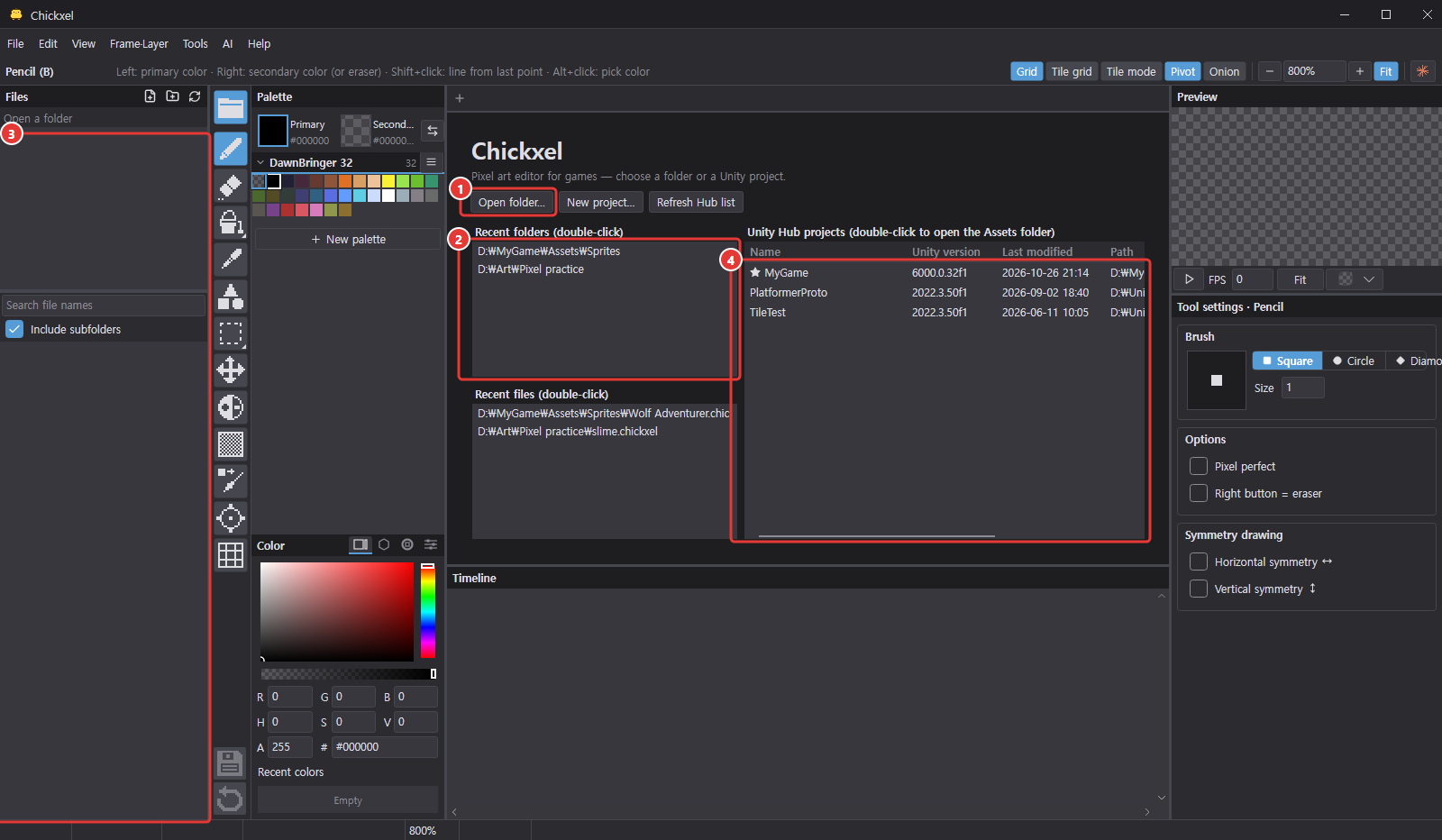
- Choose a folder (① Open folder…, ② recent folders) or Unity project on the start screen and the ③ file browser on the left shows that folder's images. ④ Projects registered in Unity Hub can be opened directly from the list.
- On first launch the display language follows your computer's language (Korean or English; English if there's no match). See Language to change it.
On macOS, read Ctrl in this guide as ⌘ (Command) (e.g. ⌘+S to save). The eyedropper is ⌥+click, and holding ⌘ switches temporarily to the Move tool. Menus and tooltips also show ⌘.
Updates

Chickxel checks for a new version every time it starts. If one is available, the update dialog opens and an ① Update button appears in the top bar.
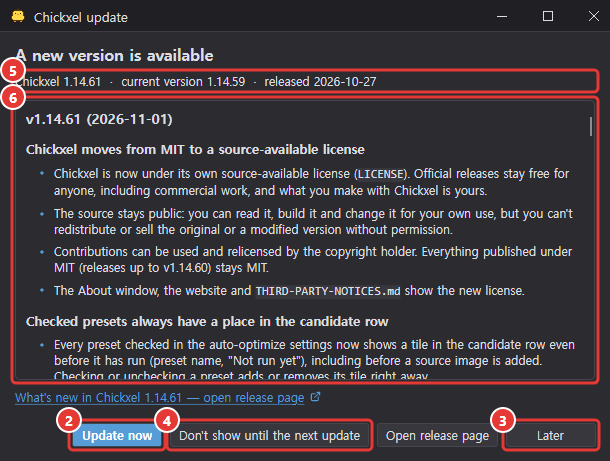
- ② Update now: downloads and verifies the file for your OS, then closes the app, replaces it with the new version and restarts. You're asked about unsaved work first, and if anything fails the previous version stays as it is.
- ③ Later reminds you on the next launch; ④ Don't show until the next update skips that version.
- The dialog shows ⑤ the new and current versions and ⑥ the changes between your version and the new one.
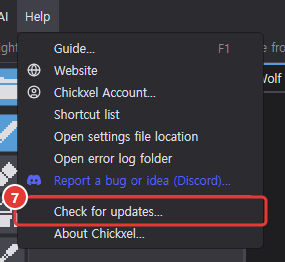

- Check manually any time with ⑦ Help > Check for updates…, and ⑧ turn off automatic checks in Edit > Preferences… > General.
Network and privacy
There are no accounts, analytics or ads, and your images and files are never sent anywhere. The network is used only in these cases:
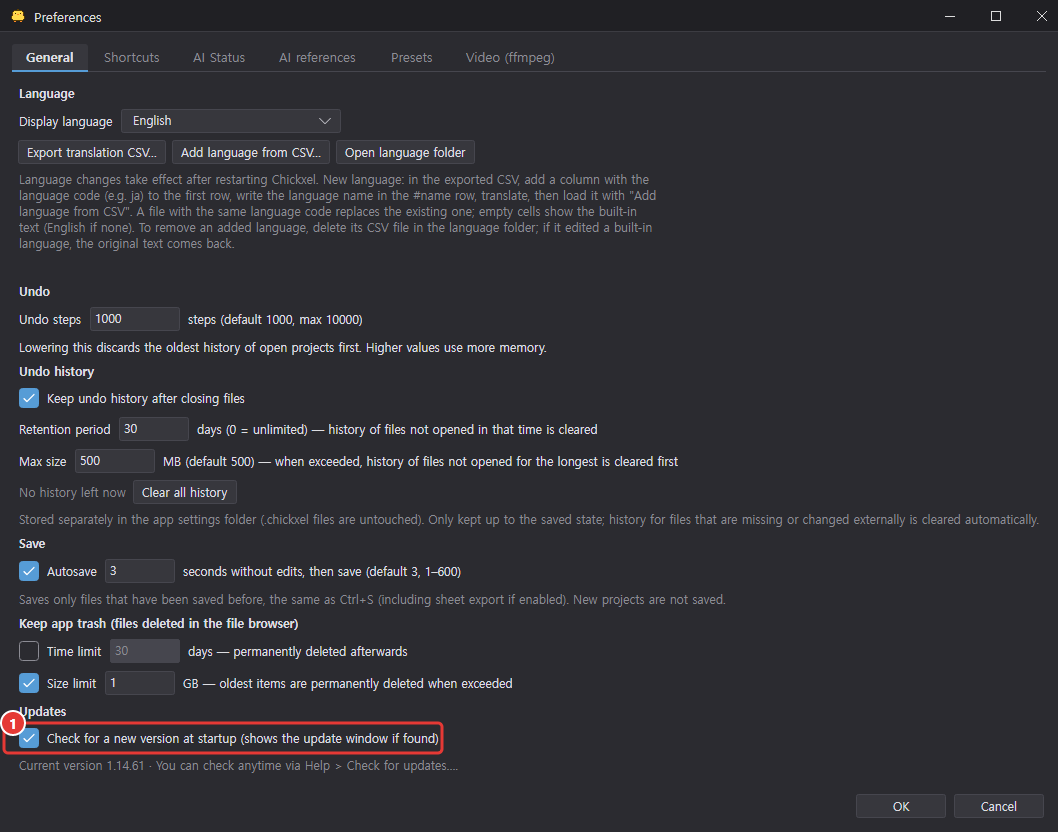
- ① Check for updates: asks GitHub for the latest version (can be turned off).
- Palette web (Lospec): downloads palette lists and sample images only when you open that window. Favorite palettes are stored only on your computer.
- AI chat: only while you use that window, the Claude Code or Codex CLI installed on your computer connects to Anthropic or OpenAI with your login.
Feedback
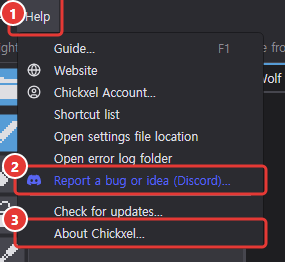
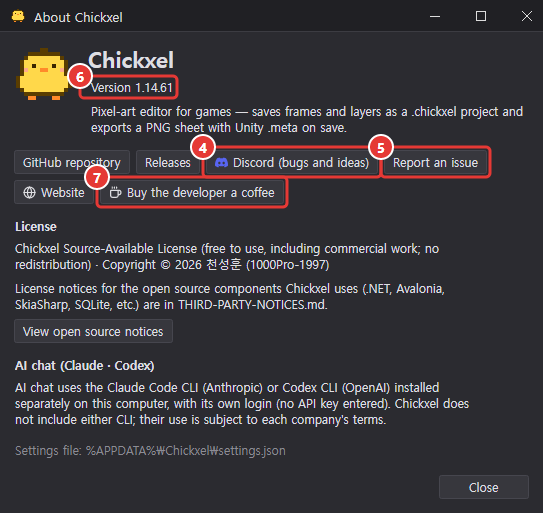
Please post bugs, annoyances and feature ideas on the Chickxel Discord. In the app, ① Help > ② Report a bug or idea (Discord)… opens it directly; in the ③ Help > About Chickxel… window, the ④ Discord button does the same. If you have a GitHub account, you can also use GitHub Issues (⑤ Report an issue in the About window).
To support development, use Support Chickxel development on the website, the Support development button at the top right of the in-app guide (F1), or ⑦ Buy the developer a coffee in ③ Help > About Chickxel…. The Website button in the same window opens the Chickxel website in the app's language.
When reporting a bug, including the following helps get it fixed quickly:
- Version: shown in ③ Help > About Chickxel… at ⑥.
- OS: Windows 10/11, or your macOS version (Apple Silicon or Intel).
- Steps: what you did, what happened, and what you expected.
- Error log: if an error dialog appeared, its log file (When errors occur). A screenshot helps too.
Screen layout
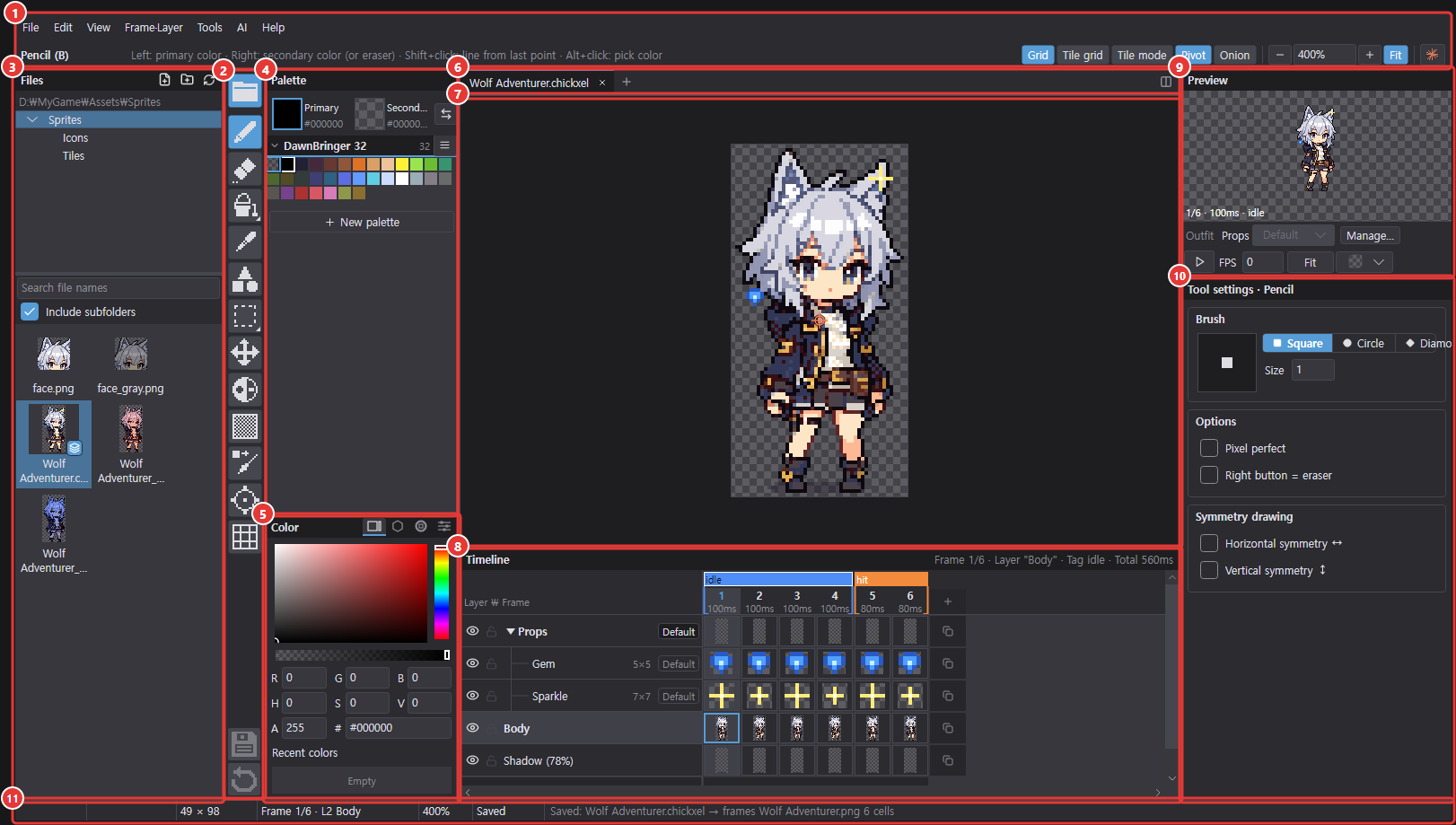
Chickxel's layout is similar to Aseprite. The ① menu and top bar run across the top, the ② toolbar and ③ file browser are on the far left, the ④ palette and ⑤ colors next to them, the ⑥ document tabs and ⑦ canvas in the middle, the ⑧ timeline below, the ⑨ preview and ⑩ tool options on the right, and the ⑪ status bar at the very bottom.
Menu and top bar

The left side of the bar just below the menu shows the current tool's ① name and ② a one-line usage hint. The right side has ③ view options, ④ the zoom level and ⑥ the AI chat button.
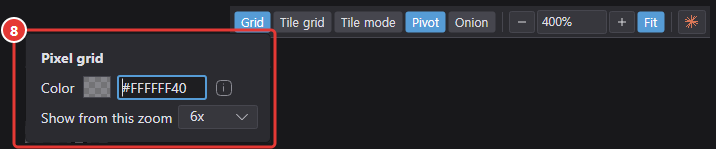
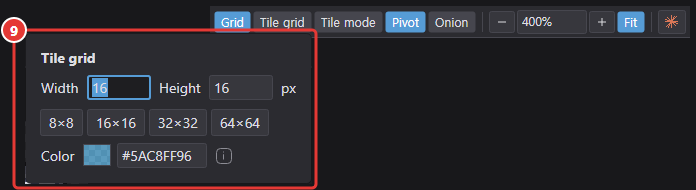
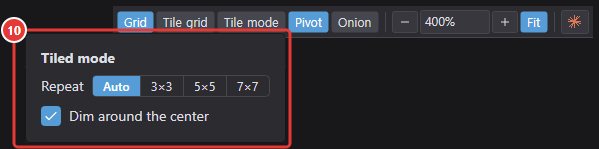
- ③ View options: grid, tile grid, tiled mode, pivot, onion (overlay previous/next frames). Right-click a button to open that view's settings popup; changes apply immediately (and turn the view on if it was off).
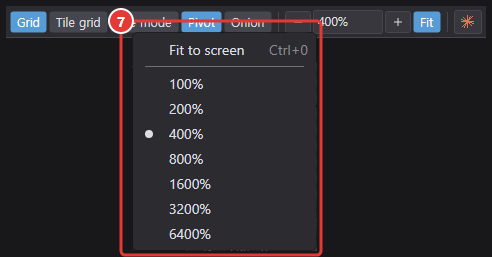
- ④ Zoom box: click to type a value, drag left/right to change one step at a time, right-click for ⑦ Fit to window and a 100%–6400% list.
- ⑤ Fit toggle: when on, images are fitted to the window each time you open one. Ctrl+0 fits the current view at any time.
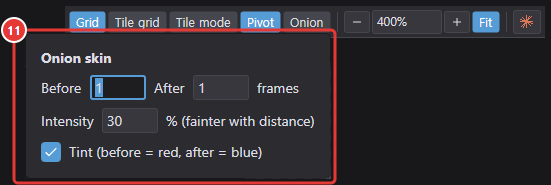
| View | Right-click settings |
|---|---|
| ⑧ Grid | Color (alpha = intensity), zoom at which it appears (2–16×, default 6×) |
| ⑨ Tile grid | Tile width/height (quick picks 8, 16, 32, 64), color |
| ⑩ Tiled mode | Repeat size (auto, 3×3, 5×5, 7×7), dim around the center |
| ⑪ Onion | Number of previous/next frames (0–5), intensity (fainter with distance), tint (previous red, next blue) |
Detailed tool settings are in Tool options on the right.
Number fields and menus

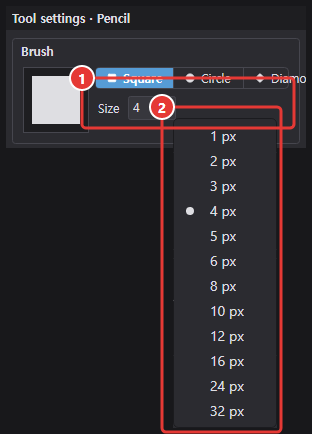
- ① Number fields have no up/down buttons; drag left/right to change the value. Hold Shift to go 10× slower, or Ctrl to change by 10. When you hit the edge of the screen while dragging, the cursor wraps to the other side so you can keep going.
- Click without dragging to type a value. Clicking elsewhere (such as the canvas) after typing confirms it.
- When not typing, right-click a number field to pick from ② a list of common values (the current value is marked with a dot).
- Only one right-click or button menu can be open at a time across the app. It closes when you click outside, scroll, press Esc, switch windows, or press the button that opened it again.
Toolbar
The vertical bar on the far left. Hover an icon to see its shortcut in the tooltip.
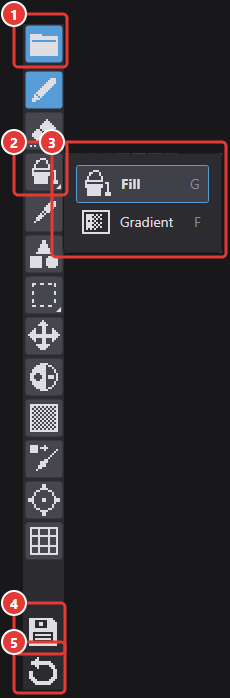
- The ① folder button at the top collapses and expands the file browser (F8).
- Similar tools ② share one slot, marked with a small triangle in the bottom-right corner. Long-press or right-click to ③ expand it sideways and switch. See the Tools chapter for each tool.
- At the bottom are ④ Save (same as Ctrl+S) and ⑤ Revert to saved. They're enabled only when there are unsaved changes, and revert is disabled for a new project that has never been saved (see Files).
File browser
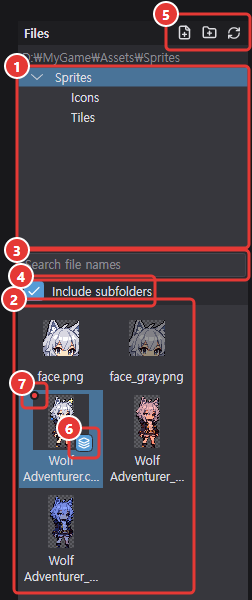
It has ① a folder tree, ② a thumbnail list of .chickxel and PNG files, ③ search, and ④ an option to include subfolders; changes to files in the folder are picked up automatically. You can also open projects straight from the Unity Hub list. Open folder is Ctrl+Shift+O, Open Unity project is Ctrl+Shift+U.
- ⑤ Three icons on the right of the title row: New pixel file (creates and opens a
.chickxelin the selected folder), New folder, Refresh. .chickxelprojects get ⑥ a blue layer badge in the bottom-right of the thumbnail. PNGs exported by a project (same-name PNG, frame sheet, part atlas) are hidden from the list so only the single.chickxelis shown. Hover it to see the exported file names; searching by those names also finds it.- JPG, BMP, GIF, WebP, APNG, ICO, AVIF and HEIC images and videos (MP4, WebM, MOV, MKV, AVI, …) are listed too (thumbnail = first frame). Videos get a film badge, with a first-frame thumbnail when ffmpeg is available. Clicking one opens it in a new tab as in Opening images, animations and videos.
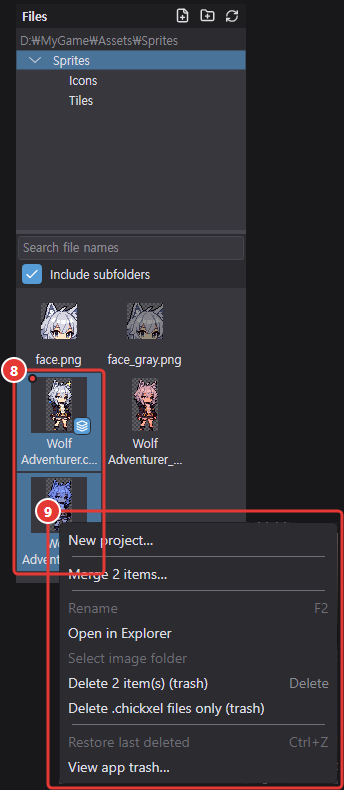
- A plain click selects and opens one file. Ctrl+click (add/remove one at a time), Shift+click (range), or drag a rectangle over the list to ⑧ select several (multiple selections don't open).
- Press a file and drag it out of the list to the left or right (toward the canvas) to drag the file instead (if the item was already selected, all selected files). Dropping it on the canvas adds it as a new layer.
- ⑨ Right-click menu: new project, merge, rename, show in Explorer/Finder, select image folder, delete, delete
.chickxelfiles only, restore last deleted, view app trash.
Unsaved changes (red dot)
Every open document lives in a document tab above the canvas, and switching tabs never asks you to save. A document with unsaved changes gets a ⑦ red dot in the top-left of its thumbnail (and next to its tab title); clicking a file that's already open goes to its tab. The status bar shows "N unsaved files".
- Renaming a dotted file keeps track of it; sending it to the trash keeps the tab and marks it modified (saving recreates the file).
- If the file changes outside the app, the current tab asks whether to reload; another tab only notifies you when it has unsaved changes (otherwise it reloads when you select it).
- Only closing the tab of a document with unsaved changes asks Save / Don't save / Cancel.
Merge
Select two or more files and choose Merge… from the right-click menu to combine several images into one .chickxel. In the dialog you set:
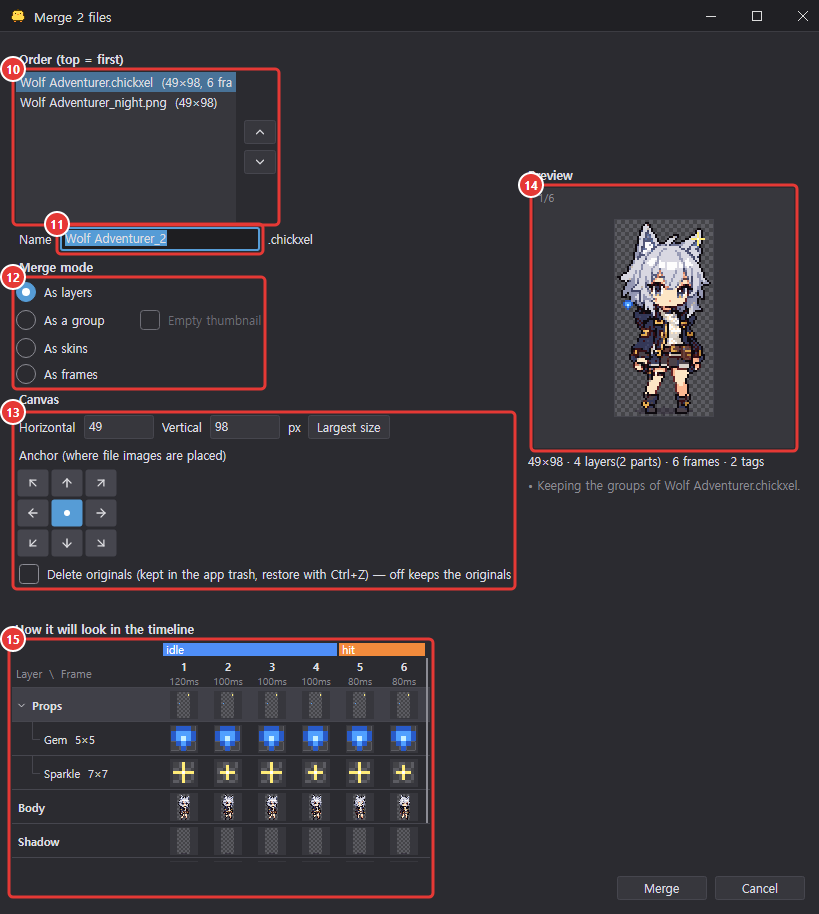
- ⑩ Order: drag rows or use the up/down buttons (top = first).
- ⑪ Name: suggested automatically from words common to the file names (e.g.
potato_growing,potato_mature→potato); you can edit it. - ⑫ Mode: see the table below. With As a group, turn on Empty thumbnail to create it with the parts hidden.
- ⑬ Canvas size (default = largest file), anchor (9 directions), delete originals (to the app trash).
| Mode | Result |
|---|---|
| As layers | One layer per file (first file on top) |
| As a group | One group with a part per file (file sizes kept) |
| As skins | One skin per file within a single group (skin name = file name). For tile or item variants swapped in the same spot |
| As frames | Frames appended in file order |
Along with ⑭ a preview (played if there are several frames), ⑮ "How it will look in the timeline" shows the resulting timeline layout, plus notes on what is kept and how. Structure in .chickxel files such as layers, groups, skins, effects and tags is carried over in every mode. The result is saved as <name>.chickxel in the first file's folder and opened right away. If a file with that name already exists, nothing is merged and you're told.
Deleting and the app trash
- Deleted files (Delete, multiple allowed) and originals removed by merging go to the app's own trash without asking (including their PNG and
.metafiles). - Press Ctrl+Z in the file list to restore the last deletion to its original place.
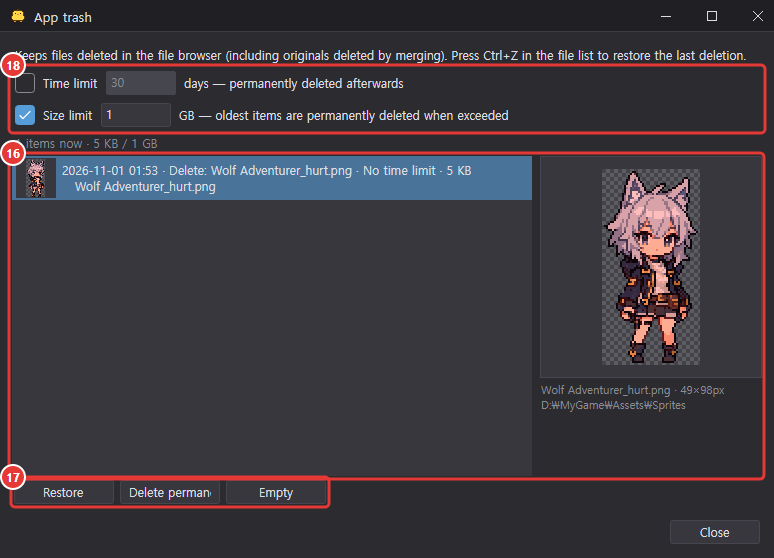
- In View app trash… on the right-click menu, browse ⑯ previews and ⑰ restore (double-click), delete permanently or empty the trash.
- ⑱ Retention policy: Time limit (off by default; when on, items older than N days are permanently deleted) and Size limit (default 1 GB; oldest items are deleted first when exceeded). Change them in the trash window or Edit > Preferences….
- Delete
.chickxelfiles only: sends only the project file to the trash and keeps the exported PNG and.meta. - Select image folder: when viewing with subfolders included, finds and shows the folder that actually contains the file in the tree.
Palette
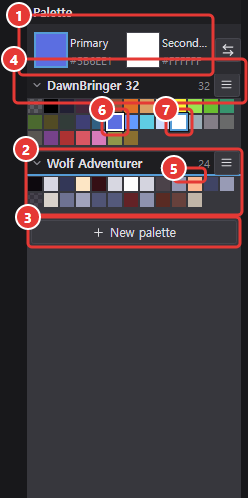
The ① primary/secondary colors are at the top (the secondary defaults to transparent), and below them you can stack ② multiple palettes (DB32 to begin with). ③ New palette at the bottom adds an empty one.
- ④ Each palette's header has a collapse arrow, its name (double-click to rename), the color count and a menu button.
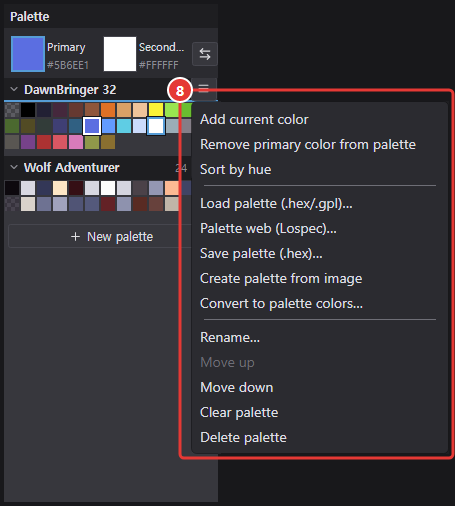
- ⑧ Menu actions apply to that palette: add current color, remove primary color, sort by hue, load .hex/.gpl, palette web (Lospec), save .hex, create from image, convert to palette colors, rename, move up, move down, clear, delete.
- The palette you last clicked or edited is the active palette (⑤ blue line under the header). Palette features in the Edit menu and the AI palette tools use the active palette.
- The swatch matching the primary color has ⑥ a white border, and the one matching the secondary color ⑦ a blue border. The transparent swatch only appears at the start of the first palette.
- The palette list (names, colors, collapsed state, order) is saved in the settings and kept next time.
Convert to palette colors
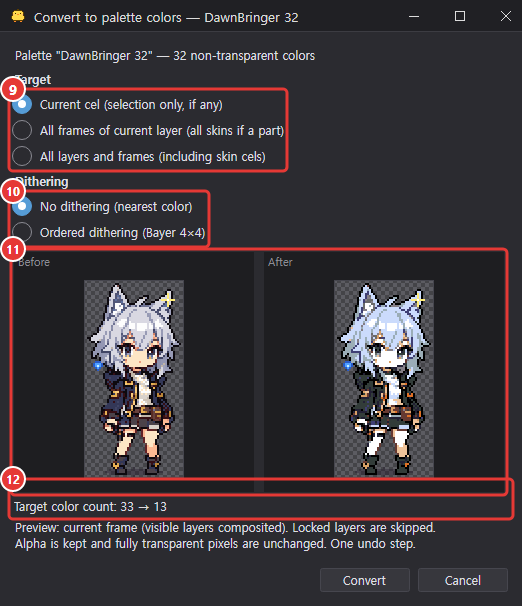
Replaces the colors in the image with the nearest colors in the palette. ⑨ Choose the target from current cel (only inside the selection, if any), all frames of the current layer or all layers and frames (locked layers are skipped), and ⑩ dithering from none (default) or ordered dithering (Bayer 4×4). Dithering mixes two palette colors in light intensity (linear light) and compares the mix with the source in OKLab to set the ratio (e.g. a half black, half white pattern stands for sRGB 188 gray); it is used only when the mix is still closer to the source than the nearest single color after adding how visible the pattern is (lightness difference counts fully, hue and chroma differences half). Colors within a just-noticeable difference (OKLab 0.02) of a palette color are not dithered. ⑪ A before/after preview and ⑫ the change in color count are shown; alpha is kept and fully transparent pixels are left alone. It's a single undo step.
Palette web (Lospec)
Browse the lospec.com palette list inside the app (internet required).
- Filter by sort order (popular, downloads, newest, name), color count and tag (e.g.
gameboy,pico8). Entering a palette name in the tag field shows that palette at the top. - Selecting a palette shows its colors along with example art made with it.
- Use as palette (replaces the current palette; same as double-click), Add to current palette (skips duplicate colors), Save as .hex, View on Lospec.
- Favorites: click the star at the right of a list row or next to the selected palette's name to add or remove it. Favorite palettes, including their example art, are kept on your computer (
<settings folder>/Chickxel/Lospec). - Choose Favorites in the sort box to show only your favorites, most recently added first (no internet needed). The color count and tag/name fields still filter them. If Lospec can't be reached, use View favorites next to the error.
- The last sort you chose is kept the next time you open the window.
Palette copyrights belong to their respective authors.
Color picker
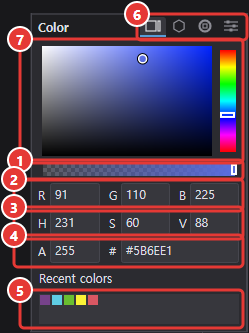
The color picker sits below the palette. It has ① an alpha bar, ② RGB, ③ HSV and ④ alpha (A)/HEX inputs and ⑤ the 16 most recent colors; switch modes with ⑥ the tabs on the right of the "Color" header (remembered in settings).
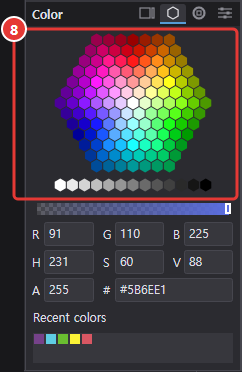
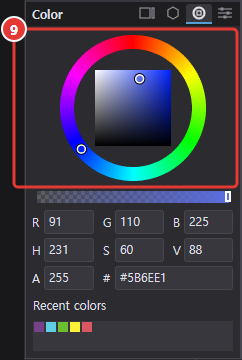
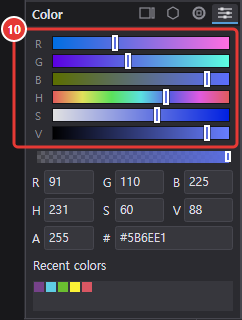
| Mode | Layout |
|---|---|
| ⑦ Square (default) | Saturation/value box + vertical hue bar |
| ⑧ Honeycomb | 127 hexagonal cells. White in the center, getting more saturated and darker toward the edge, with 13 gray cells below |
| ⑨ Color wheel | Outer ring = hue, inner square = saturation/value |
| ⑩ Sliders | R, G, B, H, S, V bars |
Every mode changes the color you're currently picking (primary or secondary).
Canvas
Shows the current frame (all visible layers combined) and draws onto the current layer's cel.
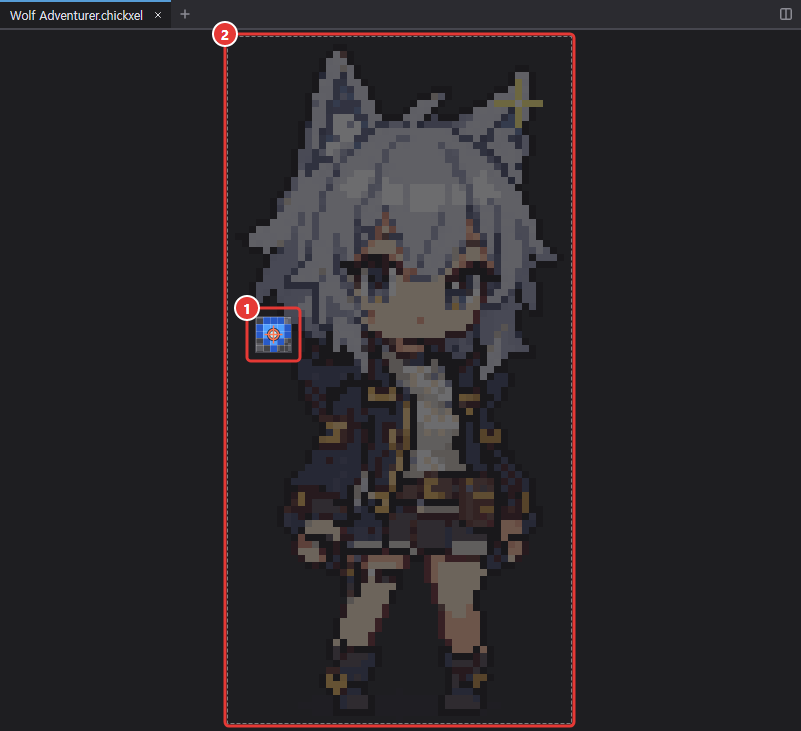
- Selecting a part layer shows ① only that part at its own size, with ② the rest of the frame shown semi-transparently so you can line things up. Selecting a group layer lets you drag parts to arrange them (see Part (group) layers).
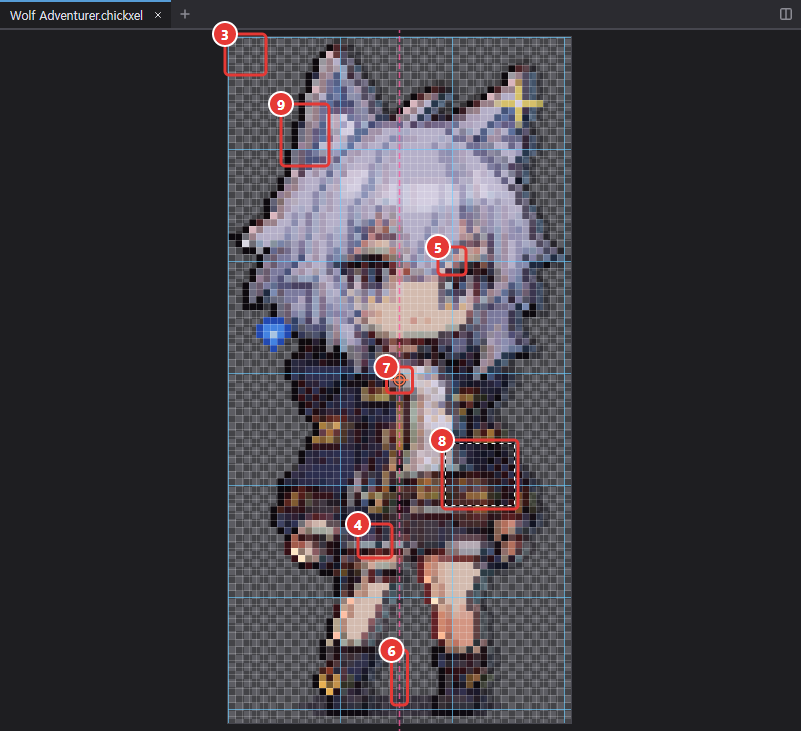
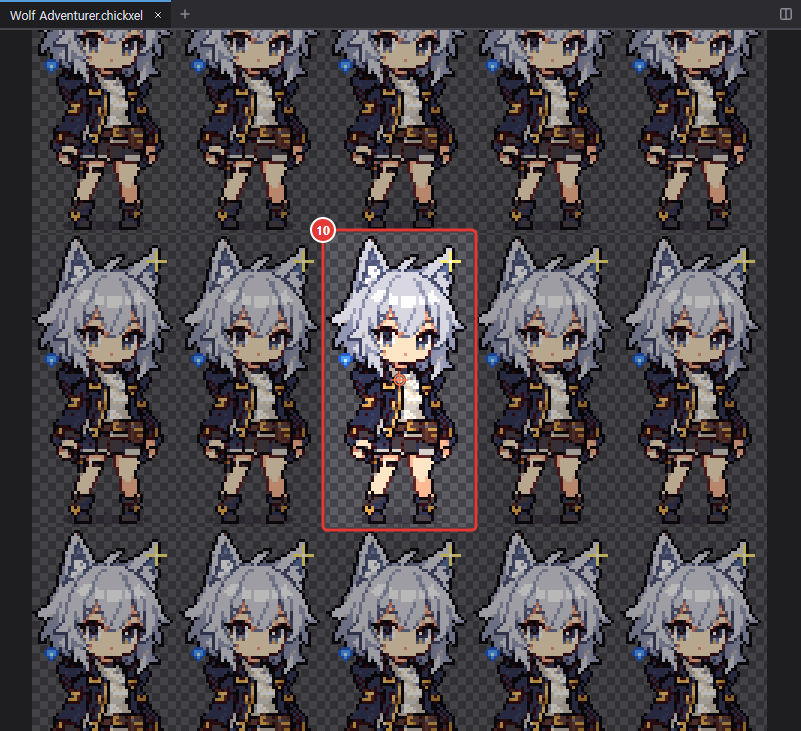
- Supports 1–64× integer zoom, ③ checkerboard background, ④ pixel/⑤ tile grids, ⑩ tiled mode (for seamless patterns), ⑥ symmetry guides, ⑦ pivot, ⑧ selection and ⑨ onion skin.
- Hold H to peek at the previous frame.
- Even with heavy effects on large images or many frames, the window doesn't freeze while effects compute. When a frame takes a while, the canvas gets a gray semi-transparent veil with the partial result showing underneath as it is computed, plus a loading icon and progress bar at the top right of the image area. The veil lifts all at once when the frame is done. If computing falls behind while you draw, new strokes appear right away without effects and the effects catch up afterwards. Light images update immediately without a veil.
Document tabs and split view


The tab strip above the canvas has one tab per open document (① title = file name, ② a red dot for unsaved changes, ③ full path on hover). Clicking a file in the file browser opens it in a new tab; if it's already open (even in the other pane), it isn't opened again — its tab is selected and that pane gets focus. A document is open in only one tab. Open, recent files, New project and AI tools also open new tabs.
- Clicking a tab switches documents; the timeline, preview, layers, undo history (per document), window title and status bar follow. Zoom, position, current frame, layer and selection are remembered per tab.
- Close with the tab's ④ X, a middle click or Ctrl+W. The ⑤ + at the end of the strip creates a new project in a new tab.
- Closing every tab shows the start screen below the tab strip. Only + remains on the strip, so you can create a new project in a new tab.

- Drag tabs left and right to reorder them; Ctrl+Tab / Ctrl+Shift+Tab cycle through them. ⑥ Right-click = Close, Close other tabs, Move to the other pane.
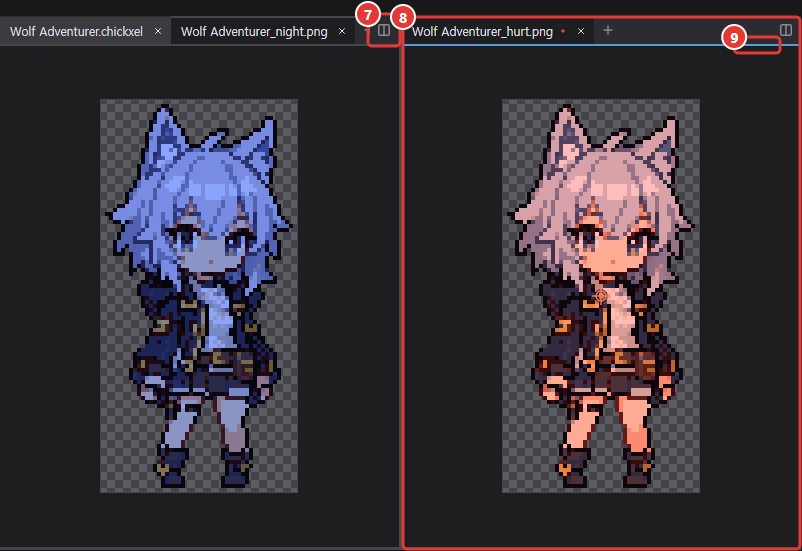
- Move to the other pane (tab right-click, ⑦ the move button at the right end of the strip, the View menu) or dragging a tab to the right edge of the canvas moves that tab into ⑧ a right pane, splitting the canvas into left and right panes, each with its own tab strip. Once split, the same actions move tabs between panes. A pane's only tab isn't moved.
- The focused pane (⑨ accent line under its tab strip) is the one the timeline, preview and panels work on; clicking the other pane focuses it. Closing the last tab of a pane removes the split.
- Tabs open when you quit (including the split and order) are reopened next time; missing files and never-saved new documents are skipped.
Timeline
At the bottom of the screen: rows are layers, columns are frames and the strip at the top shows tags.
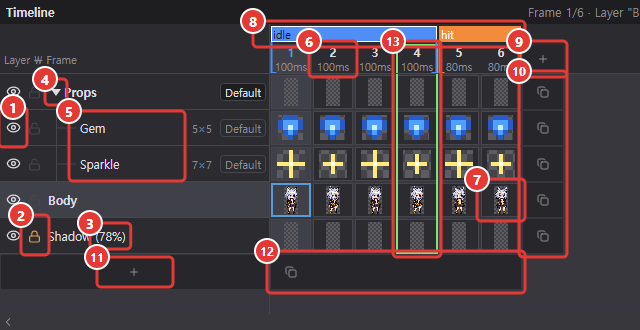

- Layer rows: ① eye (visibility) and ② lock icons, ③ opacity, name. Groups collapse and expand with a ④ triangle, and their ⑤ parts appear indented below.
- Frame columns: ⑥ number, duration, ⑦ live thumbnail. Double-click the number to change the frame duration.
- ⑧ Tag strip: colored brackets show groups of frames.
- Column after the last frame: the ⑨ plus icon in the header = add an empty frame; the ⑩ copy icon below = add a copy of the last frame.
- Row below the last layer: the whole name cell is a ⑪ plus button = add an empty layer at the bottom; the whole frame area is one ⑫ copy button (icon every 10 frames) = add a copy of the bottom layer at the bottom (a group comes with its parts).
- While the preview plays, the frame column being shown gets a ⑬ green outline.
- When effects take a while to compute, thumbnails of frames being recomputed get a gray veil. On heavy images, dragging an effect box's range moves only the box, and the canvas updates when you release.
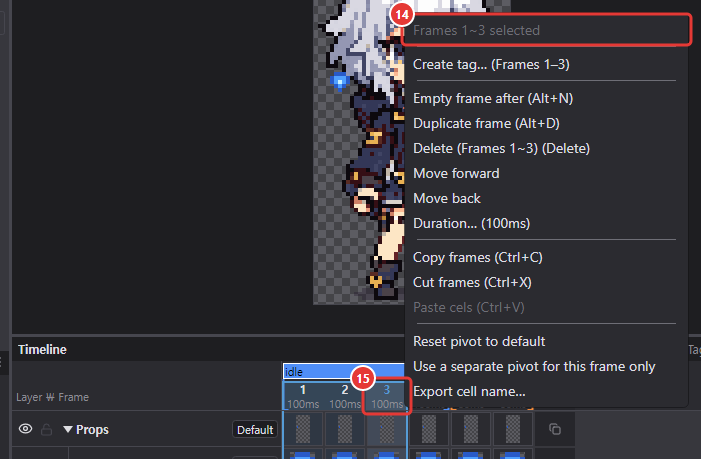
There are no separate tool buttons; everything is in the right-click menu. The top of the menu shows ⑭ what's selected (e.g. "Frames 1–3 selected").
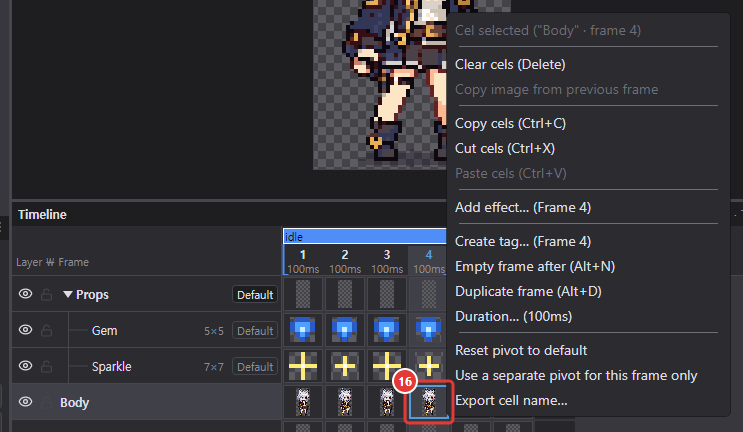
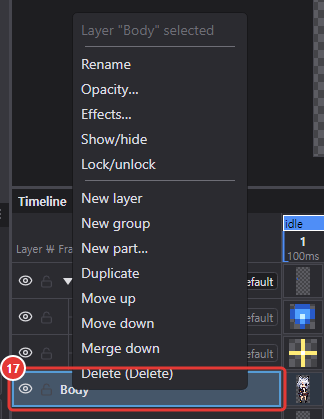
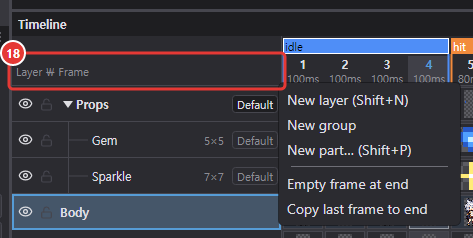
| Where you right-click | Main menu items |
|---|---|
| ⑮ Frame header | Create tag; empty frame, duplicate, delete, move, duration; copy, cut, paste frames; pivot, cell name |
| ⑯ Cel | Clear cels, copy image from previous frame, copy, cut, paste cels, add effect, tag, empty frame, duplicate, duration, pivot, cell name |
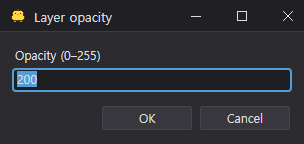
| ⑰ Layer name | Name, opacity, effects, visibility, lock, part size, position; new layer, group, part; duplicate, order, merge, delete |
| ⑱ Empty area (such as the top-left cell) | Create new |
Selecting in the timeline
You select one kind of thing at a time (frames, layers or cels). What you click becomes the current frame/layer.
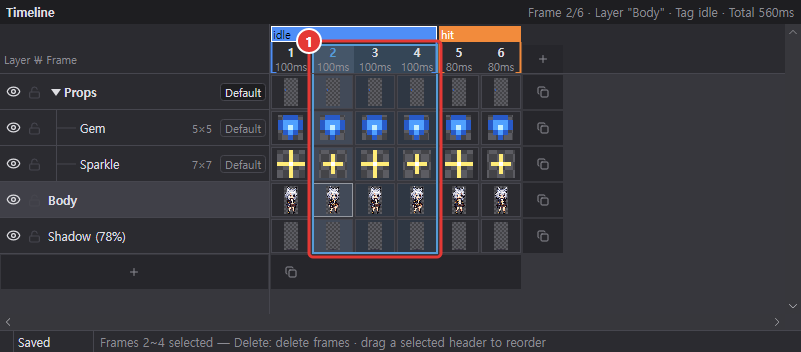
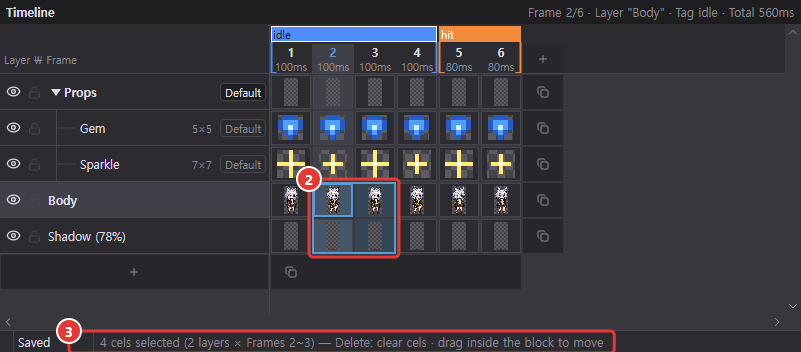
- Click a ① frame header to select that frame, a layer name for that layer, or a ② cel for that cell; the selection gets a blue border.
- Drag to select everything the rectangle touches. Shift+click = extend to a range, Ctrl+click = add/remove one at a time.
- Arrow keys (after clicking the timeline): ←→ = adjacent frame, ↑↓ = adjacent layer. Shift+arrow extends the selection.
- Icons such as the eye, lock, collapse triangle and fx only do their own job and don't select. Click an empty area to clear the selection.
- The ③ status bar shows what's selected and what Delete will do.
Editing the timeline
| To do this | How |
|---|---|
| Delete | Select, then Delete. Frames → delete frames, layers → delete layers (groups include their parts), cels → clear the image only. You can't delete every frame or layer. |
| Reorder | Drag an already selected frame header or layer name. Other columns/rows move aside to make room; Esc cancels. Parts move only within the same group. |
| Move or copy a block of cels | ① Select several cells, then click inside and drag to move; hold Ctrl (or Alt) when dropping to copy. Cels can't move to rows of a different size or type. |
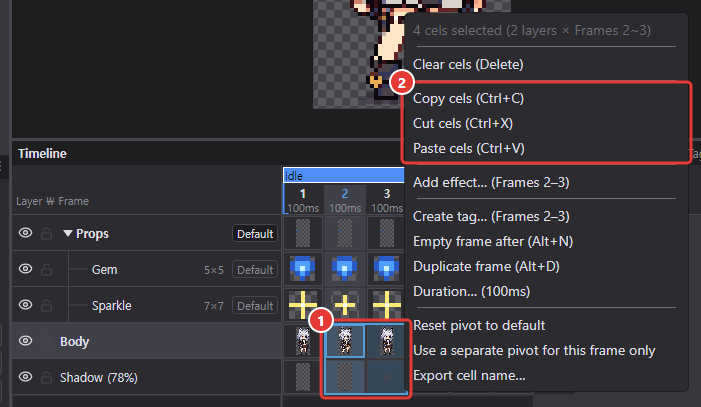
| Copy and paste | Ctrl+C (or X), then Ctrl+V (or ② copy, cut, paste in the right-click menu). Cels overwrite the same shape with the clicked cell as top-left, frames are pasted as new frames after the selected frame, and layers as new layers above the original. |
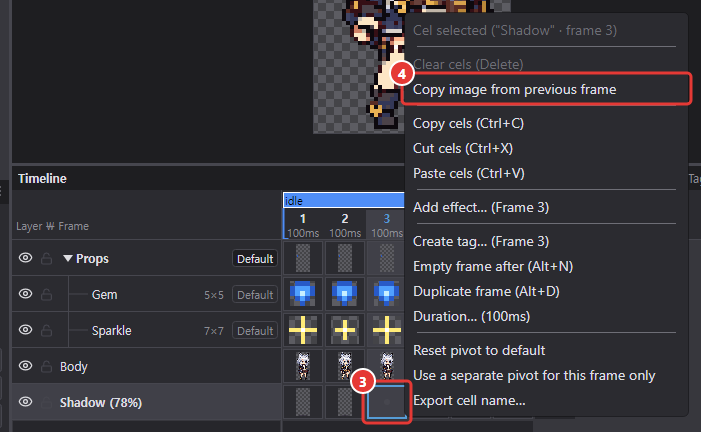
| Bring in the previous frame's image | Right-click an ③ empty cel → ④ "Copy image from previous frame" |
New layers created by copying get their trailing number increased by 1 (item_1 → item_2, tile_009 → tile_010, or _1 if there's no number). Duplicate in the layer menu follows the same rule. Every edit is a single undo step.
Tags
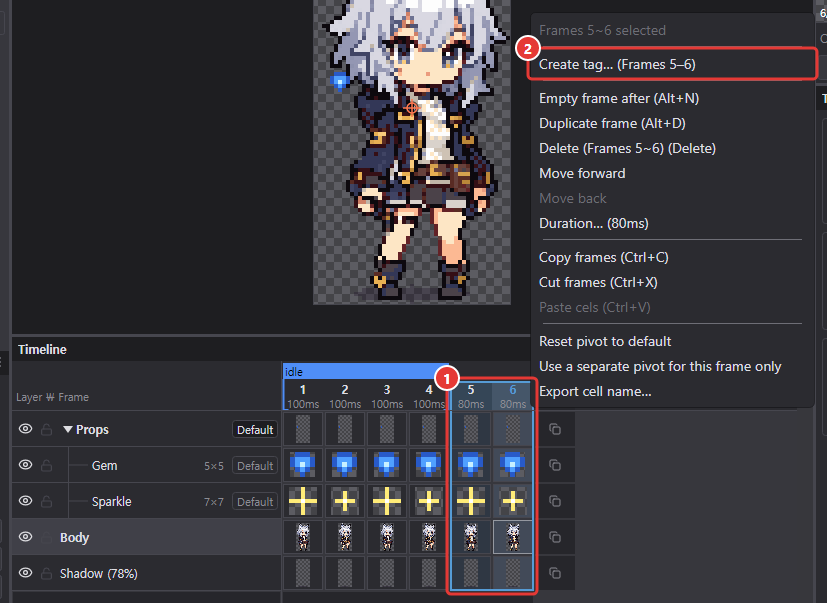
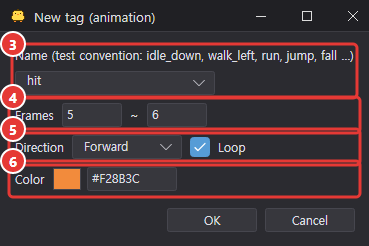
- ① Select a range of frames and choose ② Create tag from the right-click menu. In the dialog, set the ③ name, ④ frame range, ⑤ playback direction and loop, and ⑥ color.
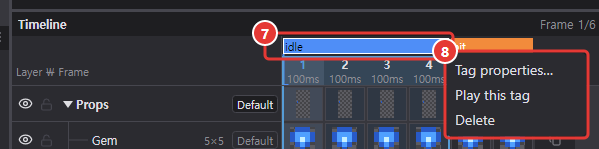
- Hover near either inner end of a ⑦ tag box until the cursor becomes
↔, then drag to change the range. - Right-click a tag for the ⑧ menu with Tag properties… (the same dialog as when creating; double-clicking the tag also opens it), Play this tag and Delete.
- Select a tag and play the preview to loop within that tag.
Layer effects

Layer effects are non-destructive: they're applied only when displayed, without changing cel pixels. They automatically apply to anything you draw later and are all rendered per pixel (no blur or anti-aliasing).
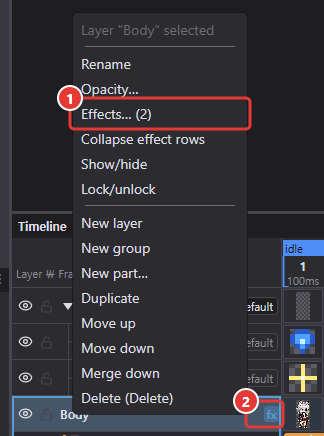
- Right-click a layer name and choose ① Effects… to open the effects dialog. Layers with effects show ② fx on the right of the name.
- Normal layers and parts apply effects to their cel; groups apply them to the combined shape of their parts. For example, a group outline is drawn as a single line around the whole character.
- Effects stack from the top of the list down (outline → shadow means the shadow includes the outline) and can be toggled individually.
- Each effect has a frame range ("All frames" or a start–end frame).
Effect types
| Effect | What it does |
|---|---|
| Outline | 1–3px thick, 4 or 8 directions, outside or inside. Color mode: a fixed color, or Shade from neighbors (each line pixel is the touching sprite pixel's color made darker or lighter by Shade −100 to +100% — dark blue next to blue, dark grey next to grey). Turn on Hide original (outline only) to erase the sprite and keep just the line (inside: only the edge ring). Effects clipped to this outline apply to the line only |
| Shadow | Places a copy of the image's shape behind it, offset by X/Y. Dither (25%, 50%, 75%) gives pixel-art style shadows |
| Edge light and shade | Light color on the edges facing the light (8 directions), shade color on the opposite side |
| Color overlay | Blends a solid color or gradient with normal, multiply or screen. The gradient's "Whole sprite, one color (over time)" mode shifts the whole image through the stop colors over the effect range, with speed and ping-pong settings (formerly the gradient map effect) |
| Inner glow | Blends a color from the edge inward by 1–8px |
| Color replace (palette swap) | A list of "from color → to color" pairs. For turning red clothes blue without changing the cel |
| Hue adjust | Grayscale, sepia, hue shift, brightness/contrast, saturation |
| Reflection | Places a flipped copy below (floor/water), above (ceiling), left or right (wall). Height (width for sides), opacity, dither, tint, ripple |
The following are animated effects that change over their frame range. A longer range makes them slower and a shorter one faster. They all share Speed (fast start, constant, slow start, slow start and end) and Loop (once, repeat N times, ping-pong N times).
| Effect | What it does |
|---|---|
| Explode | Pixels burst outward in pieces and vanish. Distance, center, randomness, gravity, piece size, flash, seed |
| Light sweep | A band of light sweeps diagonally across the image (the glint on coins or buttons) |
| Squash and stretch | Wobbles like jelly, then returns to its original shape |
| Hit flash | Flashes a single color (white, red, etc.) 1–8 times |
| Blink | Repeatedly shows and hides (invincibility frames). Fully transparent, semi-transparent or dither 50% |
| Shake | Shakes horizontally, vertically or both by whole pixels |
| Bob | Smoothly floats up and down (floating items). Start and end connect seamlessly |
| Appear / disappear | Opacity, dither, wipe (from top, bottom, left or right), pixel scatter |
| Fade in/out | Changes the whole image's opacity between 0 and the original |
| Melt | Each column drips downward and disappears (stretch or vanish) |
| Rotate | Rotates around an anchor (pivot, center, bottom center). Uses RotSprite so pixel lines break less |
| Afterimage | Places previous frames' images behind, gradually fainter (count, spacing, tint) |
| Color cycle | Rotates through the colors in a list (water, fire, neon) |
| Shockwave ring | A pixel ring spreads out from the center |
| Hologram | Single-color shaded image + scanlines, bright band, flicker, glitch, edge glow |
Effect colors and clipping
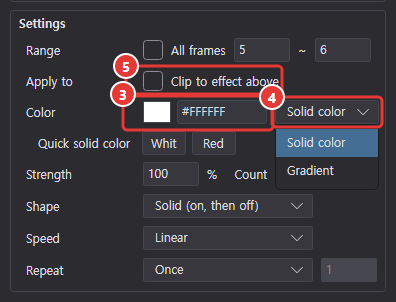
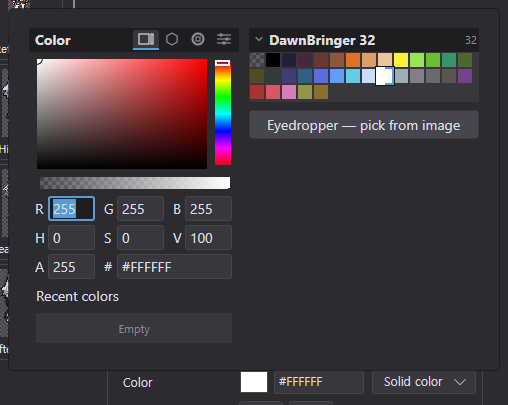
- Clicking a ③ color swatch opens a popup with the same square, honeycomb, color wheel and slider modes as the main color editor, plus the palette, recent colors and an eyedropper; the canvas updates as you pick.
- Each color setting can be a ④ solid color / gradient. For gradients, choose static / animated (the band moves or rotates over the range) for each of linear, radial, square and angular, and set the direction, count and angle. Stop editing, the Color space (RGB / HSL / OKLab / OKLCH; new gradients use OKLCH) and the right-click presets on the bar work as in the gradient tool; picking a preset in an effect also applies its shape, angle, direction, repeat and animation.
- Turn on ⑤ Apply to → Clip to effect above to apply only to pixels changed by the previous effect. Example: clipping a
Color overlayunder anOutlinegives a gradient outline.
Effects dialog
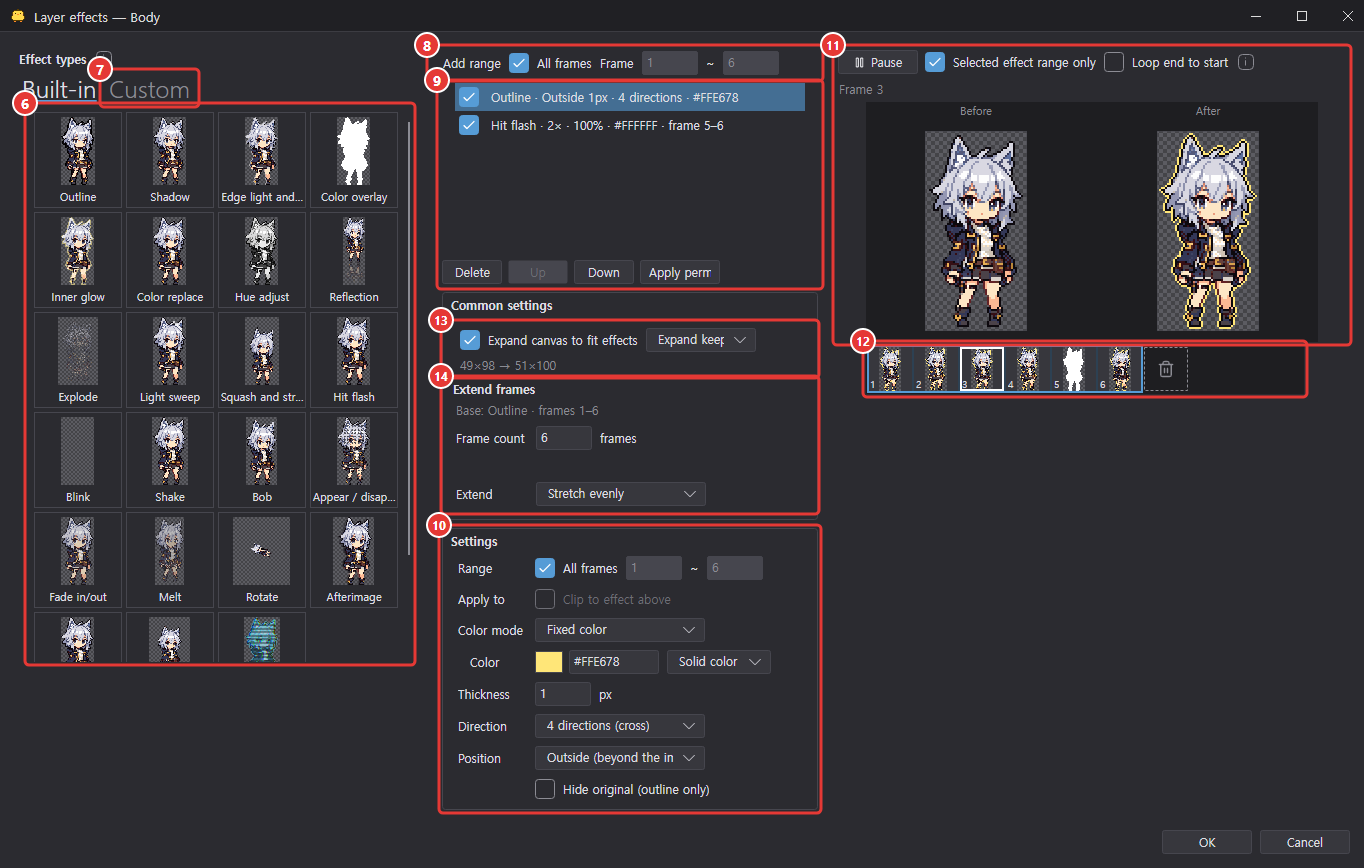
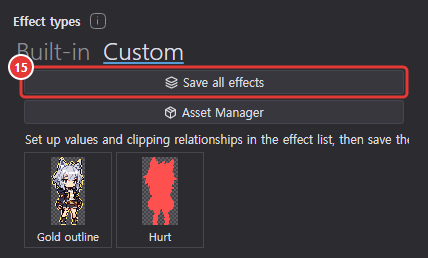
- The ⑥ Effect types list on the left shows each effect applied to the current image, four per row. Double-click one to add it at the end of the list, or drag it into the effect list to add it at that position. The Script effects group at the bottom of the Built-in tab adds effects written in JavaScript (see Script effects). On the ⑦ Custom tab, ⑮ Save all effects saves the current effect list as an effect recipe, and you can insert your saved recipes plus recipes and script effects from installed packages (see Effect recipes).
- Middle: ⑧ Add range, ⑨ the effect list (checkbox = on; delete, move up, move down, apply permanently) and ⑩ the selected effect's settings.
- Right: a ⑪ before/after preview of the current frame with play/pause. Click the preview to open the enlarged view. Below the enlarged view are play/pause, previous and next frame, the current frame number and the Selected effect range only and Loop end to start checkboxes (they change together with the same checkboxes in the effects dialog); Space = play/pause, ←/→ = previous/next frame, Esc = close. In the ⑫ frame strip, click a cell to view that frame or drag to set the frame range.
- ⑬ Expand canvas to fit effects (on by default): enlarges the canvas when effects extend beyond it. Choose minimal, keep ratio, or keep center (default).
- ⑭ Extend frames: increases the number of frames in the effect's range (e.g. a 12-frame explosion on a 4-frame animation). Methods: with original frames, same ratio, first frame, last frame, repeat. Dragging the end of the range past the last cell in the frame strip also extends it.
- Hover the i marks for explanations in tooltips.
- On large images where effects take a while to compute, cells being redrawn in the ⑫ frame strip get a gray veil, and the "after" side of the ⑪ preview shows a veil and a loading icon until it is ready. Playback waits until the next frame is ready. While you drag a number field (such as the frame count) or the frame strip, the previous image stays under the veil and everything is redrawn at once when you release (light images update while you drag). The ⑬ canvas expansion size note changes only after all frames are drawn; clicking OK before that shows a Measuring effect bounds progress overlay that closes when it finishes.
Effect rows in the timeline
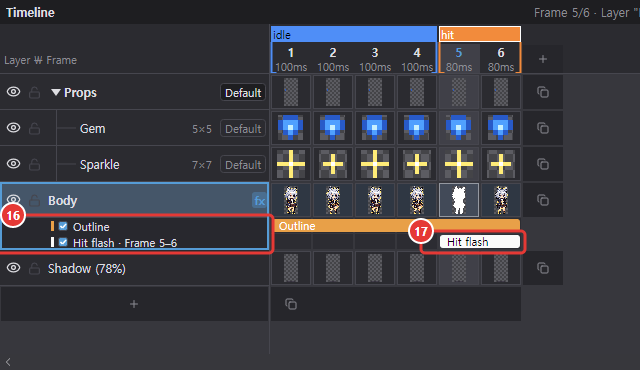
Like a video editor, ⑯ each effect gets a thin row under its layer, and the effect appears as a ⑰ rounded box spanning the frames it applies to. Click fx (②) in the layer name cell to collapse or expand the effect rows.
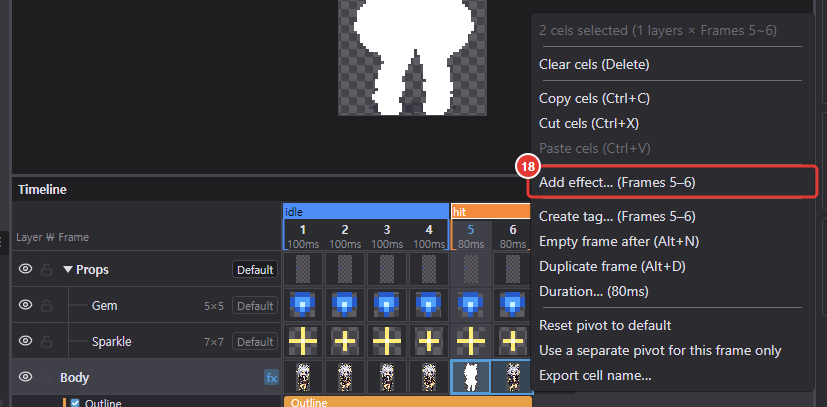
- Select cells to add an effect: select cels and choose ⑱ Add effect… from the right-click menu to open the effects dialog with Add range filled in with that frame range.
- Drag either end of a box to change its range, or drag the body to move the whole range. Double-click a box to open the effects dialog.
- Drag an effect name up or down to reorder it, or drop it on another layer's row to move it to that layer. Select and press Delete to delete, Ctrl+C/V to copy.
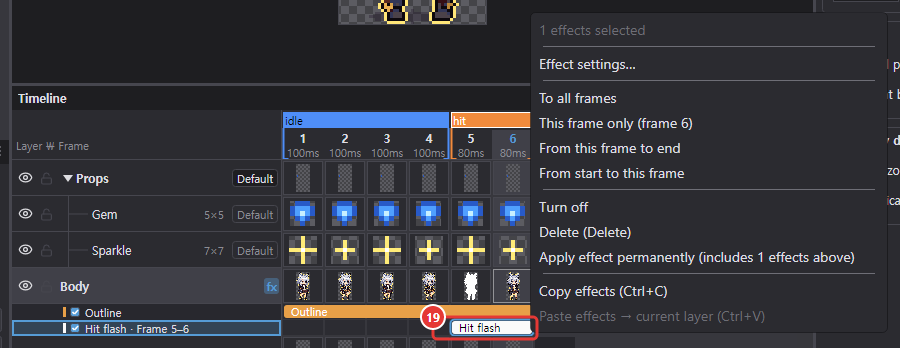
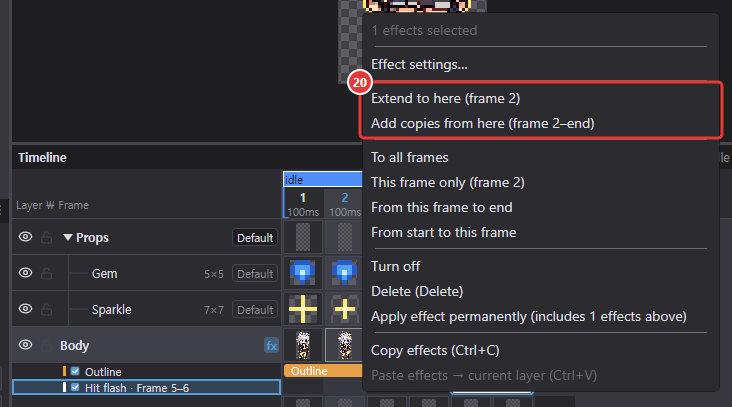
- ⑲ Box right-click menu: effect settings, to all frames, this frame only, from this frame to end, from start to this frame, on/off, delete, apply effect permanently, copy, paste. Empty cells outside a box also offer ⑳ Extend to here and Add copies from here.
- Effect ranges follow frame numbers just like tags. Inserting frames inside a range extends it, and deleting all frames in a range deletes the effect too.
Deleting frames in the effects dialog

The dashed trash cell after the last cell of the ⑫ frame strip is the ㉑ delete cell. Grab it and drag left: the cells from there to the last cell get a red veil and border, and releasing marks those frames for deletion. The first frame can't be deleted.

- ㉒ The trash cell shows how many frames you deleted last, in red. Click the trash cell without dragging to bring back only that last deletion (earlier deletions can't be restored).
- While frames are marked for deletion, the preview and frame strip show the order after deletion, and effects whose range lies only in the deleted frames appear turned off (they are removed when you click OK).
- If you then drag a range end past the last cell or raise the frame count with ⑭ Extend frames, the deleted frames are discarded (no longer restorable) and new frames are added after the remaining ones.
- The frames are removed from the project when you click OK or Apply permanently. This is one undo step together with the effect changes, and effect ranges and tags shrink just as when you delete frames in the timeline. Cancel deletes nothing.
Applying permanently and where effects show
- Apply effect permanently bakes the effect into the cel pixels and removes it from the list (you can then edit it like any drawing). Enabled effects above the selected one are baked too, so the result looks exactly as it did. Group effects and locked layers can't be applied permanently. While baking, a Baking effects progress overlay (percentage) appears and closes when it finishes (both in the effects dialog and from the timeline effect box's right-click menu).
- Duplicating a layer also copies its effects, and Merge down bakes the upper layer's effects.
- Effects are shown on the canvas, preview, frame sheets and thumbnails. The drawing view for a selected part shows the plain image without effects.
- The part atlas includes only the part's own effects; spreading effects such as outlines or shadows make the sprite wider by that amount (the pivot is shifted so it points at the same spot).
- Effects this version doesn't know (for example, ones added in a newer Chickxel) are not thrown away. Opening such a project shows the notice "Unknown effect (type ID) on layer "…" is not drawn; it is kept as is when you save.", and the effect list shows a dimmed Unknown effect · type ID row (its checkbox is locked). Selecting it only explains that it can't be drawn or edited and Apply permanently is off, but you can still reorder or delete it. Its timeline effect row is gray.
Effect recipes
An effect recipe is a named bundle of several effects with their values and clipping relationships. Insert it into other layers or projects in one go from the Custom tab of the effects dialog; with parameters, a few values adjust the whole bundle.
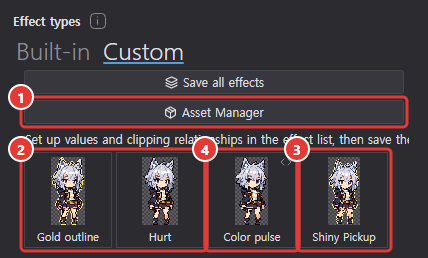
- Build an effect list in the effects dialog and click Save all effects to save it as a ② personal recipe. ③ Recipes and ④ script effects from enabled packages show on the same tab. Double-click a tile or drag it into the effect list.
- Tile right-click menu: personal recipes have Rename, Edit parameters, Delete and Show in Asset Manager; recipes from packages only have Show in Asset Manager. To change a package recipe, copy it to your personal assets in the Asset Manager.
- ① Asset Manager opens the Asset Manager filtered to effects. Inserted recipes are copied by value, so they stay in the project and remain editable even if you turn off or delete the original recipe or package.
Setting parameters
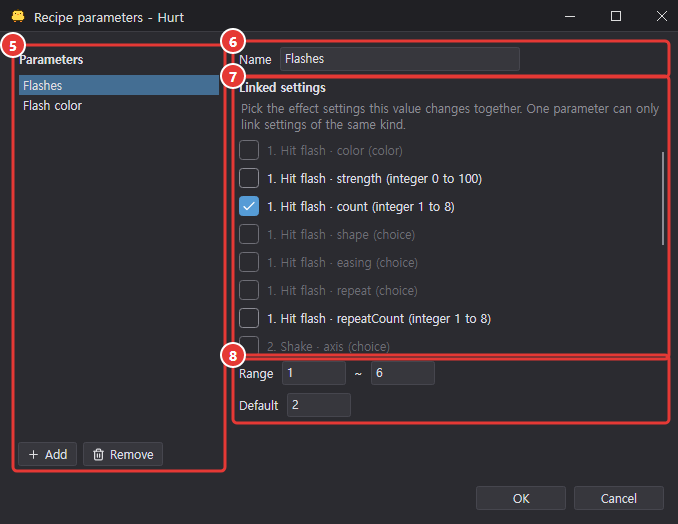
- Right-click a personal recipe on the Custom tab and choose Edit parameters (the personal recipe details in the Asset Manager have the same button).
- Click Add to create a parameter in the ⑤ list and give it a ⑥ Name.
- Under ⑦ Linked settings, check the settings this value changes together. Each recipe effect lists the settings it can expose as "number. effect name · setting key (kind)". The first link sets the parameter's kind and default (that setting's current value); settings of another kind and settings already linked to another parameter are disabled.
- Depending on the kind, set ⑧ the Default, the Range for integers or the Choices for choices, then click OK.
Invalid links or ranges are listed as problems at the bottom of the window, and OK stays off until they are fixed. The recipe details in the Asset Manager list the number of parameters with their names and kinds.
Using a parameter recipe
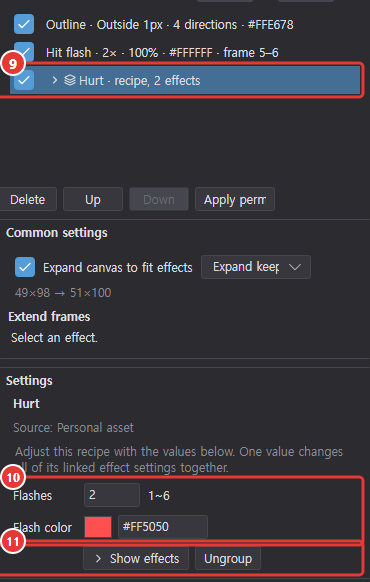
- ⑨ A recipe with parameters appears in the effect list as one row, "recipe name · recipe, N effects" (with an expand arrow and a group icon).
- ⑩ Selecting that row shows only the recipe name, source and parameters in the settings; changing a value updates every linked effect setting together.
- ⑪ Show effects lists the effects inside under the group row so you can edit them one by one, and Hide effects folds them again. Ungroup turns them into ordinary effects with their current values (the parameters go away).
- A collapsed group moves, drags, deletes and applies permanently as one unit.
Script effects
A script effect is a layer effect you write yourself in JavaScript. Declare effect({ name, settings, render(img, ctx, s) { … } }) and the settings panel is built for you; previews, the timeline and exports draw it exactly like built-in effects. Scripts run in an isolated engine with no file or network access, and the source is saved inside the project file.
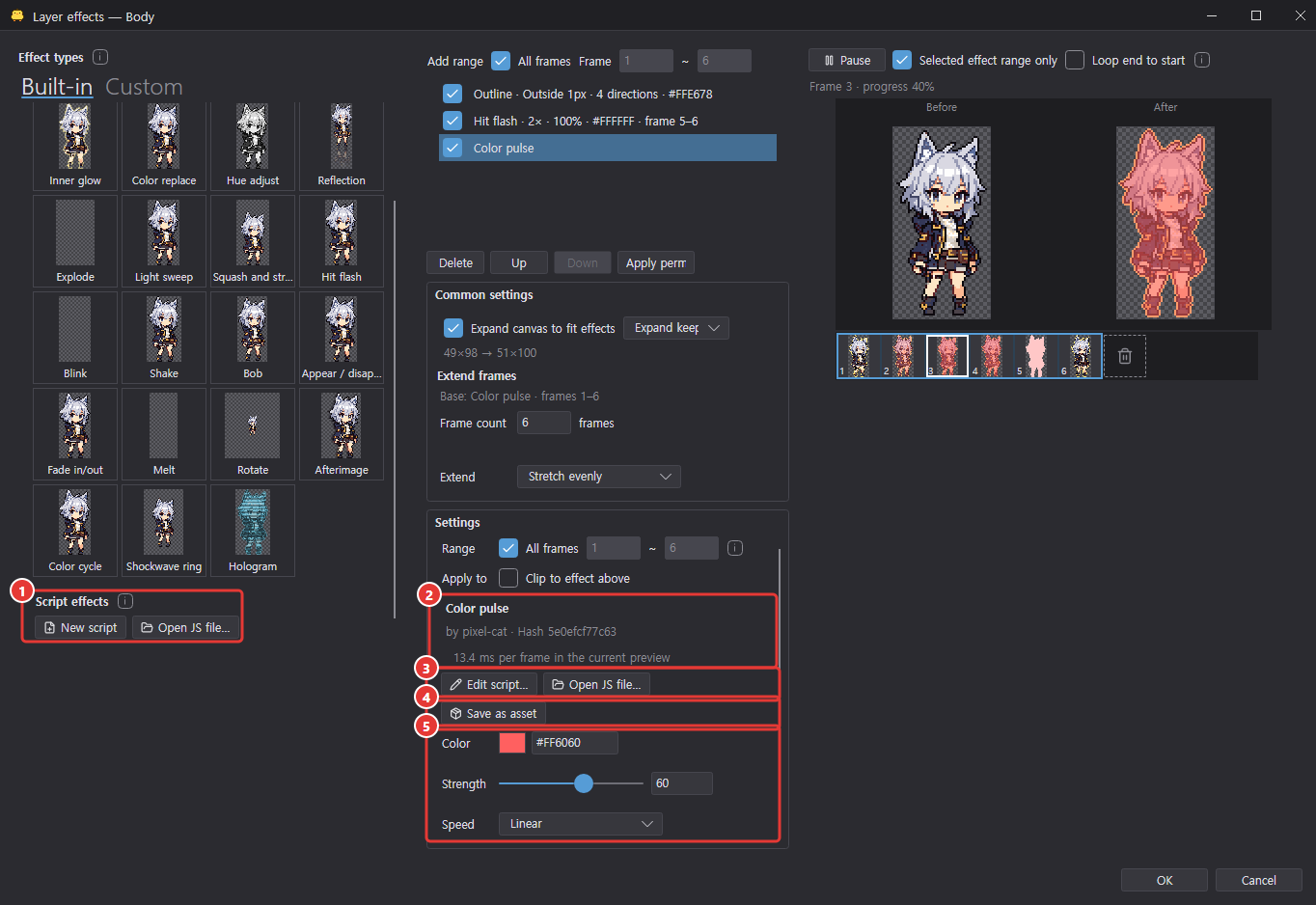
- ① The Script effects group at the bottom of the Built-in tab: New script adds an effect from the light sweep example and opens the editor. Open JS file… adds a
.jsfile as an effect; if the source has errors, it is not added and the editor shows the errors. - With a script effect selected, the top of the settings shows ② the declared name, the author, the first 12 characters of the source hash and a status line (time per frame in the current preview, or an error). ③ Edit script… opens the editor, and Open JS file… replaces this effect's source with a file (settings with the same key keep their values).
- ④ Save as asset: saves the source as a personal script asset you can reuse from the Custom tab and the Asset Manager and export in a package. Only scripts allowed to run can be saved, and saving the same source twice keeps one copy.
- ⑤ The settings come from the declared
settings: integer and number = slider with number field, on/off = checkbox, color = color swatch, choice = list. A script declared as animated also gets Speed and Loop, like the built-in animated effects.
Script editor
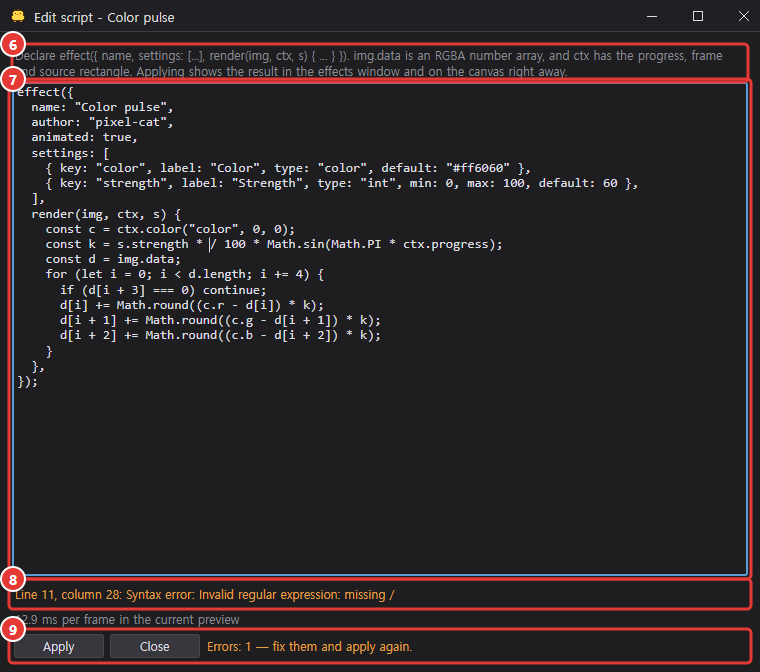
- Edit the source in the ⑦ monospace text box, following ⑥ the declaration hint at the top. ⑨ Apply (Ctrl+Enter) shows the result in the effects dialog and on the canvas right away.
- ⑧ Syntax and declaration errors are listed as "Line n, column m: …"; click one to move the cursor there. The line after them shows the run status in the current preview (time per frame, or a run error).
- Applying an edited source switches the effect to the new source; old sources no longer used are dropped from the project when you save.
Allowing scripts to run
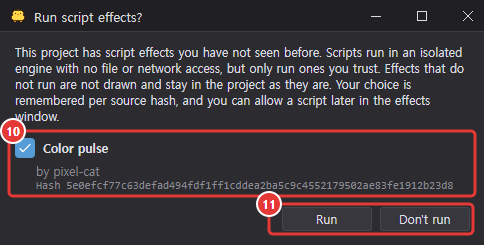
Opening a project with scripts you haven't seen before (with Open, drag and drop and so on) shows the Run script effects? window. ⑩ Each script has a checkbox (on at first), its name, author and full hash; ⑪ Run runs only the checked ones and Don't run runs none.
- Your choice is remembered on this computer per source hash. Effects that don't run aren't drawn and stay in the project as they are; you can allow them later with Allow to run in the effects dialog settings.
- Scripts written or imported on this computer and scripts saved as personal assets run right away without asking. Scripts from packages (file or online) aren't drawn when inserted; selecting the effect shows the not-running status and an Allow to run button, which draws it immediately.
When a script can't draw
When a script effect can't draw, a warning icon appears at the end of its effect list row and on its timeline effect row (at the right end of the name cell and of the effect box); hover the icon in the effect list for the reason.
| Status | Cause and fix |
|---|---|
| Missing source | The project doesn't contain the source. Open the same JS file to draw it again. |
| Not allowed | The script isn't allowed to run. Click Allow to run in the settings. |
| Source error | The source has syntax or declaration errors. Fix them in the editor. |
| Failed | A frame went over the limits (2 seconds, 50 million statements, 256 MB of memory) or the script threw an error. Only this effect is skipped on that frame. |
| Stopped | It failed 3 times in a row, so computing stopped. Fix it, then click Run again in the settings or turn the effect off and on. |
Script assets
- The Custom tab of the effects dialog also shows personal and installed script effects as tiles. Tiles containing scripts have a code icon (two angle brackets) at the top right, and their tooltip says so when they include scripts not yet allowed to run. A personal script tile's right-click menu has only Delete and Show in Asset Manager (its name comes from the declaration in the source).
- When you save a recipe containing script effects as a personal asset, export it in a package or publish it online, the source goes with it, so it draws the same on another computer once allowed to run.
- In the Asset Manager, script effects have the kind Script effect and show under the Effects filter; their details list the author, source hash, Script run (allowed / not allowed) and the number and names of settings. Packages with scripts and assets not yet allowed get an orange note, and package contents include "Script effects: N". Scripts from installed packages can also be copied with Copy to Personal Assets (allowing them to run is separate).
Asset Manager
The Asset Manager installs, turns on and off, and removes asset packages (.chickxel-asset) that bundle effect recipes, gradients and script effects. It also downloads packages from the online list and exports or publishes your own personal assets.
- Open it with Tools > Asset Manager….
- The Asset Manager button on the Custom tab of the effects dialog opens it filtered to effects, and the Asset Manager button under the list in the Presets window opens it filtered to gradients. Show in Asset Manager in a Custom tab tile's right-click menu opens it with that asset selected.
Installed tab
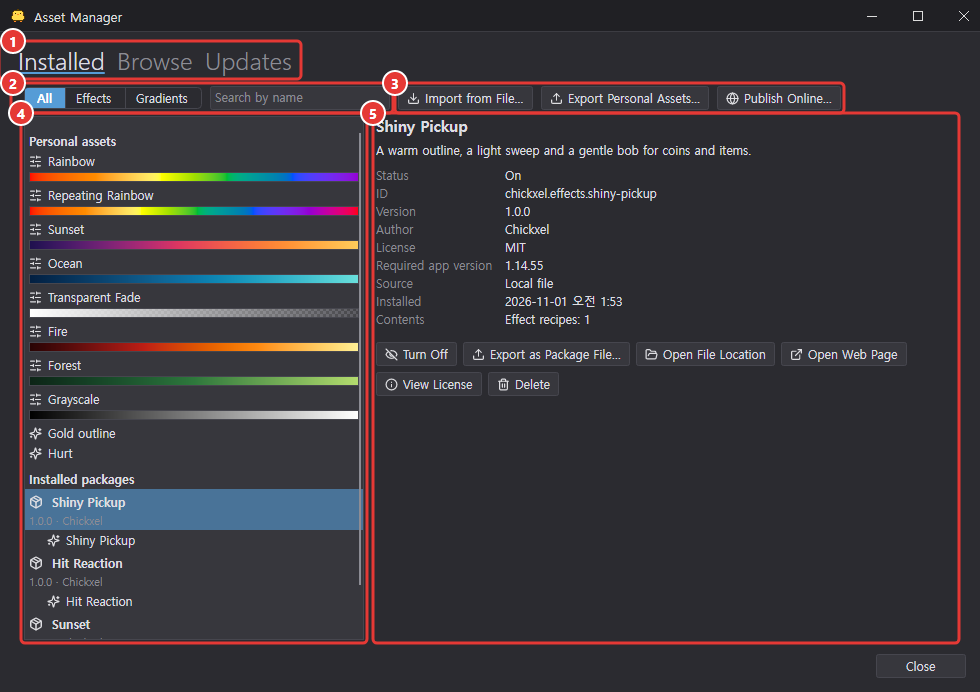
- ① There are Installed, Browse and Updates tabs.
- ② Filter by All / Effects / Gradients and search by name. Effects shows effect recipes and script effects together.
- ③ Import from File… checks and installs a
.chickxel-assetfile (a newer version of an installed package updates it). Export Personal Assets… bundles the personal assets shown in the list into one package file, and Publish Online… builds a public package to submit to the online catalog. - ④ The list shows Personal assets, Installed packages with their assets, and Recently deleted packages, in that order.
- ⑤ Shows the details and buttons of the selected item, as listed in the table.
| Selected item | What it shows and its buttons |
|---|---|
| Package | Status, ID, version, author, license, required app version, source, install time and contents. Turn Off/Turn On, Export as Package File…, Roll Back to Previous Version (updated packages only), Open File Location, Open Web Page (when the author has a website), View License (when there is a license file), Delete |
| Asset | Preview (effects animate on a sample image, gradients show a strip), kind, source, author; for recipes, the effect list, insert range and parameters. Personal assets: Rename…, Edit parameters (recipes), Export as Package File…, Publish Online…, Delete. Package assets: Copy to Personal Assets. Gradients also have a favorite button |
| Recently deleted packages | Deletion time. Kept for 30 days; Restore reinstalls it during that time |
- Recipes and gradients of a package that is off disappear from the Custom tab of the effects dialog, the gradient menu and Presets window, and the AI tool list (the files stay) and come back when you turn it on. Effects and gradients already inserted into projects are copied by value, so turning off or deleting the package doesn't change them.
- Importing from a file checks the file list, sizes, checksums, effect settings and preview images before installing. If anything is wrong, each problem is listed and nothing is installed; a package that needs a newer Chickxel tells you which version it needs.
- On first launch, your old custom effects and gradient presets move into personal assets. The old files stay in the settings folder as
effect-presets.backup-date.jsonandgradient-presets.backup-date.json.
Browse tab
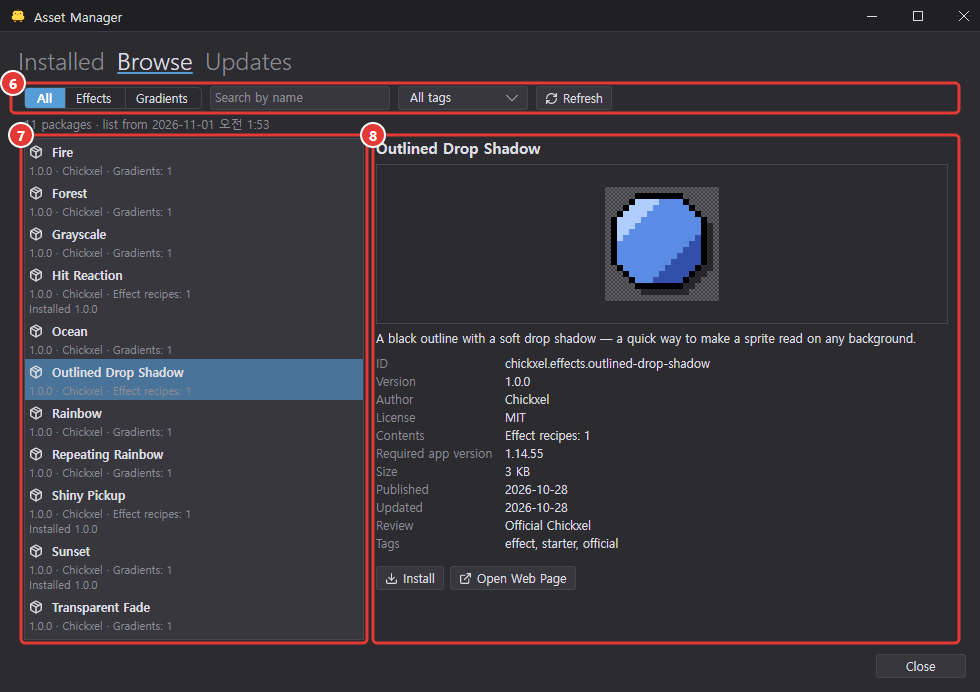
- ⑥ The online list is downloaded from the website the first time you open the tab ("Loading the online list…" while loading, then "N packages · list from time"). It has the All / Effects / Gradients filter, search (name, description, author, tags), the All tags list and Refresh.
- ⑦ Each row shows the name, version, author, contents (numbers of effect recipes, gradients and script effects) and status (installed version, new version, or can't be installed on this version).
- ⑧ Preview image, short description, ID, version, installed version, author, license, contents, required app version, size, published, updated, review (Official Chickxel / Reviewed) and tags, with Install (or Update to …, Show in Installed) and Open Web Page.
- Install shows a progress bar, percentage and Cancel in its place. If the downloaded file doesn't match the checksum in the list, only an error is shown and nothing changes. A package that can't be used on this version shows why (for example "Can't install: requires Chickxel 1.20.0 or later") and its Install button is off. Packages installed online have the source Online catalog.
- Official packages hold one asset each: 8 gradients (Rainbow, Repeating Rainbow, Sunset, Ocean, Transparent Fade, Fire, Forest, Grayscale) and 3 effect recipes (Outlined Drop Shadow, Hit Reaction, Shiny Pickup).
Updates tab
- Check for updates downloads the online list again and shows, for each package with a newer version, an "Installed 1.0.0 → new version 1.1.0" row and an Update to … button. New versions are installed only when you click; the previous version is kept for rollback, and effects already in your projects don't change. The tab name shows the number of updates (e.g. Updates (1)); with none, it says "All installed packages are up to date."
- Without an internet connection, the Browse and Updates tabs say in orange that the online list couldn't be reached and show the last downloaded list instead. Installed assets keep working.
Using package assets
- The Custom tab of the effects dialog shows recipes from enabled packages after your personal recipes (see Effect recipes).
- In the gradient Presets window, package gradients show the package name next to their name, and Rename and Delete are off. Edit one and click Save as Personal Asset to keep the original and create a personal copy (see Gradient).
- To modify a package asset, make a personal copy with Copy to Personal Assets in its details.
Publish Online
Bundle personal assets into a public package, check it, save it and open the online catalog submission form. Publish Online… at the top of the Installed tab starts with the personal asset selected in the list (or, with none selected, all personal assets shown in the list); Publish Online… in a personal asset's details opens the Publish Online window with that asset checked. If you saved the same assets before, that package information and asset selection are filled in again.
- Author: author ID (lowercase letters, digits and hyphens; the first part of the package ID, which can't change after publishing), display name and website (optional). Remembered on this computer for your next publish and for personal exports.
- Package: name, package ID (follows "author-id.name" unless you edit it), version, short description (up to 200 characters) and tags (comma-separated). If the ID was published before, the last version and a suggested next version appear under the version field; Use suggested version fills it in.
- License: choose CC0-1.0, CC-BY-4.0, CC-BY-SA-4.0, CC-BY-NC-4.0, MIT or Apache-2.0 to see a one-line summary. Custom needs a license ID starting with
LicenseRef-and the license text. - Included assets: checklist of personal assets (checked ones first) with "M of N personal assets".
- List preview: the image shown in Browse. Pick one of the included assets' previews or use a PNG (up to 512×512, 1 MB) with Replace with Image File….
- Pre-upload check: checked as you type, with the same rules as the online catalog. Red X = error (blocks saving), orange exclamation mark = warning (you can still save).
- With no errors, a blue check says all checks passed and Save and Open Submission Page… turns on. Click it.
- Choose where to save. Chickxel saves
<ID>-<version>.chickxel-assetand<ID>-<version>-submission.zipin the same folder, shows the zip in your file manager and opens the GitHub asset submission form in your browser with the package information filled in. - Drag the zip file into the form and submit it. Chickxel uploads nothing itself; submitted packages appear in Browse after review.
- Main errors: author ID, display name or website (https) format; package ID, version (SemVer), name, short description or tag format; missing license or license text; the personal-export author; a package ID whose first part differs from the author ID; the official-only author ID
chickxel; no list preview; and, compared with the last downloaded online list, changed contents for the same version, a lower version or a name clashing with another package. Warnings: no tags, an uncommon license ID, or the same version saved on this computer with different contents. - Export Personal Assets… and Export as Package File… make personal packages that can't be published online. They use the display name remembered in the Publish Online window as the author name.
Preview
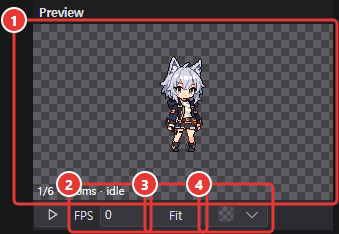
| Number | Item and use |
|---|---|
| ① | Plays the current tag in real time; if there is no tag it plays all frames. |
| ② | Sets a separate FPS for the preview. |
| ③ | Click to cycle fit → 1× → 2× → 4×; right-click to go in reverse. |
| ④ | The background button. Click it to open the background list. |
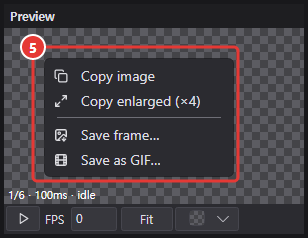
⑤ Right-click the preview image to open copy and save commands.
| Command | What it does |
|---|---|
| Copy image | Copies the shown frame to the clipboard as a transparent PNG without the preview background. |
| Copy enlarged (×4) | Copies a PNG enlarged 4× with crisp pixels. This is useful for pasting into chats such as Discord. |
| Save frame… | Saves the shown frame as <document>_<frame number>.png. |
| Save as GIF… | Opens the Export as animated GIF dialog. |
During playback it copies or saves the frame that was visible when you right-clicked; you do not need to stop playback.
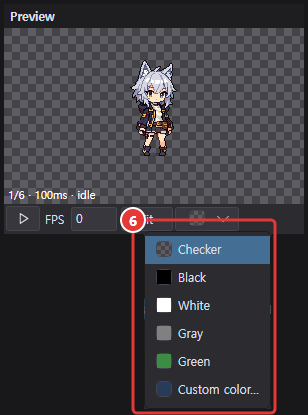
⑥ Choose checkerboard, black, white, gray, green, or a custom color from the background list.
If effect computing falls behind, playback keeps showing the current frame until the next one is ready (it never inserts blank frames), with a loading icon while it waits.
Export dialog
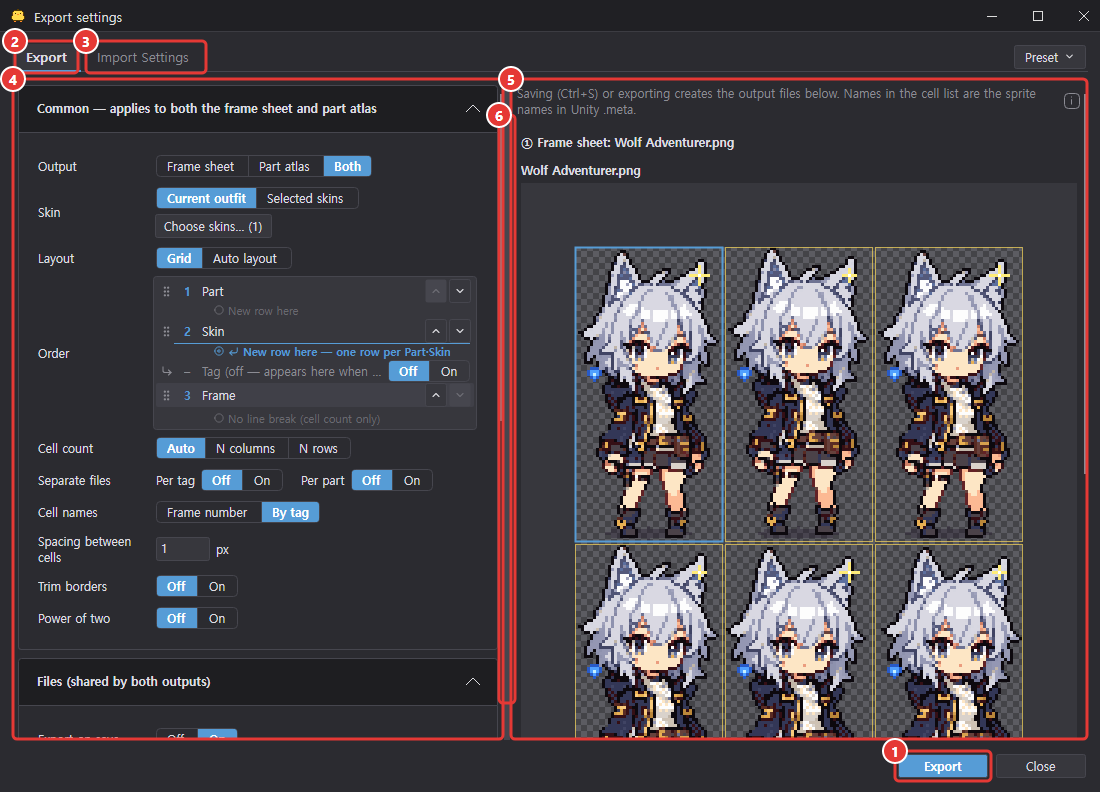
Open it with Ctrl+E or File > Export…. Settings apply as soon as you change them (one undo step per setting), and the blue ① Export button at the bottom closes the dialog and exports. If export on save is on, Ctrl+S alone exports too. There are two tabs: ② Export and ③ Import Settings.
- ④ Left = settings, ⑤ right = output preview (sheet and cell name list per file). Drag ⑥ the divider to split the width; the dialog size and collapsed sections are remembered.
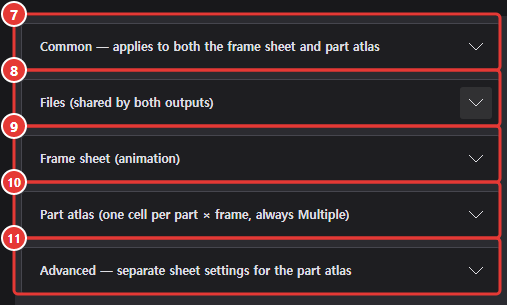
- The frame sheet and part atlas share the same sheet settings. Turn on ⑪ Advanced > Per sheet to keep separate settings for the part atlas.
| Section | Main settings |
|---|---|
| ⑦ Common | Output (frame sheet, part atlas, both), skins (current outfit, chosen skins), skin packing, layout (grid, auto layout), sort order, cell count, separate files, cell names, spacing between cells, trim borders, power of two |
| ⑧ Files | Export on save, folder, file format (PNG/JPG/TGA/BMP), Unity .meta (off, auto, always) |
| ⑨ Frame sheet | Name, Single frame, path |
| ⑩ Part atlas | Name, keep original positions, Sprite Library, path |
| ⑪ Advanced | Per sheet |
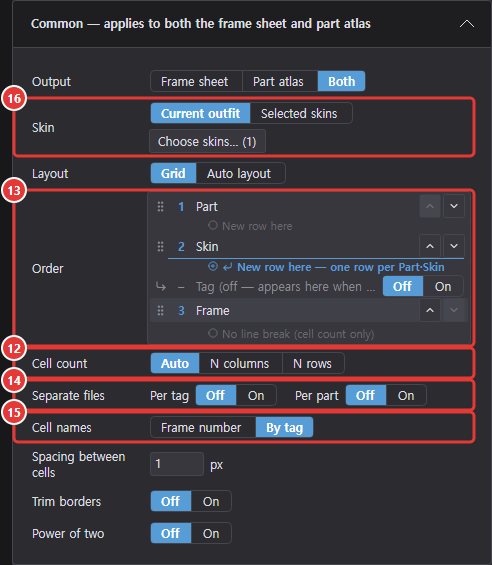
- ⑫ Cell count: auto (smallest sheet), N columns, N rows.
- ⑬ Sort order: drag the part, skin, tag and frame rows or use Alt+↑/↓ to reorder them, and use New row here between rows to set where lines break. Sorting changes only positions; cell names stay the same.
- ⑭ Separate files: split files per tag, per part or per skin (can be combined).
- ⑮ Cell names: Frame number or By tag (default for new projects). They're used as sprite names in Unity
.meta, so changing them shows a warning. - ⑯ Choose skins…: choose skins to export, outfit presets and layers to include in the composite.
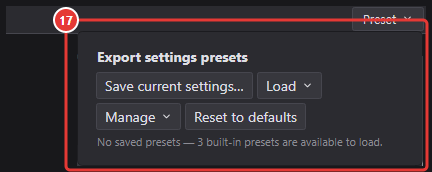
- ⑰ Preset (far right of the tab row): saves the current settings under a name in the app settings so you can load them in other projects. Includes built-in presets ("Frame sheet (default)", "Part atlas + Sprite Library", "Separate file per skin"), reset to defaults, rename, overwrite, delete, and JSON export/import. Per-project values such as file names and folders aren't included.
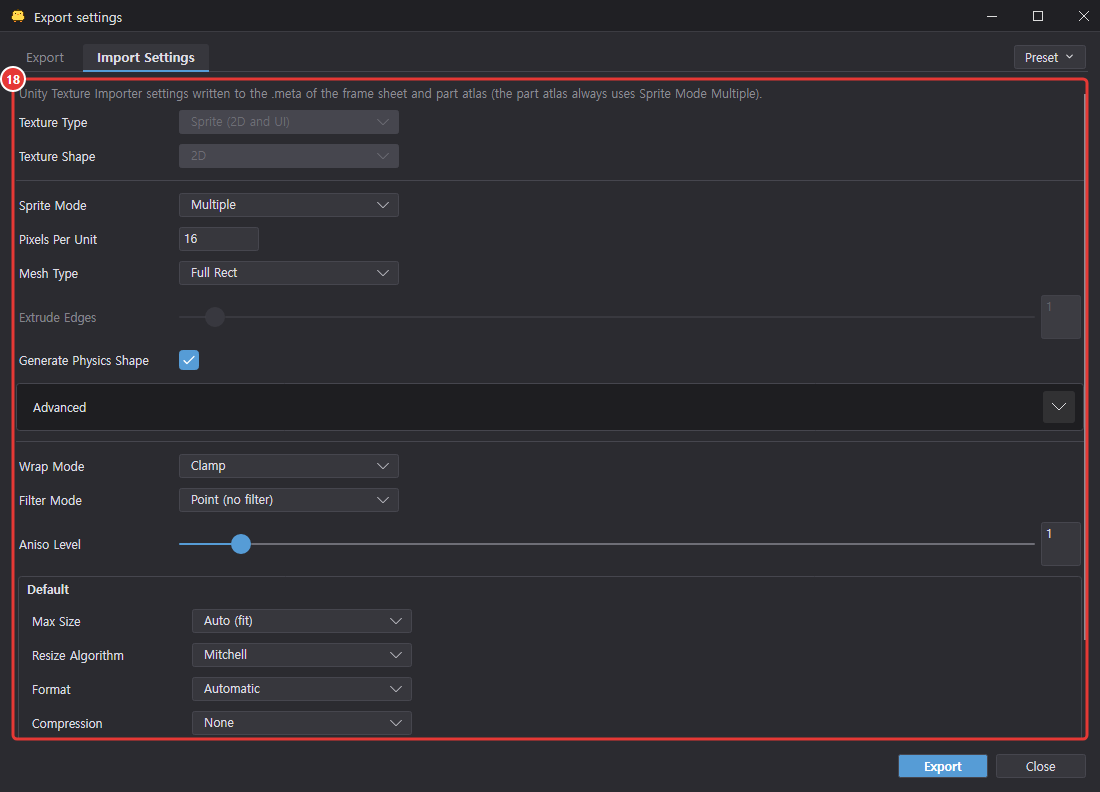
- ⑱ Import Settings tab (shown only when writing
.meta): sets the same names and values as Unity's Texture Importer (Sprite Mode, Pixels Per Unit, Mesh Type, Pivot, Filter Mode, Compression, etc.). Defaults suit pixel art (Point, no compression, mipmaps off, Clamp).
When an export takes a while, a dark translucent overlay covers the whole window until it finishes. A box in the middle shows Exporting, a spinning loading icon, the percentage with a progress bar and Editing is paused until this finishes; meanwhile drawing, shortcuts and file drops are ignored and other windows (such as the AI chat) are disabled.
See also the Files chapter for saving and Unity integration.
Export as animated GIF
File > Export as animated GIF… creates a single GIF for sharing. The project isn't changed.
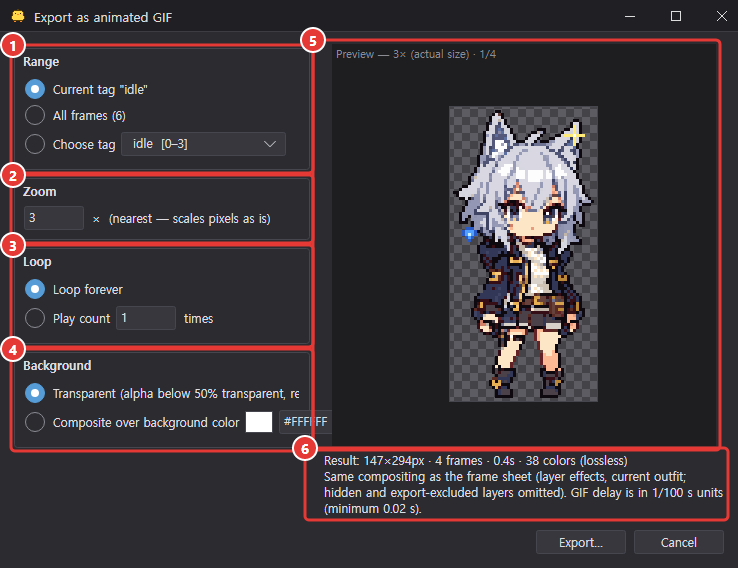
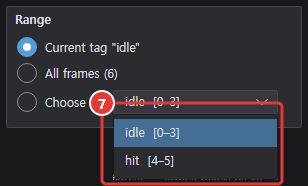
- ① Range: current tag, all frames, ⑦ choose a tag.
- ② Zoom: 1–10× (default = the zoom that makes the result about 256px).
- ③ Loop: loop forever or play N times.
- ④ Background: transparent (alpha below 50% becomes transparent) or composited over a background color.
⑤ The preview on the right plays with the actual frame durations and ⑥ shows the output size, frame count, duration and color count. With 255 colors or fewer it's saved losslessly. The default location is <project>.gif next to the project (<project>_<tag>.gif for a tag). You can assign a shortcut in Preferences > Shortcuts.
If compositing the preview frames or writing the GIF takes a while, a dark translucent overlay covers the whole window until it finishes, with Compositing frames or Creating GIF and the percentage with a progress bar in a box in the middle.
Tool options
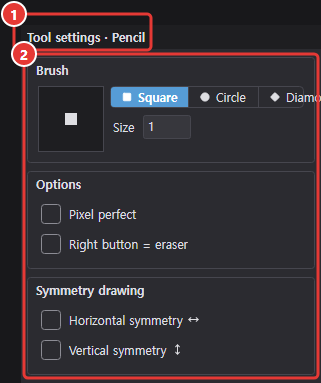
Below the preview on the right. ① The title row shows the selected tool's name (e.g. Tool settings · Pencil) and ② only that tool's settings appear. Tool settings aren't part of undo and are kept for the next launch. Per-tool details are in the Tools chapter.
Pivot (Pivot tool K)
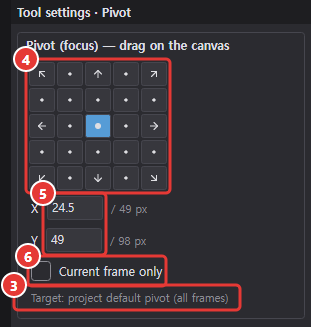
- ③ Shows the pivot of the drawing target (the part if one is selected, otherwise the frame) in pixels.
- The ④ 5×5 buttons pick 0, 1/4, 1/2, 3/4 or end positions horizontally and vertically.
- ⑤ Enter X (from the left) and Y (from the bottom, as in Unity) in 0.5px steps.
- ⑥ Turn on "Current frame only" to use a per-frame pivot.
Status bar

The very bottom of the screen shows ① the cursor coordinates, ② color, ③ canvas size (part size for parts), ④ frame/layer, ⑤ zoom and ⑥ save state. ⑦ Hints such as what's selected in the timeline or the number of unsaved files also appear here.
Tools
Tool list
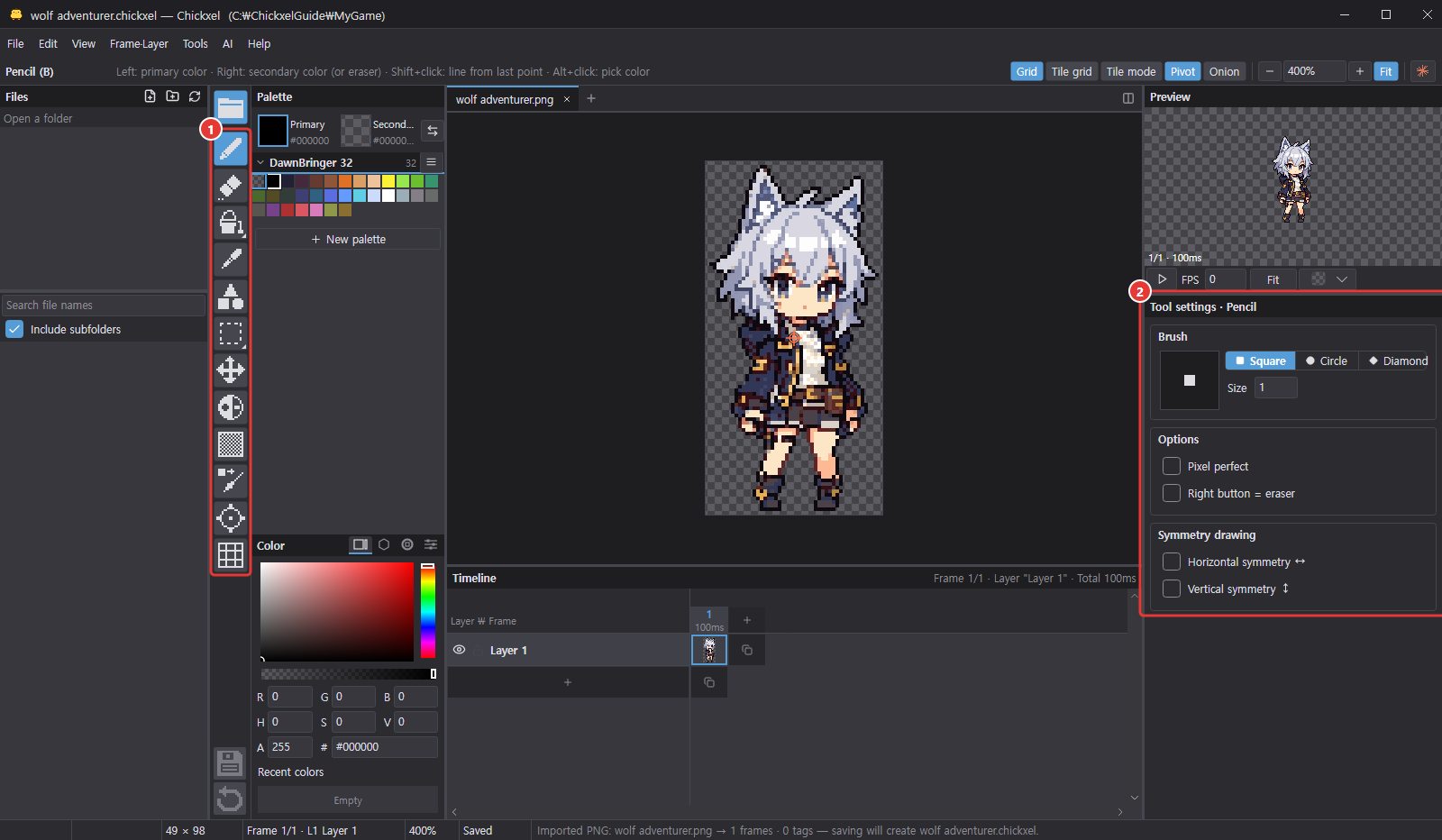
When you select a tool in the ① toolbar, its settings appear in ② Tool options in the right dock. Long explanations live in i icon tooltips so they don't take up space: usage hints for Rectangle select, Ellipse select, Lasso select, Magic wand, Move and Gradient sit next to the Tool settings · … title, and the explanations of the canvas size, transform, gradient, 9-slice and eyedropper groups sit next to each group title. Hover the i to read them.
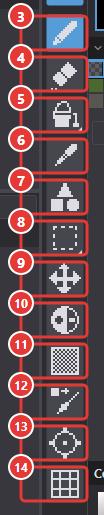
| Tool | Shortcut | What it does |
|---|---|---|
| ③ Pencil | B | Paints pixels. Supports pixel perfect (P, at size 1) and symmetry |
| ④ Eraser | E | Erases pixels |
| ⑤ Fill | G | Fills an area of the same (or similar) color |
| ⑤ Gradient | F | Drag to paint a linear gradient |
| ⑥ Eyedropper | I, Alt+click | Picks a color from the canvas |
| ⑦ Shape | R | Draws lines, curves, rectangles, ellipses, triangles, polygons, stars and more. Pick the shape in Tool options; L switches straight to the line. Most shapes can be filled (U) (Shape) |
| ⑧ Rectangle select / Ellipse select | M | Drag to select an area |
| ⑧ Lasso select | Q | Draw an outline to select |
| ⑧ Magic wand | W | Selects an area of similar color |
| ⑨ Move | V | Moves the selection. With no selection it shifts the whole cel; has a wrap around option |
| ⑩ Lighten/darken | D | Changes the brightness where you brush |
| ⑪ Dithering | T | Paints by mixing primary and secondary colors in a pattern |
| ⑫ Color replace brush | C | Replaces colors where you brush |
| ⑬ Pivot | K | Sets the pivot |
| ⑭ 9-slice | S | Sets the Unity sprite border |
Whatever tool you're using, holding Ctrl over the canvas temporarily switches to the Move tool, and releasing it returns to the original tool. In drawing tools, holding Alt temporarily switches to the eyedropper.
Drawing basics
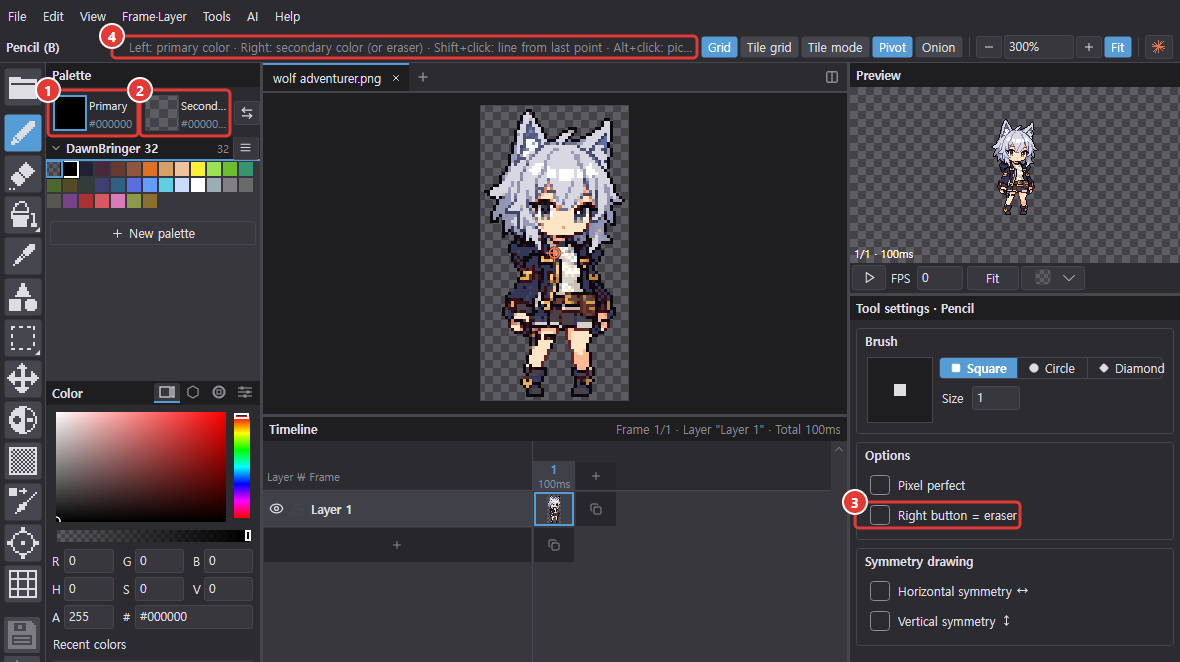
- Left button = ① primary color, right button = ② secondary color (or eraser, depending on ③ options).
- Pressing the other button mid-stroke cancels that stroke.
- ④ Shift+click = straight line from the last point. In brush tools such as the pencil, holding Shift shows the line that will be drawn (including brush size and symmetry) as a translucent preview. While drawing shapes, Shift keeps the proportions (15° steps for lines, perfect squares and circles, and so on).
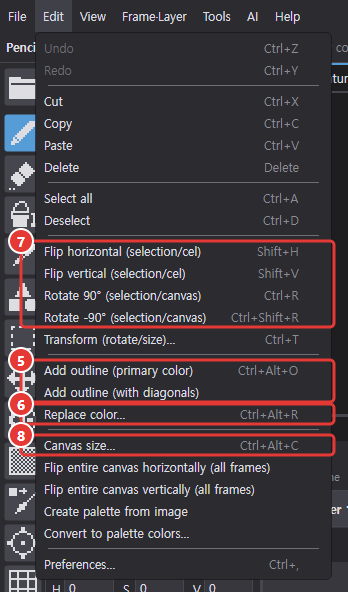
- The Edit menu has ⑤ add outline, ⑥ replace color, ⑦ flip/rotate and ⑧ canvas size.
Tool groups
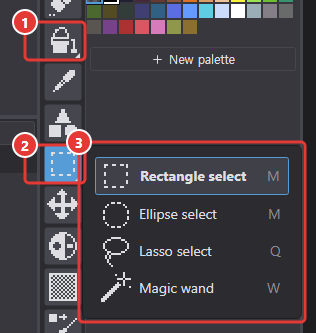
Similar tools share one toolbar slot: ① Fill (fill, gradient) and ② Select (rectangle, ellipse, lasso, magic wand). Group slots have a small triangle in the bottom-right corner.
- A plain click selects the tool shown in the slot.
- Long-press or right-click to expand ③ the list of tools in the group.
Brush settings
Shared by the pencil, eraser, lighten/darken, dithering and color replace brush.
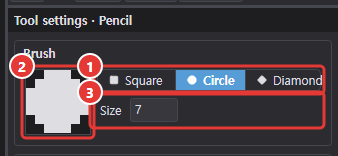
- Shape: ① Square / Circle / Diamond. ② A preview of the actual pixel shape appears beside it.
- ③ Size 1–32: drag the number field left/right or use [ / ].
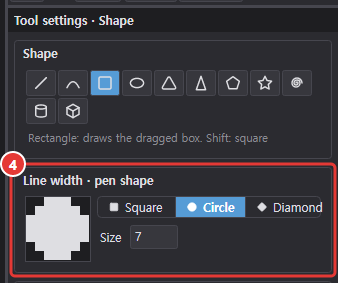
- ④ Line thickness and pen shape for the Shape tool are set the same way.
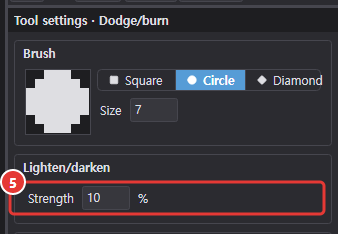
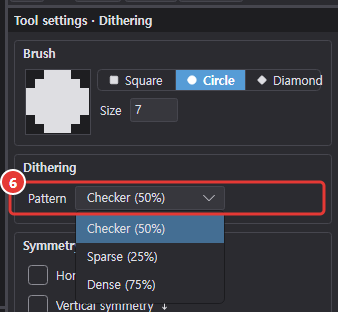
- Lighten/darken has ⑤ Strength 1–50% (default 10%); Dithering has a ⑥ Pattern: checker (50%) / sparse (25%) / dense (75%).
Shape
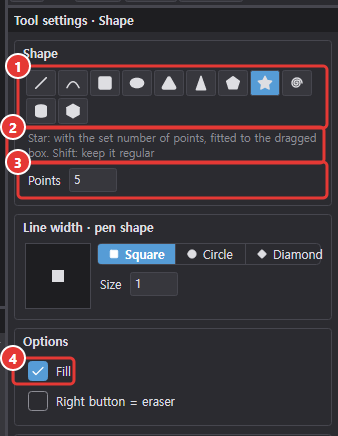
The Shape tool (R) draws 11 shapes by dragging, from lines and curves to stars and cubes. The left button draws with the primary color and the right button with the secondary color (or erases, depending on options); line width, pen shape and symmetry work as in Brush settings.
- ① Pick the shape to draw with the shape buttons. L switches straight to the Shape tool's line.
- ② The line under the shape buttons explains how to draw the chosen shape and what Shift does.
- ③ Set Corners (3–32) for the Regular polygon, Points (3–32) for the Star and Turns (1–10) for the Spiral.
- ④ Turn on Fill (U) to paint the inside too; the shape button icons turn filled as well. Lines, curves and spirals can't be filled.
| Shape | How to draw |
|---|---|
| Line | From where you press to where you release. Shift = 15° steps |
| Curve | Drag to set both ends, release, then move the mouse to bend it (the middle of the curve passes through the mouse; it's only a preview until confirmed). Click the same button or press Enter to confirm; the other button, Esc or Ctrl+Z cancels. Shift = 15° steps while dragging the ends, and a circular arc through both ends and the mouse while bending |
| Rectangle | The dragged box. Shift = square |
| Ellipse | An ellipse that fits the dragged box. Shift = circle |
| Equilateral triangle | The dragged line becomes one side (drag right to point up, left to point down). Shift = 30° steps |
| Isosceles triangle | Fits the dragged box. Drag down for the tip on top, up for the tip at the bottom. Shift = equilateral proportions |
| Regular polygon | With the set number of corners (5 = pentagon, 6 = hexagon), fitted to the dragged box. Shift = keep it regular |
| Star | With the set number of points, fitted to the dragged box. Shift = keep it regular |
| Spiral | A spiral that winds outward from the center to fill the dragged box; drag left to wind the other way. Never filled. Shift = square |
| Cylinder | Top ellipse, both sides and the front half of the bottom. Shift = square |
| Cube | A cube with three faces in 2:1 isometric lines. Shift = square |
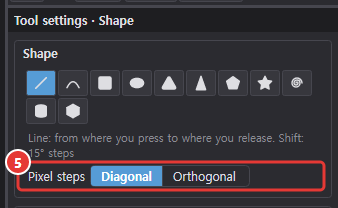
- ⑤ Lines and curves have Pixel steps: Diagonal (default) also joins pixels diagonally for the thinnest line, while Orthogonal steps only sideways or up/down so every pixel touches the next by an edge.
Selection tools
All four selection tools create the same kind of selection. Once you have one, cut, copy, delete, flip, rotate, move, outline and replace color apply only inside it, and drawing is limited to it as well.
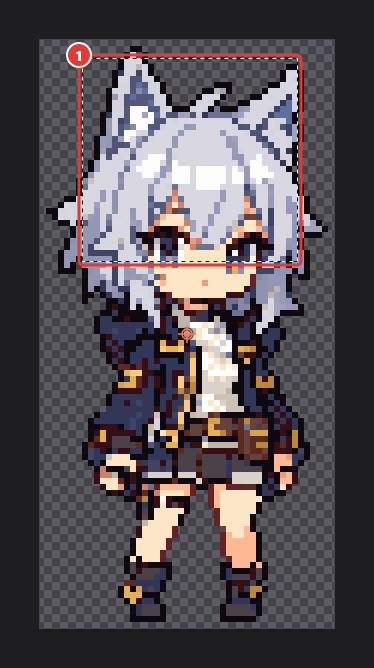
- ① Rectangle / Ellipse select: drag to select (Shift = square/circle). Drag inside the selection to move its contents, and press Enter to drop.
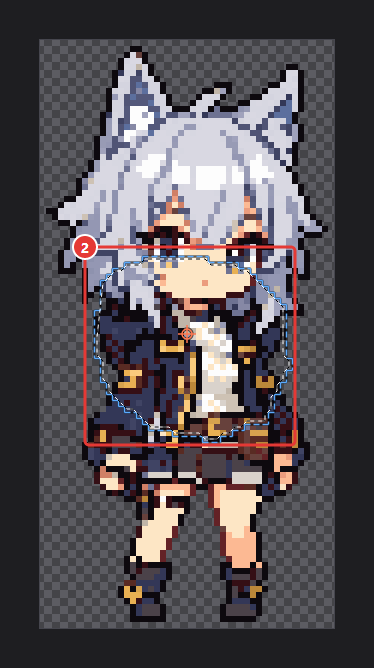
- ② Lasso select: draw an outline and release; it closes back to the starting point. The area to be selected is shown with a blue dotted line while dragging.
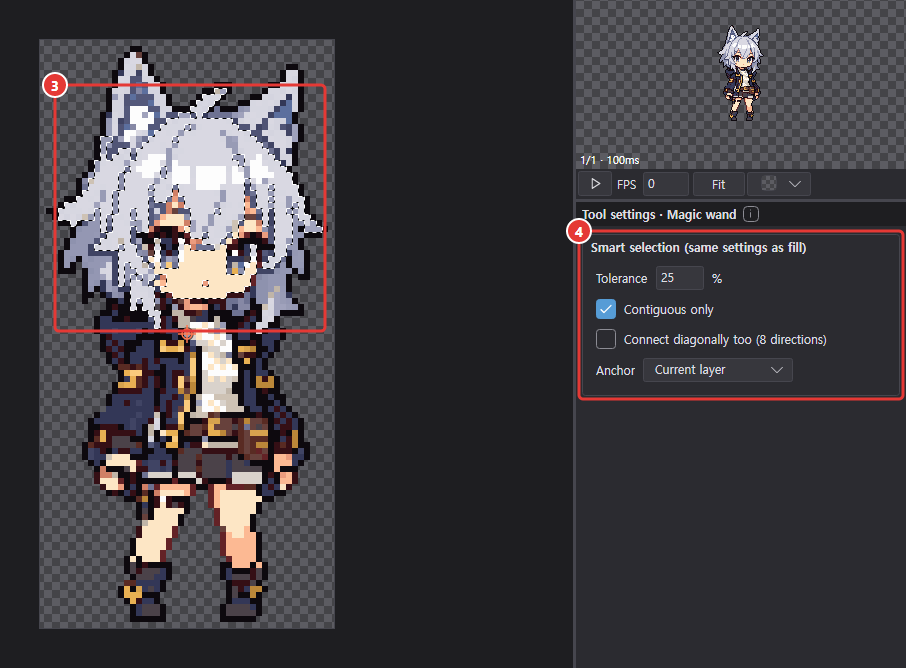
- ③ Magic wand: selects the area of similar color to where you click. ④ Settings are the same as Fill. To move it, use Move (V) or the arrow keys.
- Right-click the canvas with a selection tool or press Ctrl+D = deselect.
- Pressing M repeatedly cycles rectangle → ellipse → lasso → magic wand.
Fill
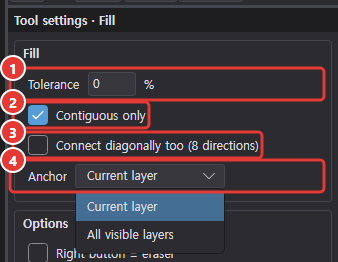
- ① Tolerance 0–100%: 0 fills only the exact same color; higher values include similar colors.
- ② Contiguous only: when off, fills every matching color (Shift+G).
- ③ Connect diagonally too: connects areas in 8 directions.
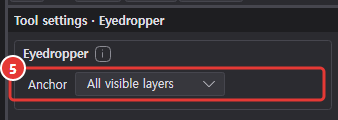
- ④ Source: current layer / all visible layers (the area is determined from the composite, but paint goes on the current layer). ⑤ The eyedropper has the same source setting.
Gradient
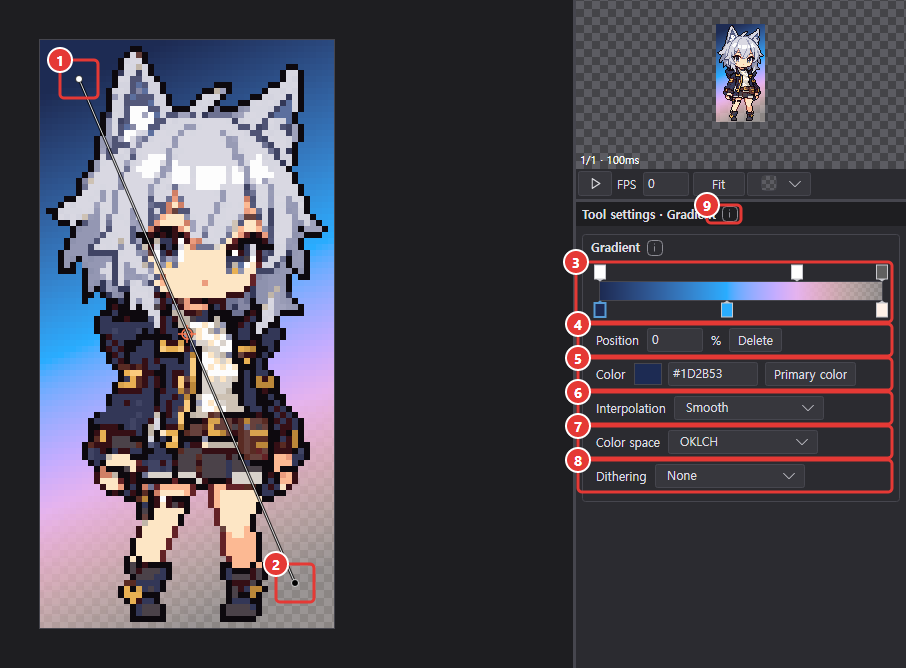
Drag on the canvas from the ① start point to the ② end point to paint in that direction (Shift = 45° steps). With a selection it paints only inside it; otherwise the whole cel.
- ③ Gradient bar: opacity stops sit above the bar and color stops below. Click an empty spot to add a stop, drag to move it and press Delete to remove it.
- You can edit the selected stop's ④ position % and ⑤ color (or opacity %).
- ⑥ Interpolation: smooth / steps. ⑦ Color space: the space smooth blending runs in, RGB / HSL / OKLab / OKLCH. New gradients default to OKLCH; older settings and projects without a color space load as RGB. It applies to both the preview and the painting; steps and Bayer dithering still use only the stop colors. ⑧ Dithering: none / 2×2 Bayer / 4×4 Bayer (for pixel art that mixes with patterns instead of semi-transparency).
- Settings are kept for the next launch. Usage hints such as how to drag are in the ⑨ i icon next to the Tool settings title; hover it to read them.
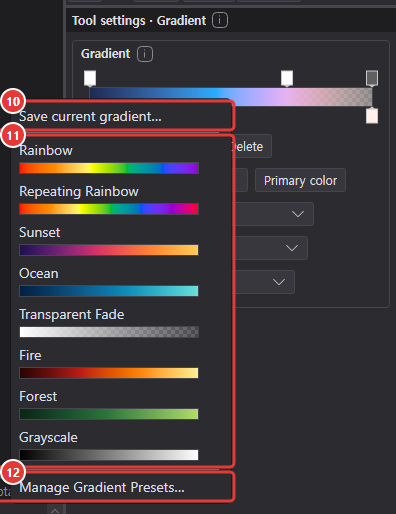
- Right-click the bar for the preset menu: ⑩ Save current gradient… saves the current settings under a name, and picking one of the ⑪ saved presets (a gradient preview under each name; favorites come first) applies it right away. A preset stores the color and opacity stops, interpolation, color space and dithering; picked in a layer effect's color gradient editor it also applies the shape, angle, direction, repeat and animation.
- The built-in presets are Rainbow, Repeating Rainbow (red at both ends), Sunset, Ocean, Transparent Fade, Fire, Forest and Grayscale. Deleted or edited built-ins can be restored on the Presets tab of Preferences.
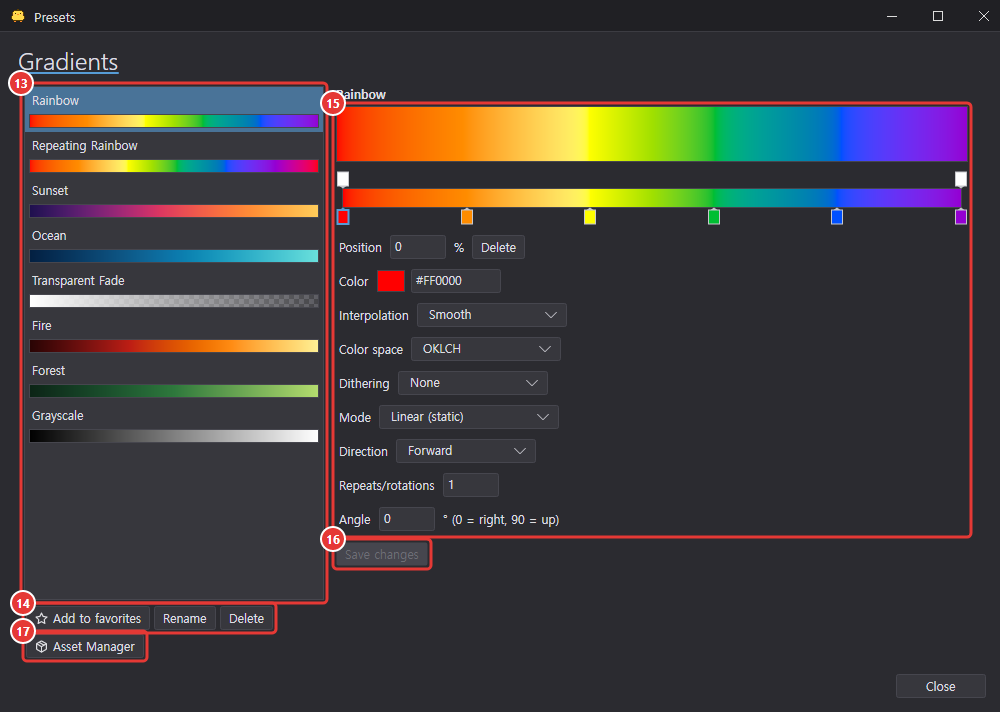
- ⑫ Manage Gradient Presets… (or Tools > Presets…) opens the Gradients tab of the Presets window. ⑬ Pick a preset from the list and ⑭ add it to favorites, rename or delete it, or ⑮ edit its stops and settings on the right while watching the preview, then press ⑯ Save changes.
- ⑰ Asset Manager: opens the Asset Manager filtered to gradients.
Gradients from installed packages show the package name next to their name in the list, and Rename and Delete are off. Edit one and click Save as Personal Asset to keep the original as is and save a personal copy. Gradients of a package that is off are hidden from the gradient menu and the Presets window.
Transform mode (rotate/size)
Ctrl+T or Transform (rotate/size)… in the Edit menu. Rotate, scale and move the selection (or, with none, all painted pixels in the current cel) using the handles on the orange dotted border.
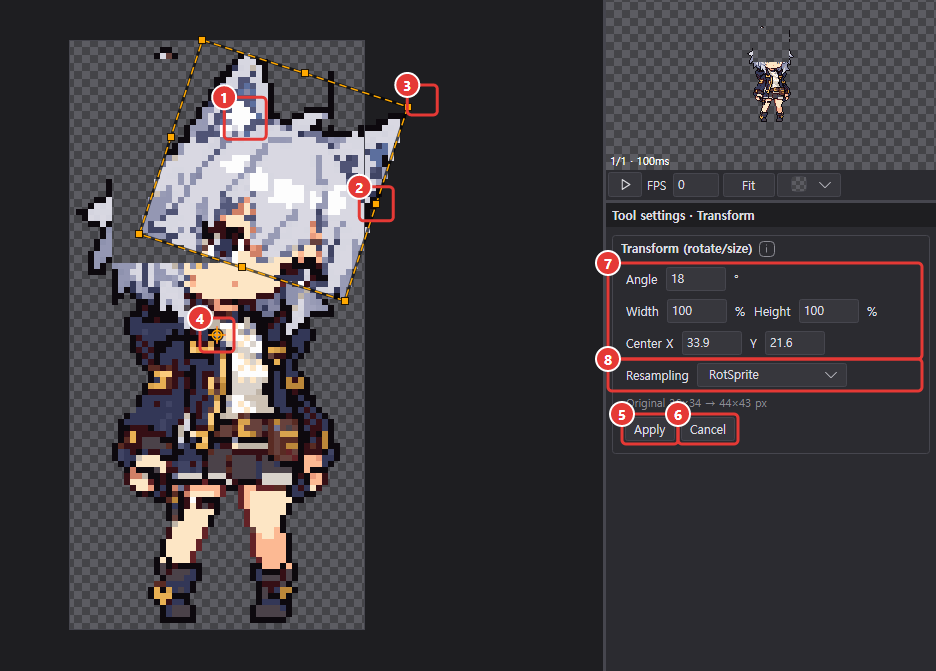
| Action | Result |
|---|---|
| ① Drag inside, arrow keys | Move (1-pixel steps) |
| ② Drag one of the 8 square handles | Resize (Shift = keep ratio, Alt = from center; dragging past the opposite side flips) |
| ③ Drag just outside the border | Rotate (Shift = 15° steps) |
| ④ Drag / double-click the orange rotation center | Move the rotation center / reset to center |
| Enter or ⑤ Apply | Apply (one undo step) |
| Esc, Ctrl+Z or ⑥ Cancel | Back to before the transform |
- You can also enter ⑦ the angle, width/height % and center X/Y as numbers in Tool options.
- ⑧ Resampling: RotSprite (default; rotated lines break less and no new colors are created) / Nearest.
- Dragging repeatedly always redraws from the original, so it doesn't get mushy. Doing something else, such as switching tools or saving, applies it first.
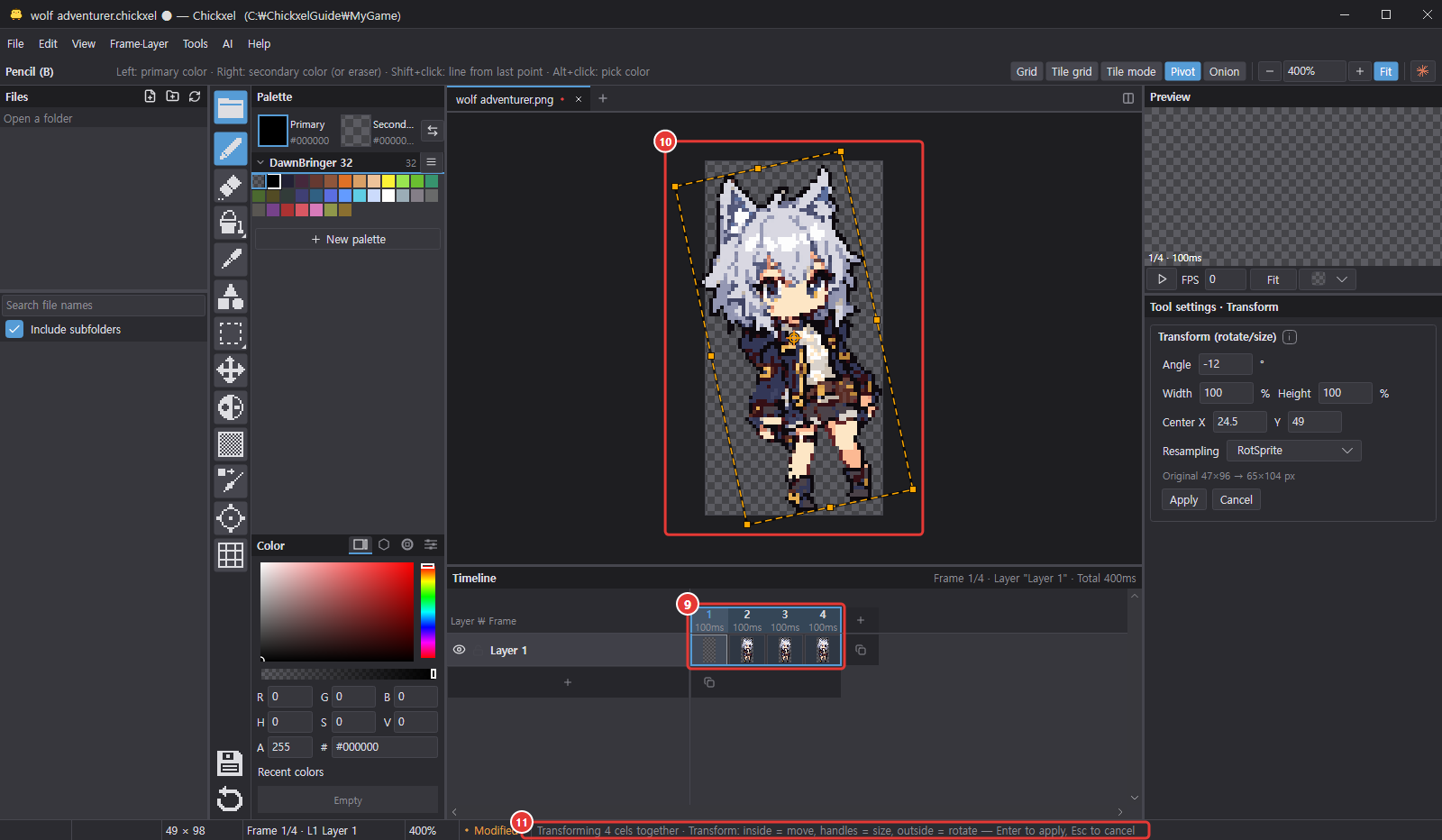
- Transforming several cels at once: select ⑨ several cels in the timeline (for example frames 1–6 of one layer; frame-header and layer-name selections work too) and press Ctrl+T — every selected cel gets the same rotation, scale and move. ⑩ The handle box surrounds the drawings of all those cels, the canvas shows the current cel moving, and the other cels change when you apply (one undo step; Esc cancels them all). Empty cels and cels on locked layers are skipped. Dragging with the Move tool or nudging with the arrow keys also moves all selected cels together. ⑪ The status bar shows how many cels are transforming together.
Canvas size mode
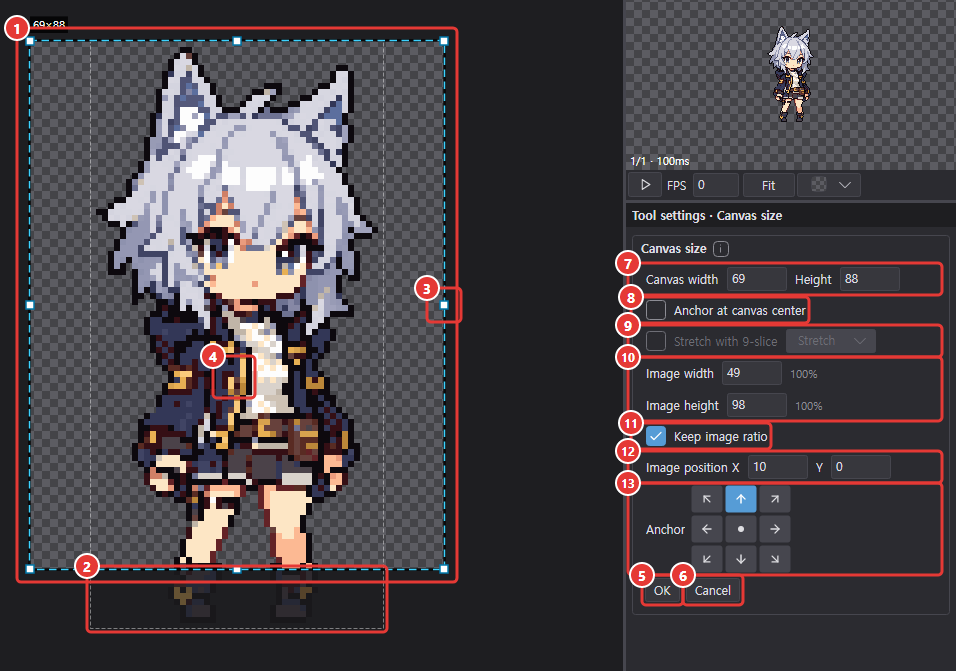
Ctrl+Alt+C or Canvas size… in the Edit menu. Set the new size and image position right on the canvas instead of in a dialog. The canvas border is a ① light-blue dotted line and ② areas to be cropped are dimmed.
| Action | Result |
|---|---|
| ③ Drag a handle | Moves only that canvas edge (adds margin or crops the image) |
| Ctrl+drag a handle | Also resizes the image (Ctrl+Shift = keep ratio). With Stretch with 9-slice on, the image is stretched or shrunk with 9-slice |
| ④ Drag inside the image, arrow keys | Move the image within the canvas |
| Enter or ⑤ OK | Apply (one undo step) |
| Esc, Ctrl+Z or ⑥ Cancel | Exit without changes |
- Tool options: ⑦ canvas width/height, ⑧ Anchor at canvas center, ⑨ Stretch with 9-slice and the middle fill (Stretch / Tile), ⑩ image width/height %, ⑪ Keep image ratio, ⑫ image position X/Y, ⑬ 9-direction anchor.
- Applies to all frames and layers; parts and pivots are adjusted as well.
Stretch with 9-slice
- When the frame (or a part) has 9-slice borders, ⑨ Stretch with 9-slice is on by default. The controls are the same as in the table above (plain drag = margin, Ctrl+drag or image width/height = image size); when the image is resized, corners stay as they are, edges stretch in one direction only and only the middle grows, like a Unity UI image with Image Type = Sliced. When it's off or there are no borders, the whole image is scaled nearest-neighbor.
- Middle fill: Stretch = nearest-neighbor stretch or shrink (Unity Sliced), Tile = repeat the original pattern at its size (Unity Tiled — good for patterned middles).
- While dragging, the borders are shown as green dotted lines, and the image can't get smaller than both borders plus one pixel.
- After applying, the L, T, R and B values stay the same number of pixels from the image edges (plus any margin you left), so the Unity Sprite Border still matches. Parts with their own borders are stretched with those, and pivots follow the same mapping.
9-slice
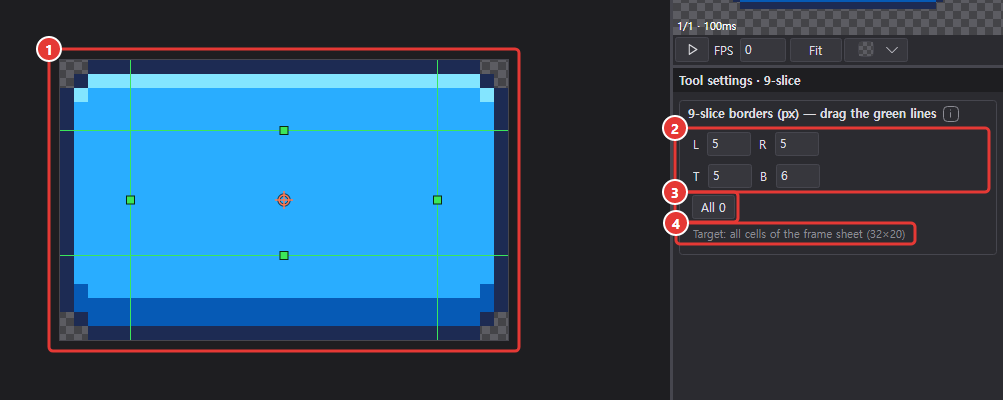
Sets the Unity Sprite Border. ① Four green lines appear on the canvas; drag them to change ② the L, T, R and B values. In Tool options you can enter numbers or reset with ③ All 0.
With a part selected it applies to that part; otherwise to every cell of the frame sheet (④ Tool options shows the target). When scaled up, everything outside the lines (corners and edges) stays the same and only the center stretches, which suits UI buttons and panels used with Image Type = Sliced in Unity. You can resize the image the same way inside Chickxel with Stretch with 9-slice in canvas size mode.
Files · saving · export
File types
| File | Role |
|---|---|
.chickxel | The editable source. Layers, effects, frames, tags, parts, skins, outfit presets and export settings are all stored only here. |
| Exported images (PNG) | The output, used in Unity or other programs. |
.meta | Unity settings (sprite cells, pivot, etc.). |
.spriteLib | Unity Sprite Library. Created only when turned on (see Parts · skins). |
.chickxel-asset | Asset package. Bundles effect recipes, gradients and script effects for installing and sharing with the Asset Manager. |
Projects saved by this version use a new .chickxel format (format version 4) that stores effects by stable type IDs, so older versions of Chickxel can't open them. Older projects and custom effects open as before. Effects this version doesn't know (for example, ones added in a newer Chickxel) aren't drawn but are kept when you save, and script effect sources are saved inside the project file (see Script effects).
Saving
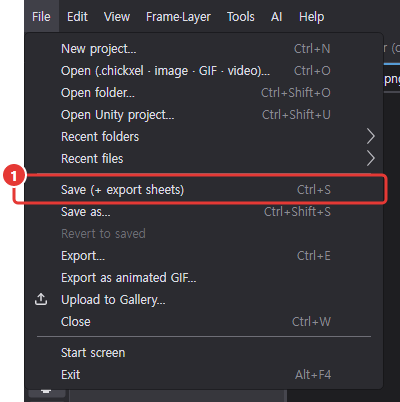

Saving the .chickxel with Ctrl+S (① File > Save (+ export sheets)) also exports the image and .meta, depending on your settings, and ② the status bar shows the result. A .meta is created when the file is inside a Unity project's Assets or already has a meta. Existing guids and spriteIDs are kept by name, so references on the Unity side don't break.
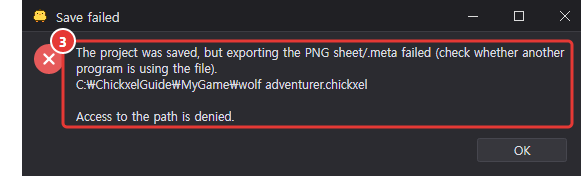
If the .chickxel was saved but only the image export failed (for example because another program has the file open), ③ you're told about it.
If saving or opening a project takes a while, a dark translucent overlay covers the whole window until it finishes. A box in the middle shows Saving or Opening, a spinning loading icon, the percentage with a progress bar and Editing is paused until this finishes. Meanwhile drawing, shortcuts and file drops are ignored and other windows (such as the AI chat) are disabled; AI tool calls run once it finishes. Closing the window then closes it after the save completes.
Autosave

On by default. After 3 seconds without edits, it saves without asking, just like Ctrl+S (including export), and shows Autosaved in ① the status bar.
- It waits while you're drawing, dragging, transforming or while the AI is working.
- It only saves files that already have a
.chickxelon disk. New projects and imported PNGs must be saved manually once. - Autosave writes in the background without the overlay, so you can keep editing while it saves; changes made meanwhile go into the next autosave. Only very large documents (over about 768 MB of pixels) show the overlay during autosave too. Saving, exporting, Revert to saved or closing the window during an autosave continues once the autosave finishes.

- ② Turn it on/off and change ③ the wait time (1–600 seconds) in Preferences > General.
Revert to saved

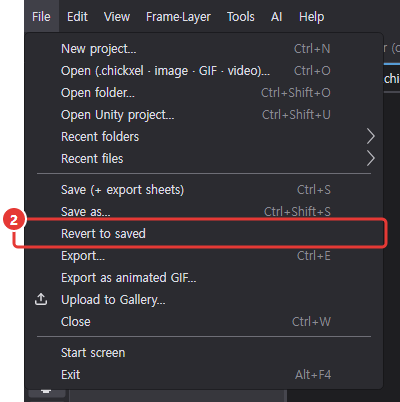
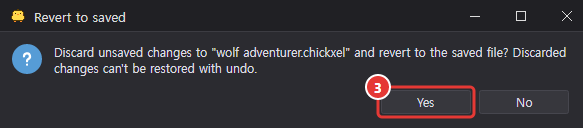
① The button at the bottom of the toolbar or ② File > Revert to saved discards unsaved changes after ③ confirmation and reopens the file. The current layer, frame and zoom stay the same. The revert itself can't be undone.
Undo history that survives closing
On by default: even after closing a file or quitting the app, you can keep using undo and redo when you reopen it. History is kept only up to the saved state; changes discarded with "Don't save" aren't kept. The history is stored separately in the app settings folder, not in the .chickxel.

① Turning it on/off, ② retention period (default 30 days), ③ maximum size (default 500 MB) and ④ Clear all history are in Preferences > General.
Opening (importing) PNGs
Opening a PNG imports it as a project. If a .chickxel with the same name exists, or a project in the same folder exports that PNG, that project opens instead.
- If the meta contains cell information and the cells differ in size, it's imported as parts (one group + one part per cell).
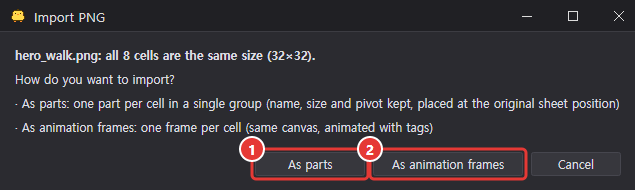
- If all cells are the same size, you're asked to choose "① As parts / ② As animation frames".
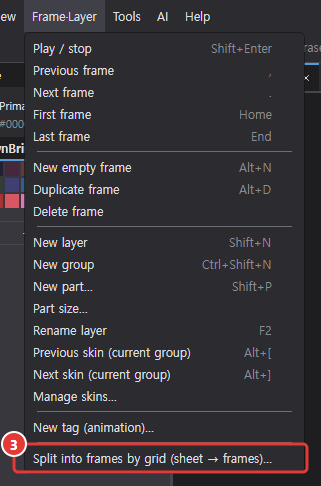
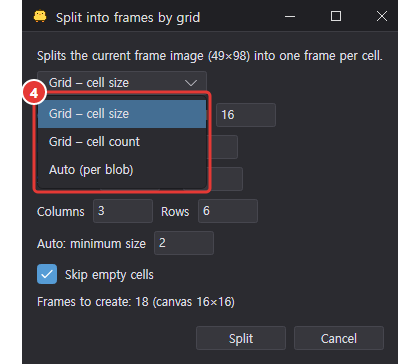
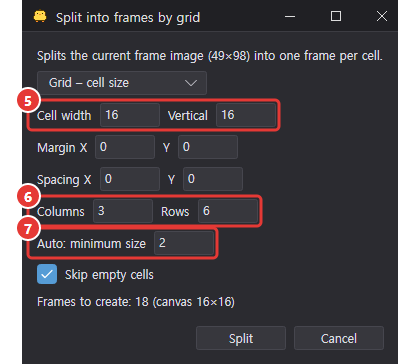
- Sheets without cell information can be split with ③ Frame·Layer > Split into frames by grid: ④ pick the method and split by ⑤ cell size, ⑥ cell count or ⑦ automatically (by blobs).
Opening images, animations and videos
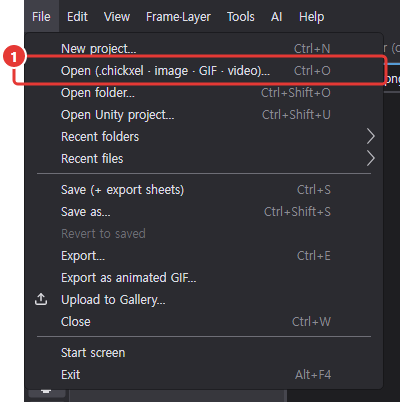
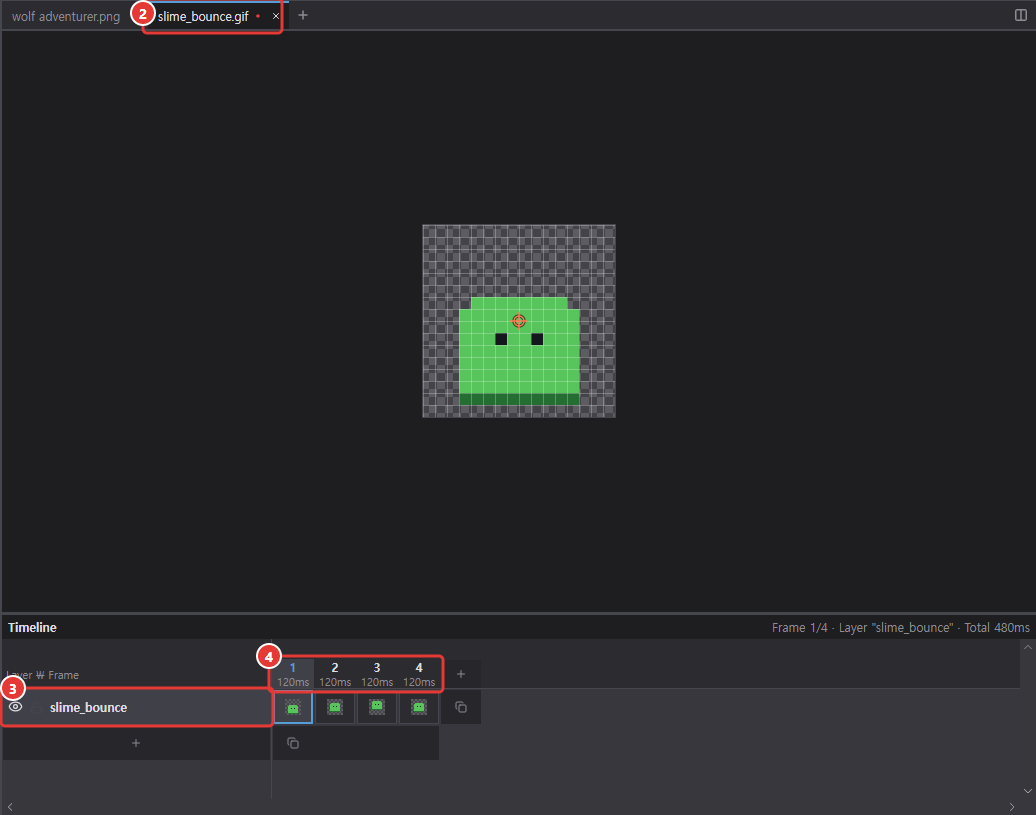
① File > Open (.chickxel · image · GIF · video)… (Ctrl+O) lets you pick several files at once and opens each in ② its own tab. Images other than PNG (JPG, BMP, GIF, WebP, ICO, animated PNG) become a new document: canvas = image size, ③ one layer named after the file, ④ one frame per image frame.
- Frame durations come from the file (0–10 ms become 100 ms, like browsers). Transparency is kept, and partial GIF/APNG frames with their disposal (restore to background / previous) are composited so every frame is a complete picture. Photos follow their EXIF rotation.
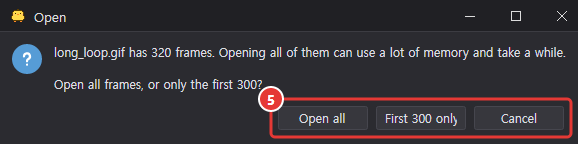
- Files with more than 300 frames ask ⑤ "Open all / First 300 only / Cancel".
- There's no
.chickxelyet, so the first save asks where to put it. Clicking in the file browser, recent files and dropping on the window open files the same way.
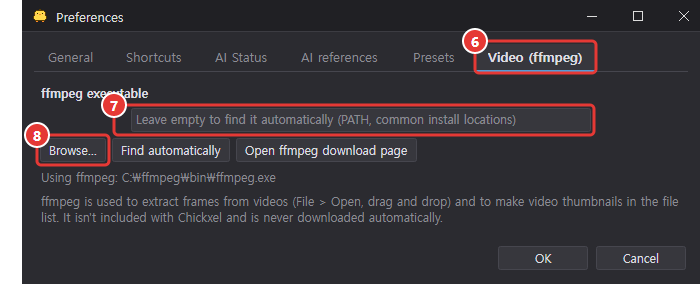
- Videos (MP4, WebM, MOV, MKV, AVI, …) and AVIF/HEIC images need ffmpeg (not included with Chickxel and never downloaded automatically — ffmpeg.org, or
winget install Gyan.FFmpegon Windows). It's found automatically on PATH or in common install locations; otherwise choose ⑦ the executable in ⑥ Edit > Preferences… > Video (ffmpeg) with ⑧ Browse….
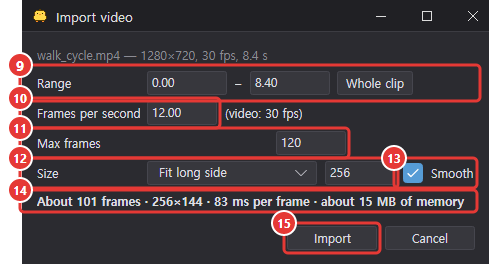
- Opening a video first shows the Import video window: ⑨ range (start–end seconds), ⑩ frames per second (default: the video's, at most 12), ⑪ max frames (default 120), ⑫ size (original / fit long side — turn ⑬ Smooth off to keep pixels crisp), and ⑭ an estimate of frames, size and memory. ⑮ Import shows a progress window you can cancel; each frame lasts 1000 ÷ frames per second.
Dropping images onto the canvas
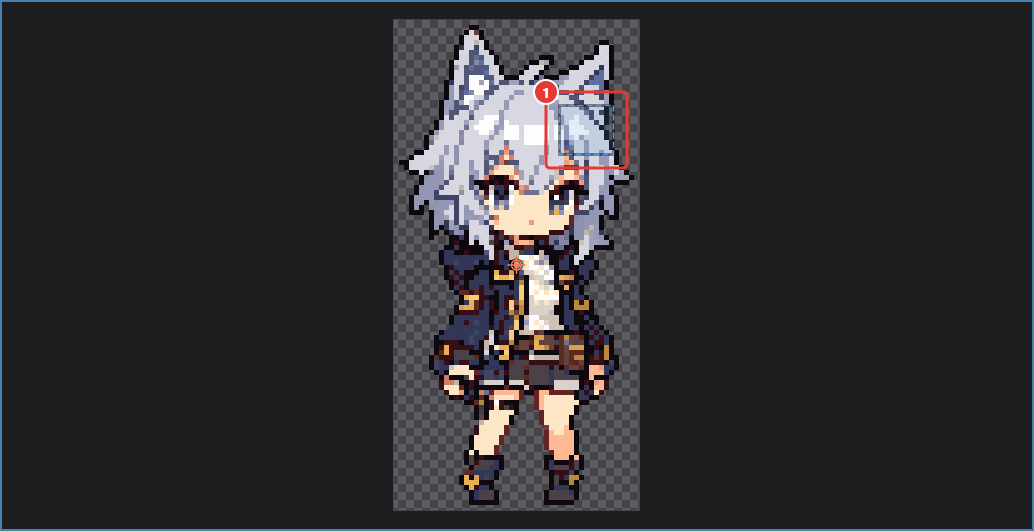
Drag images (PNG, JPG, BMP, GIF, WebP, APNG, …) or videos from Explorer/Finder or the file browser onto the canvas and each file becomes a new layer. While dragging, the canvas edge lights up and ① a dashed rectangle shows where the image will go.
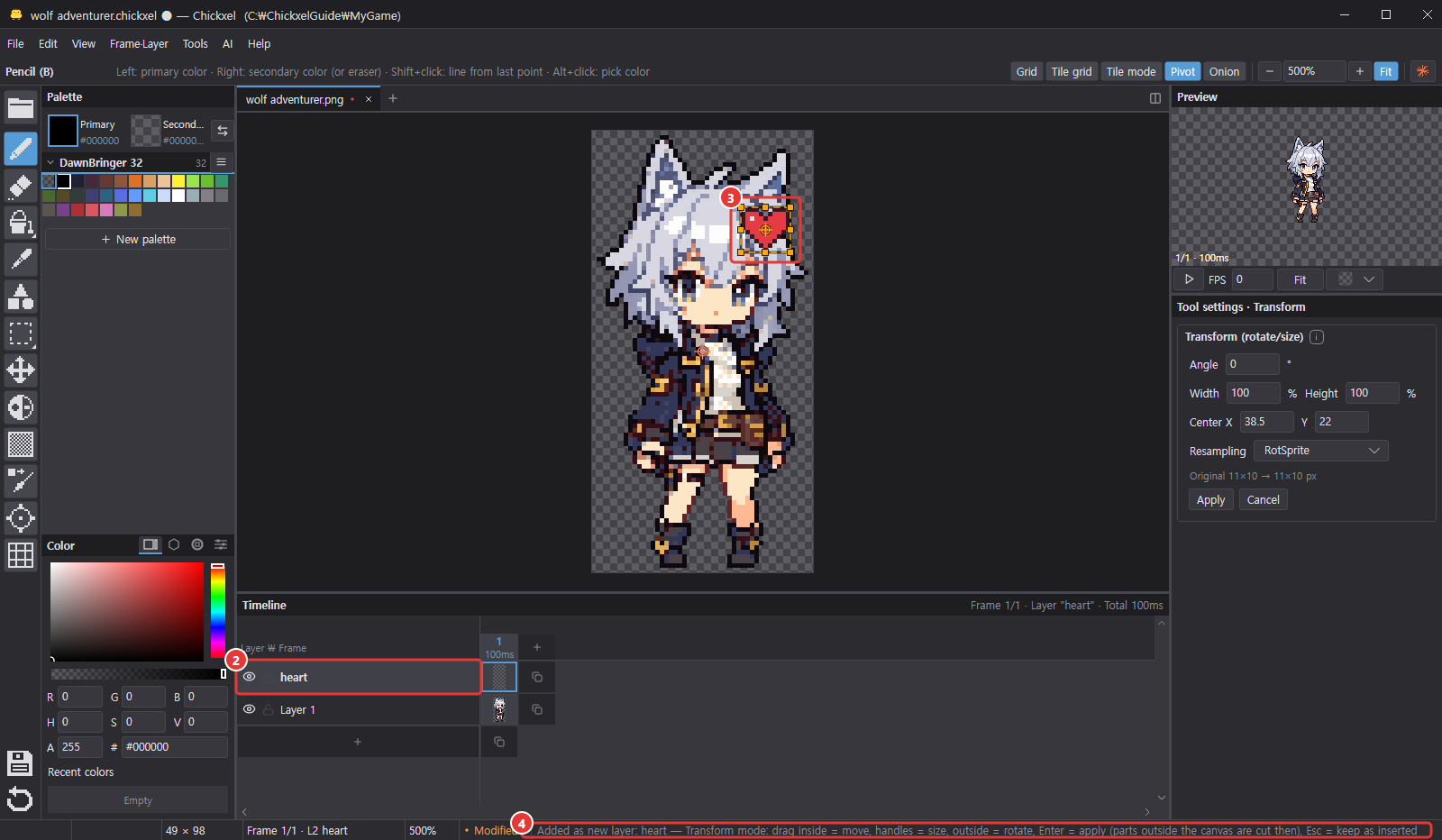
- ② The new layer is added above the current layer and named after the file (without the extension). Several files stack in drop order, and the last one ends up on top as the current layer. With a part or group selected, it goes above that group, like Add layer.
- The image is placed with the pixel you dropped on at its center, in the current frame, with its colors unchanged; anything outside the canvas is cut off. An image larger than the canvas is centered on the canvas and you're told it was cut — to keep all of it, enlarge the canvas first in Canvas size mode.
- Animated GIF, WebP and APNG files and videos (after the Import video window) go into one layer starting at the current frame; if there aren't enough frames, new ones are added at the end (with the image's or video's frame durations).
- The whole drop is a single undo step (
Drop image). - Dropping outside the canvas (file list, start screen, tab strip, panels) doesn't add layers — each file opens in its own tab. Dropping only a
.chickxelon the canvas opens it in a new tab too. - A single-frame image goes straight into ③ transform mode (the last one if you drop several; ④ the status bar explains the keys): the whole uncropped image is held, so move or resize it and press Enter to apply — parts outside the canvas are cut only then — or Esc to keep it as inserted (insert and transform are two undo steps). Multi-frame images are inserted without transform mode.
Cleaning up old outputs and renaming files

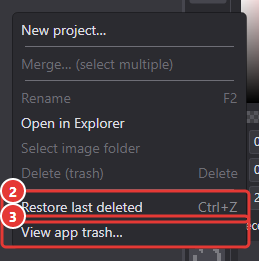
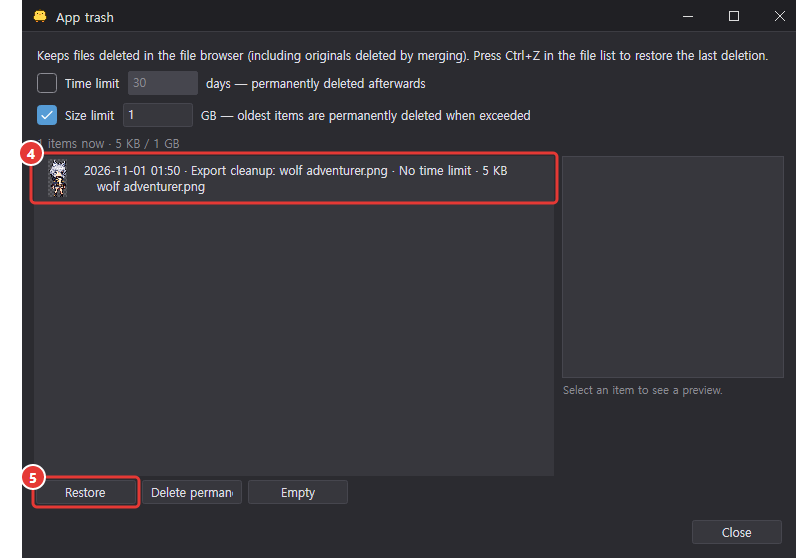
Old output files (and their .meta) that are no longer produced because you changed the export method or name are moved to the app trash on the next save, with ① a notice in the status bar. Restore them with ② Ctrl+Z in the file list or ③ View app trash (in the app trash window, pick ④ the entry and press ⑤ Restore).
Renaming or deleting a .chickxel in the file browser also moves the outputs exported under the default name and their .meta, or sends them to the app trash. Unity guids are kept.
Only files recorded as exported by Chickxel itself are cleaned up. Files you created yourself, or files with a custom export folder or name, are never touched.
Export cell names
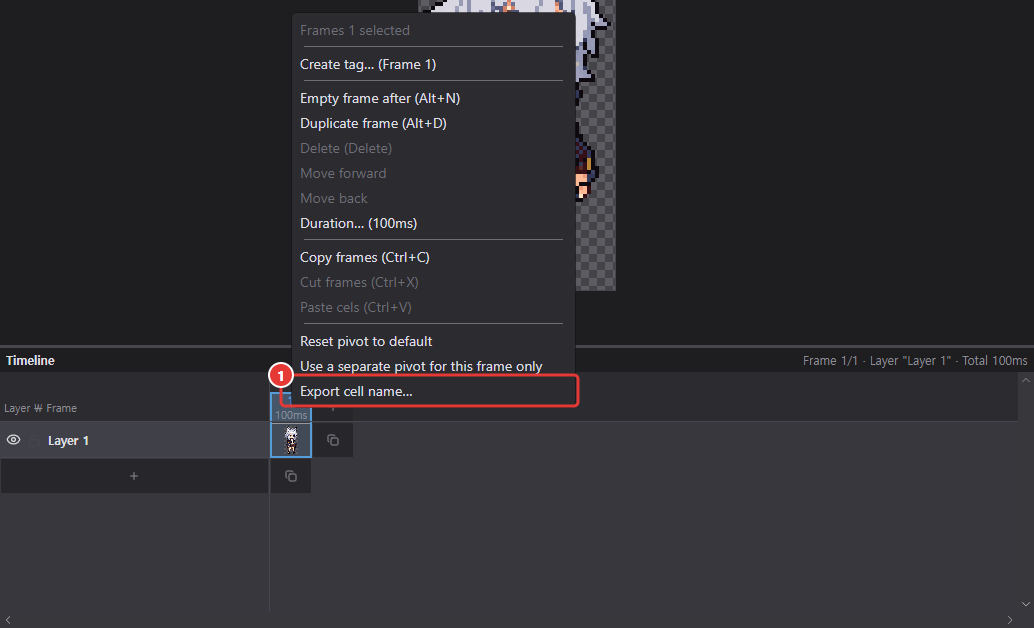
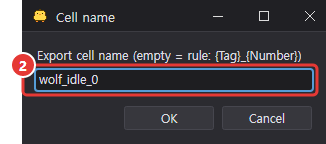
Right-click a frame in the timeline and set ① Export cell name…. ② If left empty, the {Tag}_{Number} or {File}_{Number} format is used. The overall rule is set under "Cell naming rule" in the export dialog.
Save prompt on quit
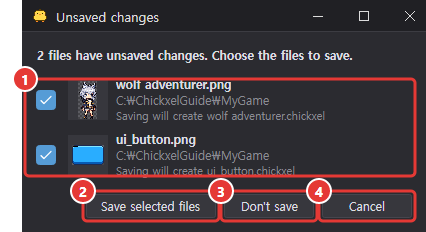
When you close the window or quit the app, ① unsaved files are gathered in a single dialog with their thumbnails and names.
- ② Save selected files: saves the checked files (including export) and quits. If any save fails, the app doesn't quit.
- ③ Don't save: quits without saving.
- ④ Cancel: doesn't quit.
Preferences
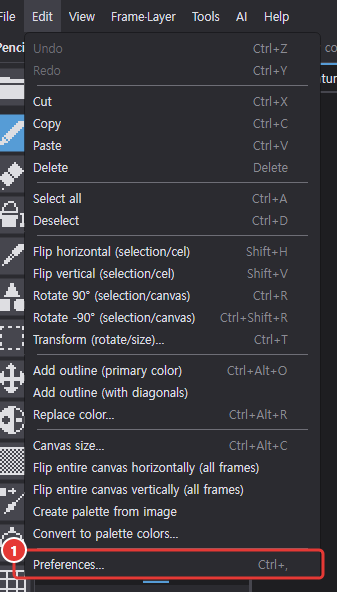
Change settings in ① Edit > Preferences… (Ctrl+,).
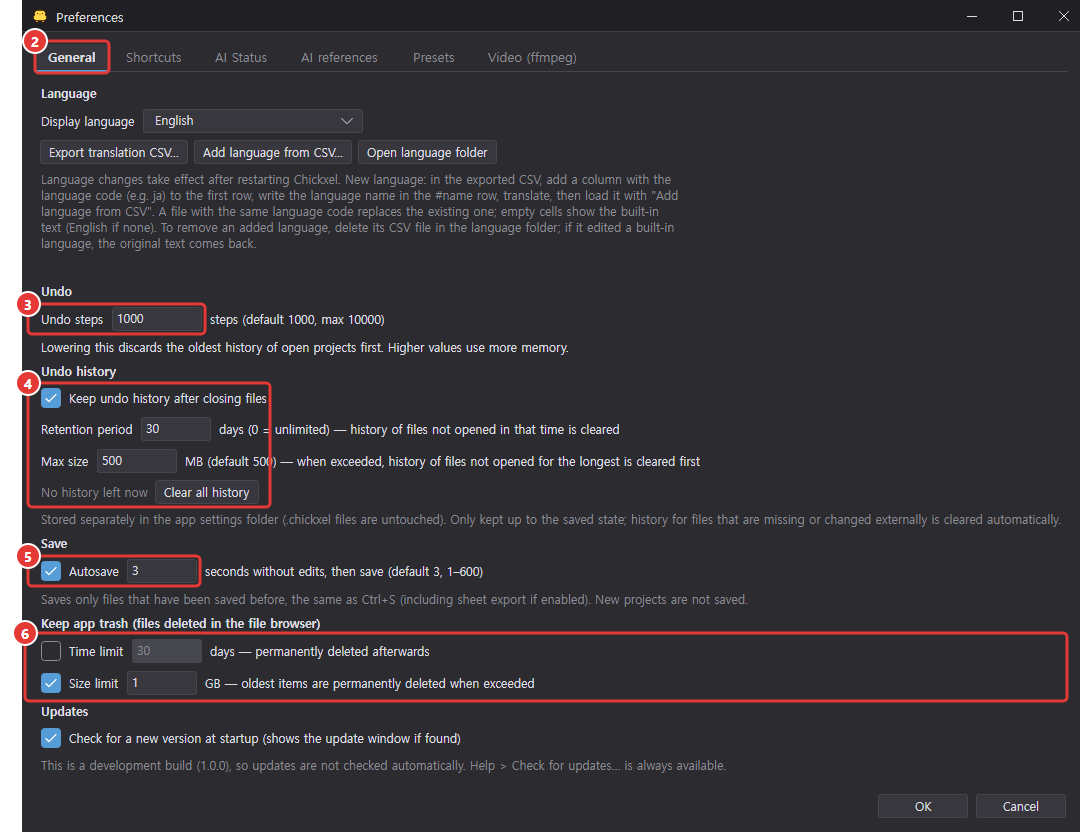
- ② General: ③ undo steps (default 1000, max 10000), ④ undo history retention, ⑤ autosave, ⑥ app trash retention, and more.
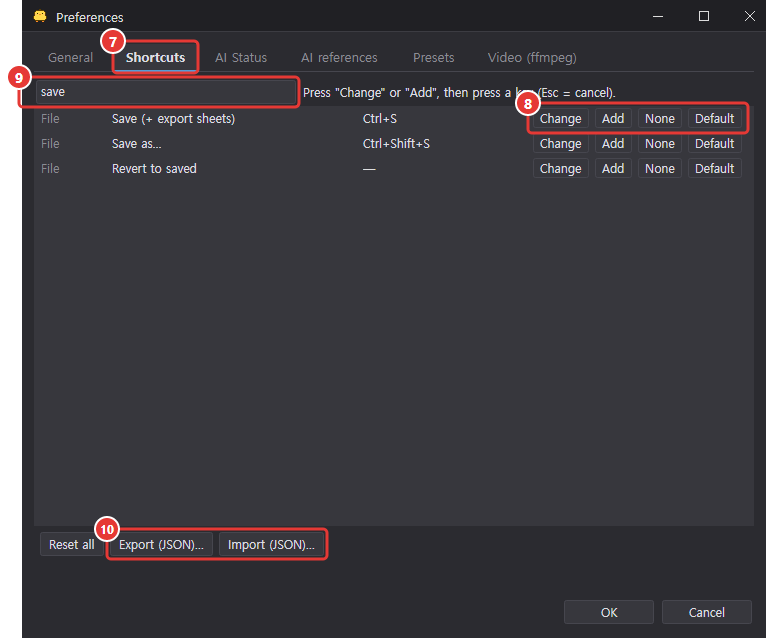
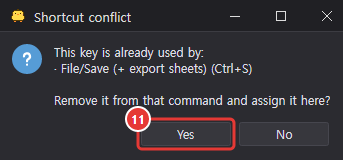
- ⑦ Shortcuts: ⑧ change, add, clear or reset the key for any command or tool, with ⑨ search. You're ⑪ asked if a key conflicts with another command. ⑩ Export and import as JSON (see Shortcuts).
- Presets: Restore auto optimize presets and Restore gradient presets add back built-in presets you deleted and reset edited built-ins to their original values. Presets you made and favorites stay. The presets themselves are managed in the Gradients and Auto optimize tabs of Tools > Presets….
Settings file location:
| OS | Location |
|---|---|
| Windows | %AppData%\Chickxel\settings.json |
| macOS | ~/Library/Application Support/Chickxel/settings.json |
Export setting presets are in export-presets.json in the same folder.
When errors occur
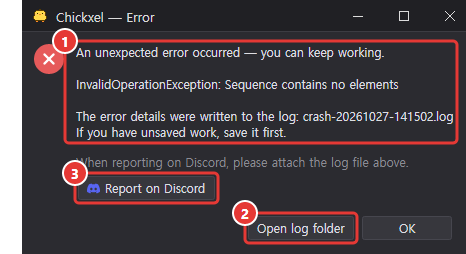
Even when an unexpected error occurs, the app doesn't quit; it shows ① a "You can keep working" dialog. Details are logged in Chickxel/Logs in the settings folder (last 20).
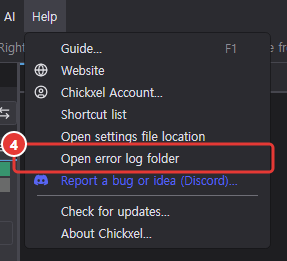
Chickxel/Recovery/.Pixelate AI images
AI-generated "pixel-look" images have inconsistent pixel sizes (e.g. 7–9 px), blurred edges, JPEG noise and hundreds of colors. This window turns such images (with a solid or transparent background, or sprite sheets with several frames) into clean pixel art.
Opening
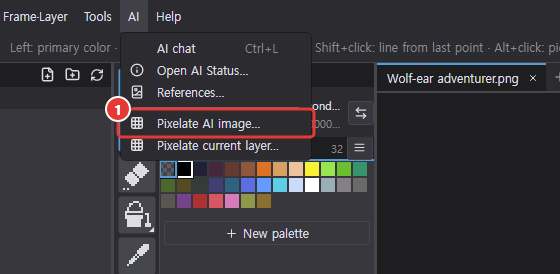
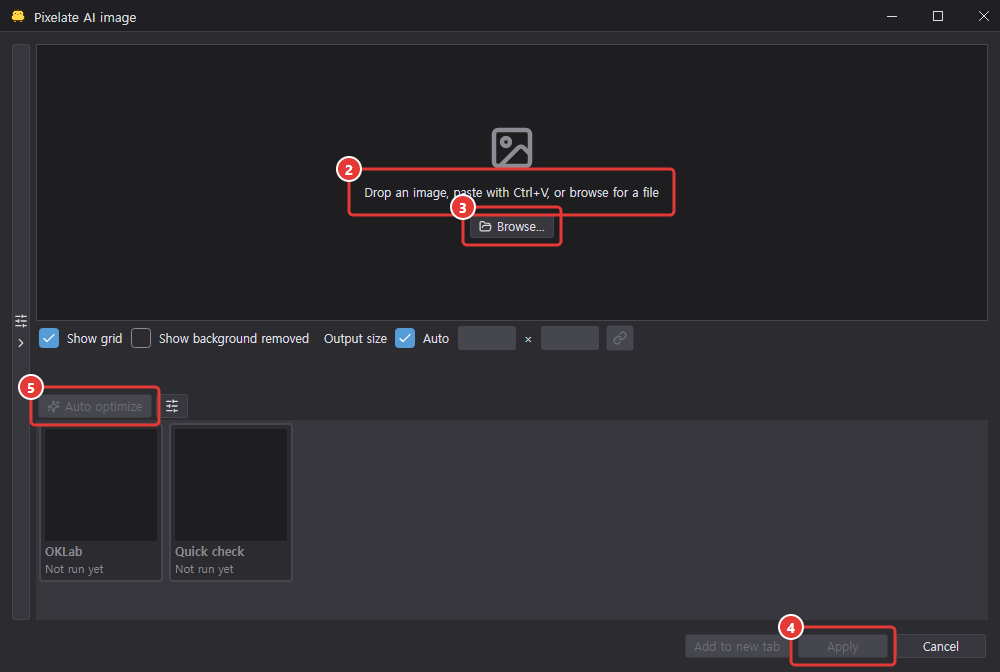
- ① AI > Pixelate AI image…: opens an empty window. As ② the message in the middle says, drop an image on it, paste one with Ctrl+V, or ③ Browse… for a file (PNG, JPG, BMP, GIF, WebP). ④ Apply and ⑤ auto optimize stay off until there's a source.
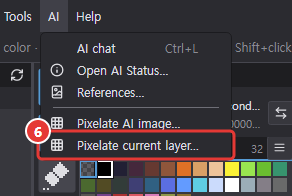
- ⑥ AI > Pixelate current layer… (right below Pixelate AI image…): uses the current layer as the source. If several frames have content, they're joined side by side and split as a grid, one cell per frame.
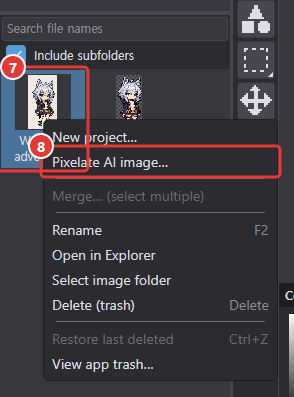
- In the file browser, right-click ⑦ an image file > ⑧ Pixelate AI image…: opens with that file as the source.
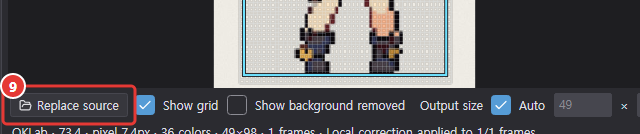
Loading or replacing the source: drop an image file anywhere on the window (the first image if several), press Ctrl+V outside text boxes (an image file copied in Explorer or an image file path as text first, otherwise the clipboard image), or Browse… (starting in the folder selected in the main window's file browser). With a source loaded, ⑨ Replace source in the status row, or another drop or paste, swaps it: candidates, preview and optimizer results are cleared, the frame split is applied again to the new image and everything is built again. The window can stay open while you do other things, such as using the AI chat.
When a source comes in, the frames are split once with the current method, and each preset checked in the Auto Optimize Settings window runs once with its saved settings, giving one tile per preset in the candidate row (marked As set (score)). The tile of the preset that is open is selected. With Auto optimize on load (off by default) turned on, all checked presets are auto-optimized instead. If no preset is checked, or the window was opened with AI drawing's View conversion settings, only the current settings run once (Current settings).
Pipeline settings
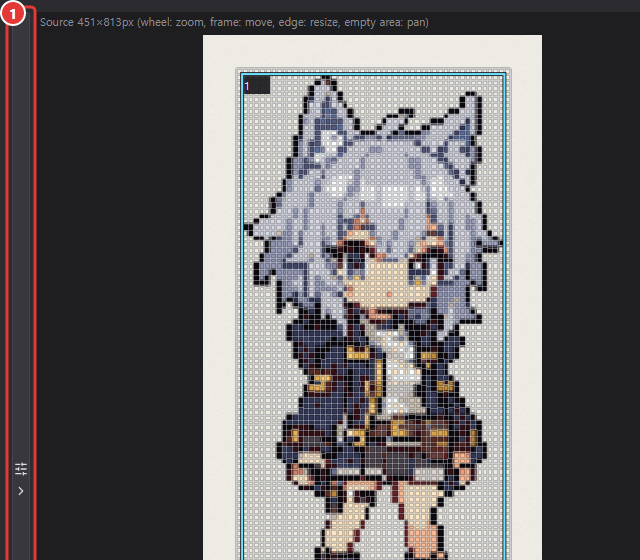
The settings are in a left column that starts collapsed to a thin vertical bar, so the preview and candidates get the room. Click ① the bar (settings icon and arrow) to slide it open, and again to collapse it; the state is remembered. At the top of the column is the preset bar, which stays in place while the settings scroll (Presets and Clean up), followed by 0. Optimize criteria (Auto optimize), steps 1–8, Output and AI (experimental). Each step can be collapsed, and steps with an Optimize check in their header decide whether Clean up and Auto optimize try other values for that step. Changing a value doesn't rebuild anything — press Clean up to see the result of the new values.
Background and frames
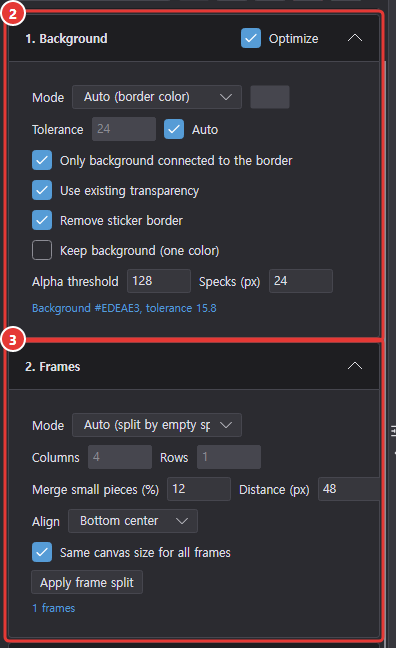
- ② Background: Keep · Auto (the most common border color; if the border is mostly transparent, the existing alpha is used) · Pick color. Tolerance (RGB distance, Auto from border noise), Only background connected to the border (flood fill from the border, so near-black outlines touching a black background and eyes are kept), use existing transparency, alpha threshold, speck size (small detached specks are removed).
- ③ Frames: Single · Auto (split by fully empty rows/columns; small detached pieces such as effects are merged into the nearest frame within a distance; sprites that touch or overlap sideways, so no empty column separates them, end up as one piece much wider than the others and are parted at the thinnest vertical line) · Grid (columns × rows — pixels aren't cut along the cell lines but assigned by connected blob, so hands and feet crossing a cell line don't leave fragments at the edge of the neighbouring frame; two touching sprites are parted at the thinnest spot near the cell line). Align bottom-center (default) · center · keep offsets; all frames get the same canvas size. The frames are split once with the current method when a source is loaded or replaced; after that, changing the split values or running Clean up or Auto optimize keeps the last applied boundaries. Press Apply frame split to split again with the new values (candidates are rebuilt too). You can also drag the frame boundaries directly in the source view (Source and preview).
Pixel grid and output size
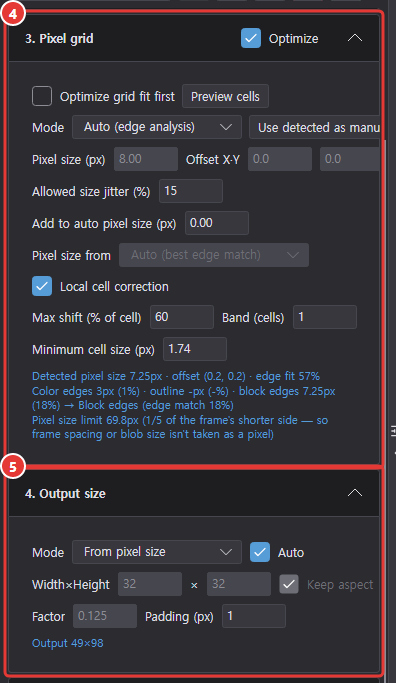
- ④ Pixel grid: Pixel size from chooses Auto (best edge match) · Outline thickness · Color edges · Block edges (used when cleanup's Fit outline to 1 px is Thin outline only, Redraw as vector or Off; disabled with By shrinking). Pixel sizes from 3 to 256 px are measured, so blocks enlarged past 100 px are found at their real size too. Color edges estimates the pixel size as a decimal from run lengths between color changes, tolerant to jitter and preferring the finer of two harmonics. Outline thickness measures the dark band touching transparency across many horizontal and vertical sections and picks the size at which the outline becomes 1 px. Block edges ignores weak texture such as paper grain (only neighbor OKLab differences above the image's noise level count) and picks the spacing at which strong color edges line up within a row (preferring the full block even when half blocks are mixed in), and the cell lines follow those strong edges too. Auto uses block edges when the block spacing is clear, otherwise fits cell lines for each of the three values and picks the one that best matches the source's strong edges (the match has the chance level removed — what the same edges give after shuffling their positions — because larger cells have more room to land on an edge by chance; on a near tie: outline, then block edges, then color edges, and a value that is 2× or 3× the chosen one and matches about as well wins). By shrinking only picks among values within ±12% of the outline thickness (a half-block value would make the outline 2 px) — unless the outline is thinner than a pixel (e.g. a blurred 1-px rim) and a larger value matches clearly better, then it shrinks to that. Clean images with at most 256 colors use the exact integer factor they were enlarged by (2–256), and 1-px pixel art (including flat fills with 1-px outlines) uses 1. Noisy or JPEG images with more than 256 colors are still detected when they are pixel art at original size (1-px cells) or 2× (2-px cells) (the reason reads "{n}px cells of noisy pixel art"). Cell boundaries are then fitted onto real edges even when cells vary 7–9 px. The pixel size and boundaries are always found per frame (output by scale factor or fixed size and refitting use each frame's boundaries too), with a jitter allowance %. Manual takes a pixel size and X/Y offset; Use detected as manual copies the auto result. The detected size, offset and edge fit % are shown, along with the three values, their edge match, the chosen one and why, e.g. "Color edges 5.75px (3%) · outline 24.75px (9%) · block edges 19px (8%) → Outline thickness (edge match 9%)". With By shrinking it shows "By shrinking: only values within ±12% of the {o}px outline are used, shrinking to a {s}px pixel size" (or "the {o}px outline is thinner than a pixel … so it shrinks to {s}px"); with Thin outline only or Redraw as vector, when the outline is about an integer multiple (2× or more) of the pixel size, an "outline is drawn {n} pixels thick…" note is added. Local cell correction (on by default) re-fits the image-wide cell boundaries per band (2 cells by default) to the strong block edges in that band (each boundary within Max shift, 35% of a cell by default; cell widths 70–130% of the original; smooth between neighboring bands) — so images drawn half a cell off in places are followed too. Boundaries are straight inside a band, so cells stay rectangles and the boundaries bend where bands change. Each band counts color edges that continue over several rows, drops short 1–2 px noise and weights high-contrast edges more, so sharp, continuous edges are matched first. When two sharp edges fall within one cell spacing (e.g. two black→skin edges 5 px apart), one cell line can't fit both. It is skipped when the average cell size is below Minimum cell size (px) (default 4 px, 1–16 px).
- ⑤ Output size: From pixel size · Fit a fixed size (W × H, e.g. 32/48/64, keep aspect, padding) · Scale factor. Auto next to the mode is the same setting as Auto in the bar under the source (off = fit a fixed size, on = the last automatic mode).
Optimize grid fit first at the top of 3. Pixel grid (saved with the preset) makes Clean up and Auto optimize first try only the grid values (pixel size, size jitter, pixel size source and local correction; offset X/Y for a manual grid) to find the grid with the best cell split score, then keep that grid while optimizing the other steps that have Optimize on. The cell split score looks only at the source and the cell boundaries: it is the average of Cell edge fit (higher when the cell lines miss none of the source's strong edges and the lines crossing the sprite lie on source edges — cells smaller or larger than the real ones both score low) and Cell color purity (higher when each cell's interior holds only similar colors). When other steps are optimized too, the grid stage uses up to half of the trial and time budget, and while this is on the Optimize check in the 3. Pixel grid header is disabled (this check takes its place). Preview cells next to it adds a tile of that name at the front of the candidate row and selects it, showing the cell boundaries over the source (grid view is turned on) — with the check on it runs only the grid stage, with it off it runs once with the values as set; the grid values it finds are loaded on the left but never written into a preset. Add to auto pixel size (px) and a manual grid's offset X/Y depend on the image, so Clean up uses them but presets and the settings remembered for next time don't store them (changing only these doesn't turn the save button red).
Cell color and palette
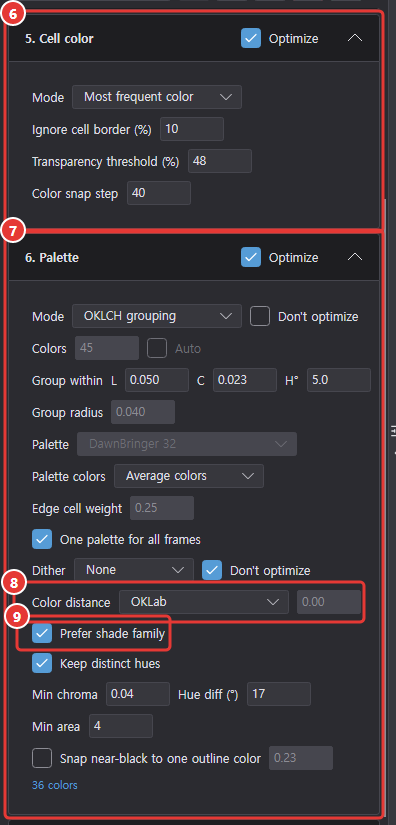
- ⑥ Cell color: most frequent color after light snapping (default) · median · center pixel · mean · Center-weighted mean (the cell's center counts more) · Dominant-color weighted mean (groups similar colors and averages only inside the dominant group, so different fills such as skin and black clothing aren't mixed). Ignore cell border %, transparency threshold %. Color snap step is used only by most frequent color and dominant-color weighted mean.
- ⑦ Palette: the methods are OKLCH grouping (default) · k-means (OKLab) · Median cut · Existing palette (palettes from the palette column and Lospec favorites) · Keep original colors · Distance grouping. OKLCH grouping merges colors whose lightness, chroma and hue differences are all within Group within L · C · H° (default 0.1 · 0.1 · 20) into one color — the color that groups the most pixels becomes a center first, a color within reach of several centers joins the nearest, and hue is ignored for near-gray colors. Distance grouping merges colors the same way when their difference measured with ⑧ Color distance is within Group radius (default 0.04, 0.005–0.3). Because OKLCH grouping ignores the hue of grays, a light gray can end up grouped with an apricot of the same lightness; distance grouping with CIEDE2000 as the color distance groups it with the white it looks like instead. With these two methods the limits decide the color count, so Colors and Auto are disabled. k-means and median cut use a color count of 2–64 or Auto (the elbow of the error curve, raised until small salient colors such as a red scarf are kept); the built-in preset Fewer colors (16) uses k-means with 16 colors. Don't optimize next to the method (only when the Palette step's Optimize is on; saved with the preset) keeps the palette method when optimizing and tries only that method's other values (color count, grouping range and so on). Palette colors (k-means, median cut and the two grouping methods): Original colors (default — after grouping similar colors, each group uses the cell color actually used most, so blurred edge colors can't pull a white robe toward grey) · Average colors (the group average, the old behavior). Edge cell weight 0–1 (0.25 by default, original colors only): when grouping colors and picking the auto color count, cells touching transparency and blurred cells between two neighbor colors (including between the outline and a fill) count only this much. One palette for all frames (default), dither None (default) · Bayer 2×2 · Bayer 4×4 (same as converting to palette colors) — Don't optimize next to the dither (on by default) keeps optimizing from changing the dither (a dither pattern's average color is close to the source, so it easily raises the score, yet zooming in shows a checkerboard or stray colored dots). Snap near-black colors to one outline color (the most-used palette color at or below the outline darkness — with original colors, an actual cell color). Dithering mixes two palette colors in light intensity (linear light) and compares the mix with the source in OKLab to set the ratio (e.g. a half black, half white pattern stands for sRGB 188 gray). The pattern is used only when the mix is still closer to the source than the nearest single color after adding how visible the pattern is (the lightness difference of the two colors counts fully, hue and chroma differences count half), and colors within a just-noticeable difference (OKLab 0.02) of a palette color are not dithered.
- ⑧ Color distance (palette): the distance used when cells take a palette color (without dithering), for pinned-color matching, excluded-color replacement, the original-color pick and Distance grouping (the score uses the scoring color distance in 0. Optimize criteria). OKLCh hue-weighted (default — hue differences count more by the hue weight. The hue weight is 0–1000, default 2: 0 ignores hue differences, 1 equals OKLab distance, and very large values almost always pick a color of the same hue family first, before lightness and chroma) · CIEDE2000 · OKLab (the old straight distance). k-means and OKLCH grouping stay in OKLab, and dithering (Bayer) compares the light-blended mix in OKLab (see ⑦ Palette). Keep distinct hues (on by default): if a source color group with enough chroma (default 0.04) and area (default 4 cells) would turn into a palette color whose hue differs by 20° or more (e.g. small apricot ear shading → gold), that color is put in the palette — added with an automatic count, or swapped for the least important color with a fixed count (at most a quarter of the palette; pinned colors are never swapped). In-between colors blurred between two palette colors are not added. Optimizing the Palette step tries other values for both.
- ⑨ Prefer shade family (on by default, under the color distance): if a palette color has a similar hue and chroma to the cell color (a lighter or darker shade of the same color), the cell takes the family member with the nearest lightness instead of a different-hue color of similar lightness. Dithering also never mixes in a chromatic color of a different hue — deep apricot hand shading no longer turns gold or gets gold dots. Optimizing the Palette step tries it on and off.
Cleanup and outlines
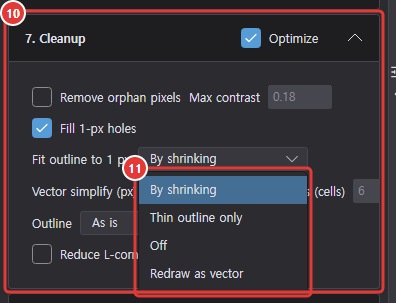
- ⑩ Cleanup: remove orphan pixels (with a max contrast so pupils survive), fill 1-px holes, outline (as is · unify to the darkest color · ensure a closed 1-px outline), reduce L-corner doubles on outlines, ⑪ Fit outline to 1 px: By shrinking (default — the pixel size becomes the outer outline thickness, so the whole sprite scales down and the outline becomes 1 px; leftover double pixels get one light thinning pass; a manual grid size wins; the pixel size starts from the measured outline thickness so the outline band is exactly one cell, and may only move to a larger value that clearly fits the edges better, never to a smaller one such as half the thickness (a 2-cell outline); the thickness is measured at outline darkness 0.24 even if you lower it) · Thin outline only (keeps the grid's pixel size and peels up to 3 outline layers doubled inward, never breaking the line and leaving inner dark shapes such as eyes alone) · Redraw as vector (keeps the grid's pixel size like Thin outline only, traces the center line of the outline band touching transparency in the background-removed source, simplifies it and redraws it through the actual cell boundaries as a 1-px pixel-perfect line; old outline cells off the new line become transparent outside and the nearest inner color inside, so no double outline remains, and small dark shapes not touching the outline such as eyes stay; adjust with Vector simplify (px) and Keep small blobs (cells)) · Off.
Frame consistency
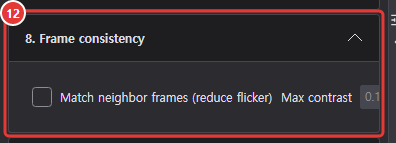
- ⑫ Frame consistency: match neighbor frames — pixels that differ slightly from identical previous and next frames take that color.
Presets and Clean up
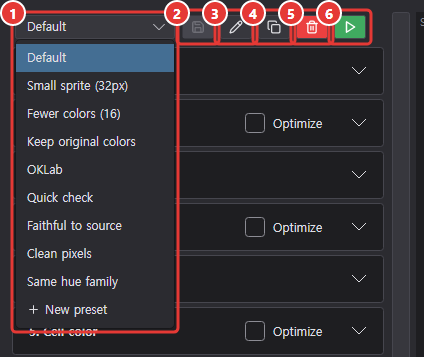
A preset holds the settings of steps 1–8 (without pinned and excluded colors), each step's Optimize check and 0. Optimize criteria. The preset bar at the top of the settings column stays in place while the settings scroll.
- ① Choosing a preset in the list only loads its values on the left; nothing is rebuilt. If there are unsaved changes, choosing another preset asks whether to save them (Cancel keeps the current one). New preset at the end of the list makes a new preset from the current values; it joins the list when you save it.
- ② The save button turns red when the values on the left differ from the chosen preset and is disabled when they match what's saved. Click it to save the current values to the chosen preset.
- ③ Rename, ④ Copy (saves name copy 1 with the current values right after the chosen preset and selects it — 2, 3… if the name is taken; copying a copy just raises the number on the original name; the Auto optimize check starts off), ⑤ the red Delete (the last preset can't be deleted).
- ⑥ Clean up (the green play icon) runs the chosen preset once with the current values on the left and replaces only its tile in the candidate row (other candidates stay; with no tile of that name, a new one is added at the front). If any step has Optimize on, only those steps are auto-optimized (starting from the values shown, with the budget and scoring of 0. Optimize criteria); otherwise it cleans up once as set (the tile shows As set (score)). Run with a saved preset as is, the values found are written straight into that preset (if it's open, the values on the left follow while it runs; Revert reverts the preset too); with unsaved edits it runs as a preset name (modified) tile and leaves the preset unchanged (an unsaved new preset uses its own name, and with no preset chosen the tile is Current settings). Changing values or choosing a preset never rebuilds by itself.
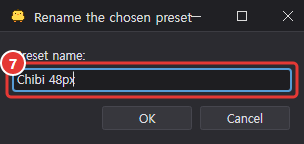
Rename asks for ⑦ the preset name. If another preset already has that name (ignoring case), it says so and asks again.
The built-in presets are Default · Small sprite (32px) · Fewer colors (16) · Keep original colors without optimization, and OKLab · Quick check · Faithful to source · Clean pixels · Same hue family with optimization on; all of them use no dithering. All can be edited and deleted, and Reset in the Auto Optimize Settings window brings back the installed state (Auto optimize). Presets are stored in the app settings, and the last settings and chosen preset are remembered.
On the bundled sample (a 4-frame walk cycle, 2172×724 px) the outline is 16.3 px thick (color edges 8.25 px, block edges 15.5 px). The default By shrinking gives cells of about 16 px, about 29×35 per frame, about 24 colors and about 99% of outer outline pixels 1 px thick (with local cell correction; about 96% without); Thin outline only with pixel size from Color edges gives cells of about 8 px and about 99% (with Auto the outline thickness ties on edge match, so 16 px). The OKLab distance (local correction off) from the source's 10 most-used colors to the nearest palette color averages 0.011 (max 0.025) with original colors and 0.013 (max 0.026) with average colors.
Candidates and scores
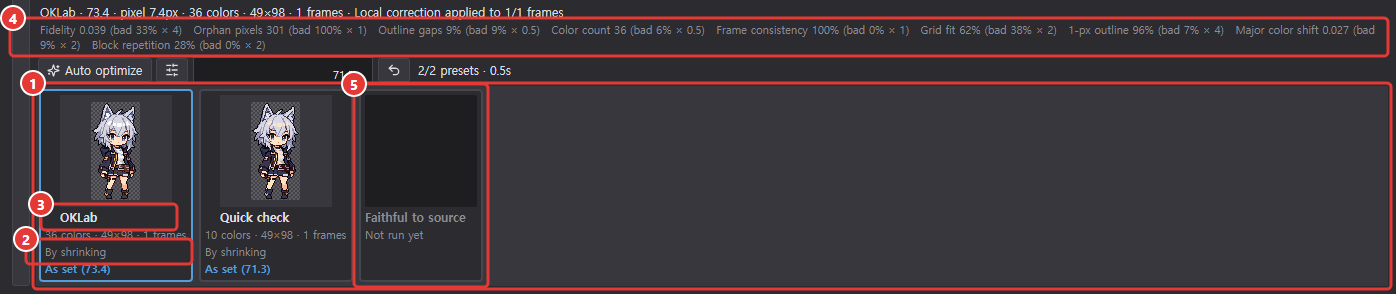
The candidate row holds one tile per preset — after a source is loaded, the checked presets run as set (Opening); after Clean up or Auto optimize, their results. ① A candidate tile shows a thumbnail, ③ the preset name, the color count, size and frame count, and ② the outline fit mode; the blue text at the bottom is why the tile was made and its score (As set (73.4), or for an optimized result the stop reason from Auto optimize). The line under the preview shows the selected candidate as preset name · score · pixel size · colors · size · frames.
- ④ The selected candidate's score breakdown (each item's value, badness % and weight) is shown under the preview.
- The score (0–100, computed without AI) is a weighted sum of fidelity (the result compared cell by cell with the background-removed source — computed as described in the background item under Source and preview), orphan pixels, outline gaps, 1-px outline (the share of outer outline pixels that are only 1 px thick; doubled bands of 2 px or more count against it; default weight 4, the largest after fidelity — measured on the final placed result pixels, at outline darkness 0.24 even if you lower it, so leaving black outlines uncounted earns nothing; 1-px lines running inward from the outline are not doubling), color count vs. target, frame consistency, grid fit and Block repetition (the share of edge cells, judged by each cell's average source color, that sit in a same-color 2×2 block — close to 1 when the pixel size is half the real pixel or less so the result is still an enlarged image; dithering can't hide it; fine up to 65%, worst at 95%; default weight 2). The weights and target color count are set per preset in 0. Optimize criteria (Auto optimize), and each candidate is scored with the criteria of the preset that made it. When the selected result's long side exceeds 256 px, "Large result ({w}×{h}) — check the pixel size" is shown under the preview.
- ⑤ Presets checked in the Auto Optimize Settings window that have no result yet hold a place at the end of the candidate row as empty tiles (preset name · Not run yet). They show even before a source is loaded, appear as soon as you check a preset and disappear when you uncheck it (tiles that already have a result stay). Right-click an empty tile > Run only this preset to run just that preset (once the first preparation is done and nothing else is running); its result takes that place.
- Click a candidate tile to select it and load its settings on the left. For a preset tile the preset list switches to that preset too, and each step's Optimize check, 0. Optimize criteria, and the output size Auto and size become the values the tile was run with. For a tile run from a saved preset as is, the save button turns off; for a tile run with modified values, it turns red. If you've edited values on the left and not yet pressed Clean up, clicking another tile asks whether to save them first (Cancel keeps the current selection). Double-click a tile to apply it right away.
- Running tiles (Clean up, Rerun, Auto optimize and the first candidate row) have a slowly blinking yellow border, and their thumbnail shows the best result found so far whenever it improves. Click a running tile to see that best result in the large preview, the source's cell boundaries and the enlarged view; it follows the best as it changes (the selected candidate line shows (running)). Colors can't be excluded or pinned meanwhile, and when that preset finishes its result tile is selected (if it ends without a result, the tile you had selected before comes back).
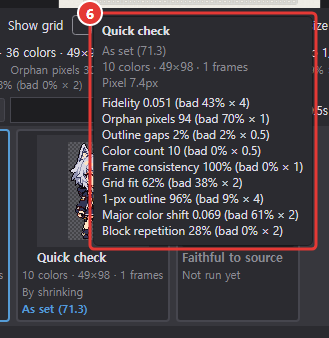
- ⑥ Hovering a candidate tile shows a tooltip with the preset name in bold (in full, even when cut off on the tile), the reason and score, colors and size, the pixel size, and the per-item score breakdown below.
- Right-click a candidate tile for Copy image, Copy enlarged (×4) and Save as PNG… (multi-frame results use the first frame; the file is named source name_preset name). Copies go to both Chickxel's clipboard and the system clipboard, so you can paste into the canvas or other apps. Rerun only this preset at the bottom of the same menu reruns just that tile and replaces it in place — a tile run from a saved preset as is uses that preset's currently saved values, and a tile whose name ends in (modified) uses the values it was run with (disabled while something runs or if the preset was deleted).
- Failed results: a result that is empty (all transparent), nearly empty (covers less than ¼ of the source sprite), single-colored, or has every frame under 8×8 is treated as a wrongly detected pixel size: it scores 0, sorts last and is never preselected or picked as the auto-optimize winner. Selecting it shows why under the preview, such as "The result is empty (all transparent) — the pixel size was detected wrong (183px)". With the auto grid such a result is redone automatically with the next-best estimate (another pixel-size source, or ½ or ⅓ of the detected size), and the window says so. The auto pixel size never exceeds 1/5 of a frame's (sprite's) shorter side (the grid info shows the limit), so frame spacing or large blobs in a sheet aren't taken for a pixel.
Auto optimize
Start and review results


Click ① Auto optimize above the candidates to start right away. Each preset checked in the Auto Optimize Settings window starts from its own settings, tries values for the steps that have Optimize on and keeps the highest-scoring settings by that preset's 0. Optimize criteria; each preset contributes its single best result as a candidate. Next to the button you see ③ a best-score graph (the best score so far after each trial, a faint vertical line where a new pass starts, and the best score at the bottom right — it stays after the run), ④ a one-line result ("n/m presets · t s", or for a single preset "preset name: k passes · a → b · n trials · t s · reason") and, after a run, a small ⑤ Revert button. ② The settings button (sliders icon) opens the Auto Optimize Settings window.
- While it runs the button turns into a red ⑦ Cancel, and ⑧ "preset name (i/n) · pass p · trial n/budget · best s" shows next to the graph. The candidate row turns into the presets to run: ⑨ the running tile blinks with a yellow border and shows Optimizing (best score) and the best picture so far, ⑩ tiles waiting their turn show Waiting, and each fills with its result as the preset finishes. Cancelling everything before any result brings back the tiles from before the run. Pinned and excluded colors don't rebuild anything, so changing them leaves the preset tiles as they are.
- ⑦ Cancel stops only the preset that's running, leaves its best result so far in its tile (Cancelled (score)) and moves on to the next preset (stopped before its first trial, the tile is dropped without a result). To stop the remaining presets too, right-click the button > Cancel all. Replacing the source, applying a frame split or closing the window discards the run.
- When it finishes, the candidate row holds one best tile per checked preset; the tile of the open preset is selected (or the first tile, or the tile you picked while it ran) and its settings are loaded on the left. The values found are written into each preset right away. The blue text ⑥ at the bottom of a tile shows why it stopped and that candidate's score: Optimized (87.6) when it stopped improving, Time limit (60.4) when the time budget ran out, Trial limit (…) when the trial budget ran out, and Cancelled (…) when cancelled. ⑤ Revert next to the graph restores the settings from before the run, including the presets the run wrote into.
Auto Optimize Settings window
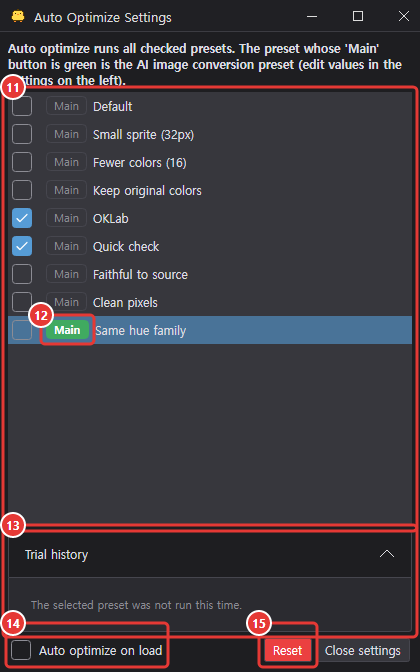
- ⑪ Checked presets in the list run with Auto optimize and hold a place in the candidate row (edit their values in the settings column on the left).
- ⑫ The Main button picks the preset used to pixelate images generated by AI drawing (only the chosen one is green; it's independent of the checkboxes; Same hue family at first). Conversion uses that preset's saved step settings, per-step optimize and criteria, and an output size set in the chat comes first.
- ⑬ Expand Trial history to see the last run of the preset selected in the list and its top 50 trials by score with their changed values.
- ⑭ With Auto optimize on load on (off by default; your choice is remembered), every time a source is loaded (open, drop, paste, browse or replace source) all checked presets are auto-optimized instead of each running once as set.
- ⑮ The red Reset asks first, then returns the preset list, checkboxes, main preset, preset values (including values written by optimization) and Auto optimize on load to how they were when first installed, and deletes presets you created and the trial history (this can't be undone).
Per-step optimize and criteria
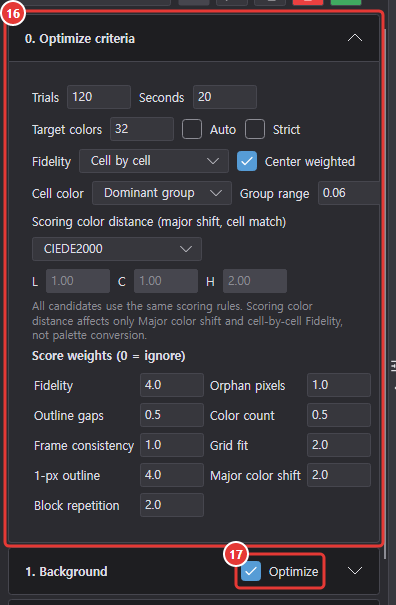
- ⑯ 0. Optimize criteria (top of the settings column, saved with the preset) holds the budget and scoring rules for Clean up and Auto optimize. Trials and Seconds are the budget. Target colors lowers the score in proportion to the colors over the target (Auto, the default, ignores the color count; Strict next to it penalizes fewer colors than the target by the difference too). The Fidelity row sets how results are compared with the source: Cell by cell (default — each result pixel is compared only with its own source cell's color, so a stray colored dot inside an outline or a dither pattern costs points) · Blended with neighbors (blurred with neighboring cells before comparing — a dither pattern that blends from a distance counts as a match), and Center weighted (on by default — pixels near the cell center count more). Cell color is Dominant group (default — the largest group of similar colors in the cell, leaving out an outline or bleed crossing the cell edge) or Cell average, and Group range is how different colors may be within one group (OKLab, default 0.06). Scoring color distance (major shift, cell match) is OKLab, CIEDE2000 or OKLCh hue-weighted (with a weight for each of the lightness L, chroma C and hue H differences, default 1 · 1 · 2); it's separate from the palette's conversion distance and measures every candidate with the same ruler. Score weights (0 = ignore) sets how much each score item counts (0 = ignored).
- ⑰ Optimize: only steps with this check on in their header (1. Background · 3. Pixel grid · 5. Cell color · 6. Palette · 7. Cleanup) are varied by Clean up and Auto optimize, starting from the values shown; steps with it off use their values as set (saved with the preset). A checked step tries everything it can change — Background: remove sticker border · Grid: pixel size, size jitter, pixel size source, local cell correction (with max shift and band in trials that use it) and a manual grid's offset X/Y · Cell color: cell color method, ignored cell border, transparency threshold, color snap step · Palette: palette method (all five, plus an existing palette when starting from one), color count, grouping range, group radius, palette colors, edge cell weight, color distance, keep distinct hues, prefer shade family, dither, snap outline color, outline darkness · Cleanup: cleanup on/off, outline fit mode, vector simplify, keep small blobs. Values tied to a method change only in trials using that method, and a palette method or dither with Don't optimize on is never changed. The pixel size is never shrunk without evidence: By shrinking searches only within ±15% of the source outline thickness; otherwise the search sweeps between the three estimates and their 2×, 3×, ½ and ⅓, going down only to 0.75× of the starting size and the auto estimate (smaller cells always improve fidelity, which would make results needlessly large). An exact multiple of a clean image keeps its pixel size. The pixel size is changed through Add to auto pixel size (px) for an auto grid, the pixel size for a manual grid and the factor for scale-factor output; a fixed output size skips it.
Search method and stopping conditions
- It first tries each item on its own (7 spread-out values for numbers, every value for choices), then climbs from the best few points with small steps (shrinking the step when nothing improves). Identical settings are never run twice, and background removal and frame splitting are done once, so the trials run quickly on several threads.
- When one search (a pass) ends with no further improvement, the same search runs again from the best result. A new pass also climbs from the top result not yet used as a start whose settings differ most from the best and from a small fixed nudge of the best, so it doesn't get stuck in one spot. A pass that raises the best score by less than 0.1 points doesn't stop the search right away: up to three more passes start from other top results and wider nudges before it stops, so optimizing an already optimized result doesn't give up after its first pass. Settings already tried are never run again. The same image and settings always give the same result when the run ends on the trial budget rather than the time limit.
- Each preset stops at the Trials or Seconds of its 0. Optimize criteria, whichever comes first (one budget shared by all passes of that preset; 2000 trials and 120 seconds for a new preset). With Optimize grid fit first on and other steps optimized too, the grid stage uses up to half of it.
On the bundled sample (default settings, the earlier default items and budget — pixel size, color count, cell color method, cleanup and palette colors; 200 trials, 60 s) it took about 3 s and 162 trials to go from 70.3 to 80.8 (cells about 16.1 → 14.9 px, 26 colors, fill holes off, palette colors kept as original colors, 99% of outline pixels 1 px).
Source and preview
Source view and output size
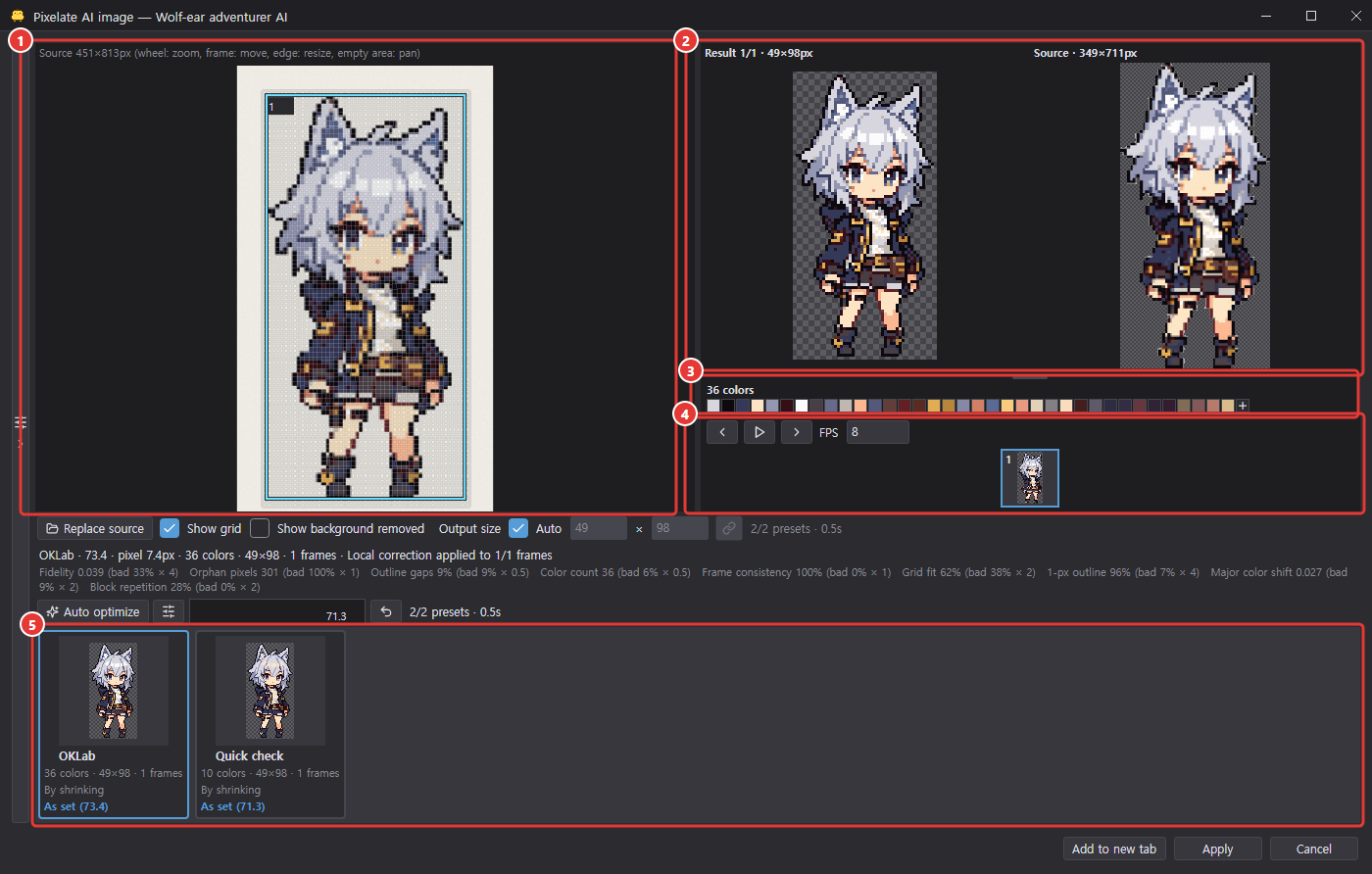

- ① Source view: wheel to zoom, drag an empty area to pan, double-click to fit. The boundaries and numbers of the applied frame split are always shown on the source, whether or not the grid is shown. ⑥ Show background removed shows the source without its background.
- Drag inside a frame to move it, or drag its edges and corners to resize it (in source pixels, kept inside the source). On release the frames are split with those boundaries and the candidates are rebuilt; edited boundaries are saved with the settings and presets. Changing the split conditions, such as the split mode or frame count, clears the edited boundaries, but the boundaries on screen stay until you press Apply frame split. Right-click the source for Copy image and Save as PNG… (with Show background removed on, the background-removed source is used and the file name ends in "nobg"); right-clicking inside a frame adds Copy frame N and Save frame N as PNG… at the top for just that frame (the file name ends in the frame number). While picking a color, right-click cancels the eyedropper instead, so no menu opens.
- Output size in the bar under the source: with ⑦ Auto on (the default) the size follows the pixel size and ⑧ the width × height boxes show the selected result's size in grey. Turn it off to fit the result to the width × height you enter (changing them rebuilds); with ⑨ the link button on, changing the width updates the height (and vice versa) by the current result's ratio. It's the same setting as 4. Output size on the left, so changing either updates the other.
- ⑩ Show grid (on by default) draws the cell boundaries the selected candidate actually used (its actual pixel size and each frame's own uneven boundaries, so the lines match the color blocks) on the source view on the left (not on the Source image of the large preview, but they are in the enlarged view's source pane; with local correction the bent boundaries are drawn as they are). They're thin light lines with a dark edge that follow zoom and pan, and they fade or hide when cells are smaller than about 3 screen pixels. Hovering a source cell highlights that cell and the matching result pixel, and the preview jumps to that frame.
Local cell correction
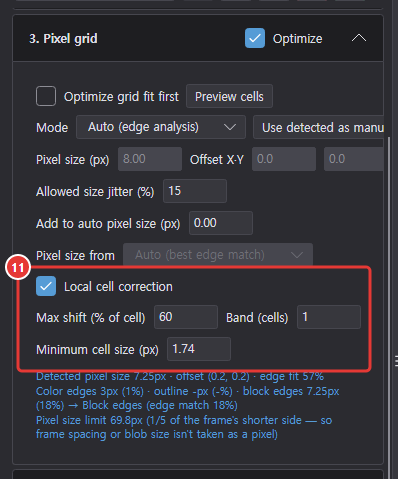
- ⑪ Local cell correction is enabled under Pixel grid on the left. Minimum cell size (px) is the average source-pixel size required to adjust boundaries; set it from 1 to 16 px (default 4 px). Lower values can correct small cells but may follow blurred-edge noise. Maximum shift is 5–99% of a cell and Band spans 1–32 cells; neighboring cell-width limits may constrain the actual shift. The grid stays straight when cells are below the selected threshold or no boundaries move. The selected result shows whether correction took effect. With Optimize on for 3. Pixel grid, Clean up and Auto optimize also try correction on and off along with the max shift and band.
Excluded and pinned colors
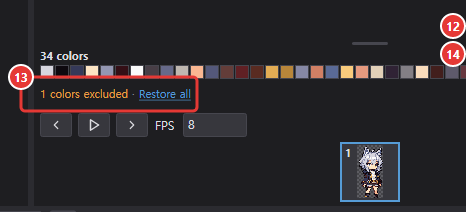
- Color swatches and result pixels work the same way — Left-click: show where used · Right-click: exclude/restore. Right-click a swatch to exclude that color from the current result only, without rebuilding (only its pixels change, to the remaining color nearest their source cell's color, so N colors drops by exactly the number excluded; ⑫ the swatch stays at the end, dimmed, with a red border and a diagonal line), and right-click again to bring back the original result. Right-clicking a pixel in the large preview's result image or the enlarged view's result pane excludes the color currently shown there (if it's already a replacement for an excluded color, that replacement color). The last remaining color can't be excluded (the status line says so), and right-clicking a pinned color unpins it. Left-click briefly highlights that color's pixels in the result (other colors dimmed, each connected patch of that color outlined in yellow around its edge only) and the swatch itself — for an excluded swatch, where the color used to be. While colors are excluded, ⑬ "N colors excluded · Restore all" is shown; newly built candidates and auto-optimize results get the same exclusion, and it stays when applying (a color within OKLab 0.03 counts as the same color, so slightly different settings still match). Exclusions aren't saved in presets and are cleared when the source is replaced.
- Pinned colors: the ⑭ + at the end of the swatches (Add color from source) starts an eyedropper (the + stays pressed). The source view on the left, the large preview's source image and the enlarged view's source pane show the eyedropper cursor and highlight the cell under it, and the border of every visible source image slowly brightens and dims in the accent color (about a 1.2 s cycle) to say "pick here" (it disappears as soon as the eyedropper ends); clicking a cell pins its representative color (using the selected candidate's cells and cell color mode). The eyedropper ends after one color (Shift+click keeps it on); Esc, right-click or pressing + again stops it. Like exclusions, a pinned color is added to the current result without rebuilding — the other colors, candidate order and scores stay; only pixels whose source cell color is closer to the pinned color than to their current color take it, so the color count grows by one, and unpinning puts those pixels back. A pinned color is never excluded. Pinned swatches get a blue border and a blue corner triangle (shown dimmed when unused); right-click one to unpin, and "N pinned colors · Clear all" is shown. Pinned colors carry over to candidates, auto-optimize results (never changed) and applying; they aren't saved in presets and are cleared when the source is replaced. Colors can't be excluded or pinned while you watch a running tile.
Background and color comparison
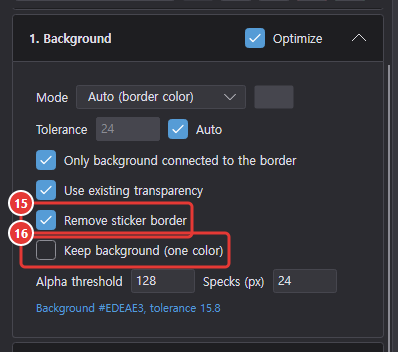
- Background: ⑮ Remove sticker border (on by default) finds the white band around the outline and removes it (optimizing the Background step tries it on and off), and ⑯ Keep background (one color) keeps the detected background flattened to the background color. The one-pixel blended fringe between a solid background and the sprite is removed too. The score's Major color shift is how much a widely used color changed as a whole, and Fidelity is (opacity mismatches + structure loss inside cells + color difference) ÷ number of samples. Structure loss is how far the source pixels inside a cell scatter from the cell average; it is large for a cell that splits a sharp edge in half and doesn't depend on the result color. The color difference follows the Fidelity setting in 0. Optimize criteria: Cell by cell (default) compares each result pixel only with its own source cell's color using the scoring color distance, and Blended with neighbors converts the source cell averages and the result into lightness, red-green and blue-yellow channels in light intensity (linear light), blurs them with neighboring cells (lightness a little, hue more), then compares them in OKLab (the S-CIELAB approach — a 1 px alternating dither pattern that blends into the original color counts as a match).
- ② The selected candidate is shown large, animated at the FPS, next to the matching source frame; the two images are labeled Result and Source.
- Left-clicking a result pixel: press and release (without dragging) on a pixel in the enlarged view's result image to show where that color is used — its swatch is highlighted in both swatch rows with a thick accent border and a short grow-and-return pulse (scrolled into view if the row overflows), the clicked pixel is marked and the same-color regions are outlined (as with left-clicking a swatch) for 1.2 s, the status line shows the HEX value and output coordinates, and the color decision row for that pixel opens (Enlarged view). Right-click excludes or restores that color (see the swatches above).
- Left-clicking a source cell: press and release (without dragging) on a cell in the enlarged view's source pane to outline that cell and its matching result pixel in blue; the result's swatch and same-color regions are highlighted, and the color decision row for that result pixel opens. The source image is not recolored. The status line shows "Source cell #representative → result #result" (the representative is the cell's color before the palette). Right-clicking a source cell does nothing. While the eyedropper is on, the click adds a pinned color instead.
- A source cell whose representative color is black can still produce a yellow result: Fit outline to 1 px in Thin outline only or By shrinking mode replaces inner dark outline cells with nearby light colors to make the outline one pixel thick. Try switching outline fit Off to keep that dark cell. Local correction adjusts boundary positions instead of performing this recoloring.
Enlarged view
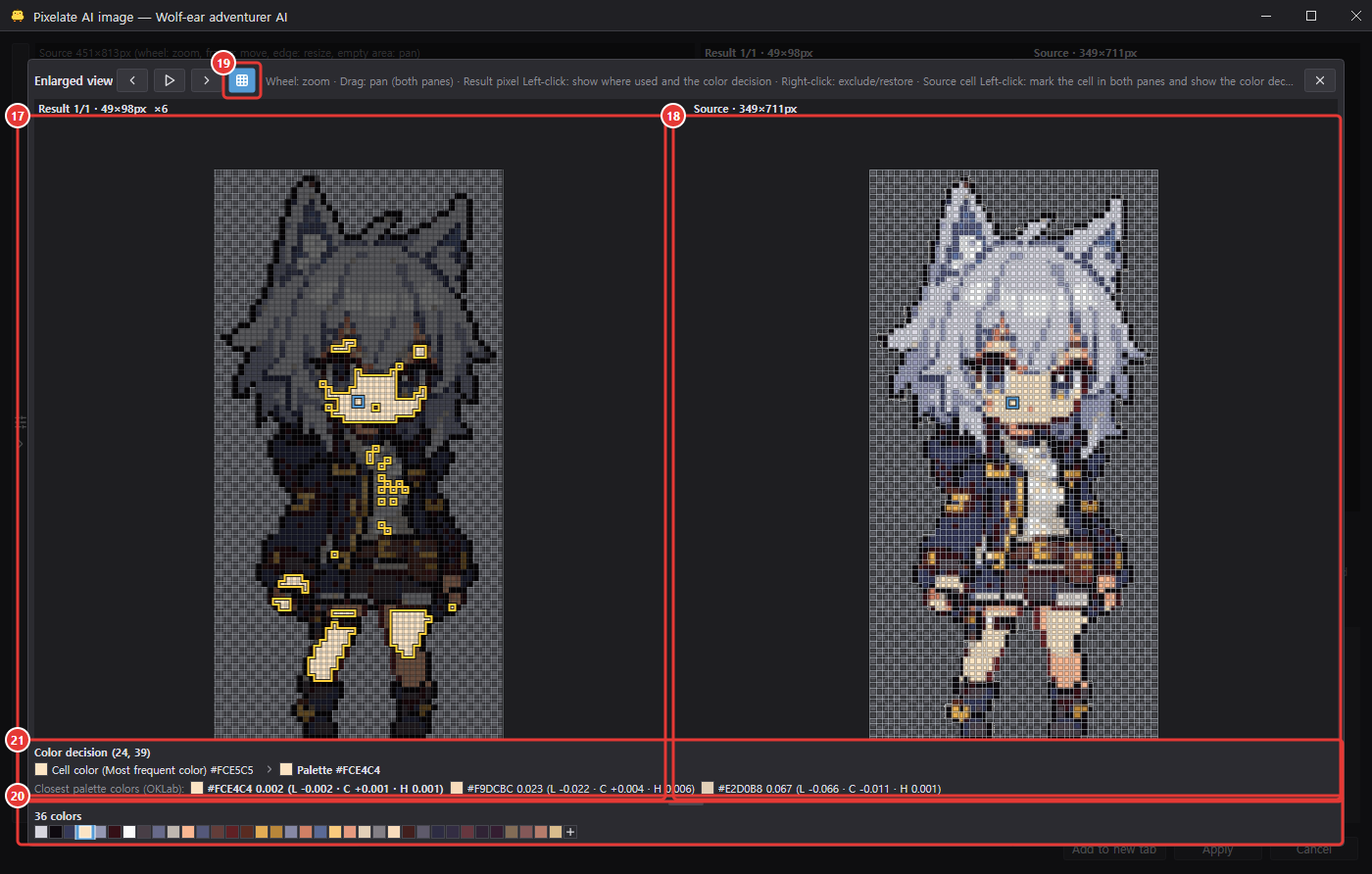
- Enlarged view: left-click the result or the source image in the large preview once (without dragging) to open a panel covering the dialog (showing where a color is used happens in the enlarged view — the left-clicks above; right-clicking the large preview's result image excludes or restores that pixel's color). ⑰ The left pane shows the current frame's result (at the largest integer zoom that fits, on a checker), ⑱ the right pane the same frame's source at the same on-screen size (with cell boundaries when Show grid is on); wheel to zoom, drag to pan and double-click to fit — both panes move together. The previous, play/pause and next buttons and Space/Left/Right share the large preview's frame and FPS, and it follows the selected candidate and color exclusions. Close with Esc, a click outside the panel or the ✕ button. Clicking outside the images only gives the preview keyboard focus, and clicking an image keeps that focus, so the keys work right after closing.
- Next to the enlarged view's play button, the ⑲ Show grid button (pressed = on, kept in sync with the dialog's Show grid check) draws the actual cell boundaries on the source pane and a one-cell-per-pixel grid on the result pane in the same line style (hidden when a pixel is under 4 px on screen). Below the images are the same ⑳ N colors swatches as the large preview (left-click shows where the color is used, also in the enlarged result pane — for an excluded color, where it used to be, now another color; right-click excludes or restores, or unpins a pinned color; the + at the end adds a color from the source) and the frame strip (hidden for a single frame); changes in either place show in both.
- ㉑ The Color decision row: left-click a result pixel or a source cell in the enlarged view (when the eyedropper is off) and a Color decision (x, y) row appears above the swatches. It reruns that pixel with the same settings and shows the color at each step as a swatch and HEX value, in order: Cell color (cell color method) → Palette (Palette (prefer shade family) when the shade family rule picked something other than the nearest color, Palette (dithering) with dithering) → only the later steps that changed the color (snap outline color, redraw as vector, remove orphan pixels, fill 1-px holes, thin outline to 1 px, outline, reduce L-corner doubles, remove outer L corners, match neighbor frames, pinned color, excluded color). The last, bold color is the result. The Closest palette colors (color distance): line below lists the three palette colors nearest the cell color with their distance and, in parentheses, the OKLCh difference from the cell color (lightness ± · chroma ± · hue); the chosen one is bold — OKLab distance weighs the three equally, so a color with the same lightness plus some chroma can come out closer than a neutral color differing only in lightness. Hover a step name for its rule, or the cell color for its OKLCh lightness and chroma. Working out how this color was chosen… shows while it computes, and the row disappears when you change the selected candidate or the excluded or pinned colors (click again to recompute).
- ④ At the bottom of the large preview are previous/next frame buttons, play/pause, an FPS box and a frame strip (numbered thumbnails, the current frame outlined in blue; click to go to that frame and pause). When the preview has focus, Space plays or pauses and Left/Right change the frame.
- ③ Above that, the colors the selected candidate uses are shown as N colors with 14 px swatches, most-used first. The tooltip shows the HEX value and the pixel count over all frames (with the click hint on a second line); left-clicking a swatch briefly highlights the pixels of that color in the result preview (others dimmed). The swatches take at most half of the large preview's height at first and scroll when they overflow. Drag the short handle at the top of the swatches up or down to change that maximum height (remembered separately for the large preview and the enlarged view); double-click it to go back to half.
- ⑤ Candidate tiles: click to select one and load its settings on the left, double-click to apply (Candidates and scores).
Output
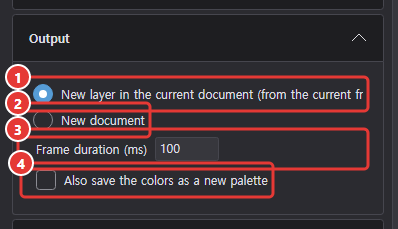
- ① New layer in the current document: starts at the current frame and adds frames if needed. One undo step. A single-frame result goes straight into transform mode holding the whole uncropped result: move or resize it and press Enter (parts outside the canvas are cut then), or Esc to keep it as inserted.
- ② New document: canvas = output size, one frame per sprite frame, with ③ a frame duration setting. Opens in a new tab.

- ⑤ Add to new tab (the button before ⑥ Apply): creates a new document exactly the size of the selected result in a new tab regardless of the output setting, and closes the window. Enter is not a shortcut for applying; click Apply or Add to new tab yourself.
- ④ You can also save the colors as a new palette.
Refining with AI (experimental)
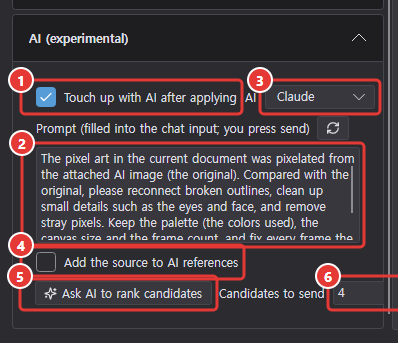
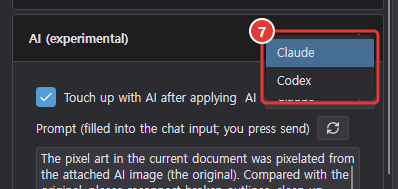
- Turn on ① Touch up with AI after applying to edit ② the prompt (by default it asks to fix broken outlines, eyes and face, and stray pixels while keeping the palette, size and frames) and choose ③ Claude or Codex (⑦). After applying, the chat opens with the original image attached and the prompt filled in. It isn't sent; press send yourself.
- ④ There's also an option to add the source to the AI references.
- ⑤ Ask AI to rank candidates: attaches the original and the top ⑥ K candidates and fills in a ranking request (not sent).
Part (group) layers · skins
Draw parts of different sizes, like a character's head, body, arms and legs, for each frame, arrange them within a frame to use as an animation, and export them as per-part sprites too. You can also draw several sets (skins) of body types, outfits or gear with the same part setup and swap between them.
Groups and parts
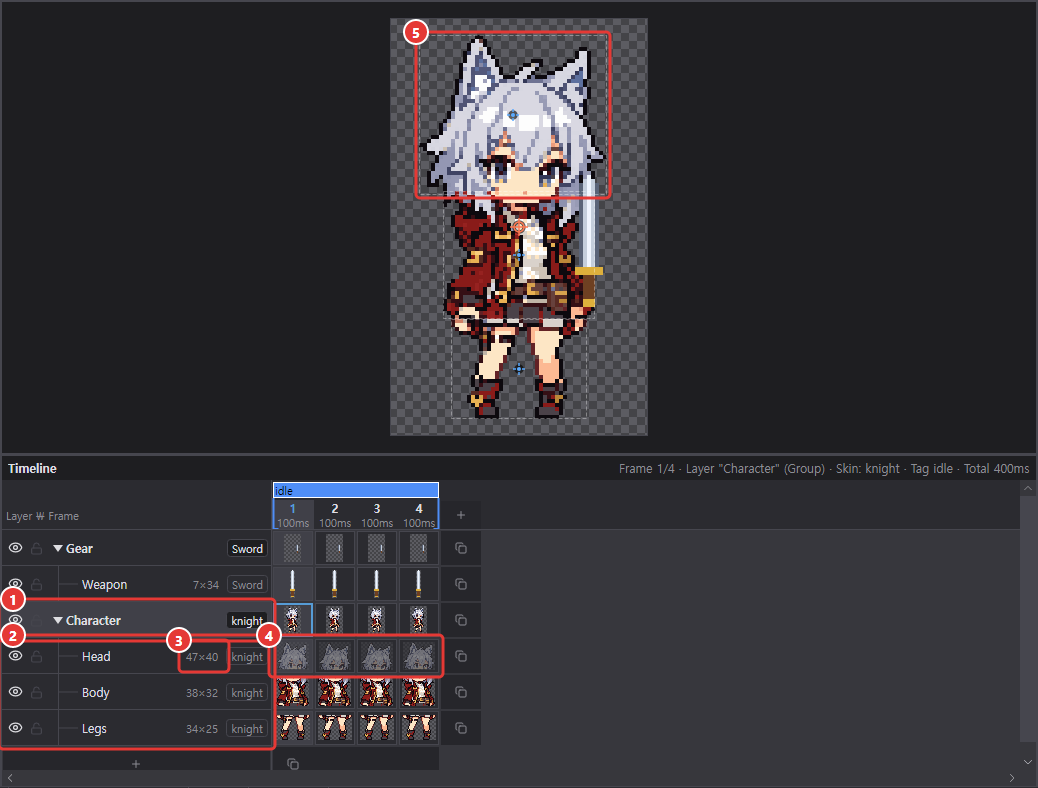
- ② Part layers go under a ① group layer.
- Each part has ③ its own canvas size (e.g. Head 8×5) and ④ its own image in each frame.
- ⑤ A part's position within the frame is shared by all frames.
Creating
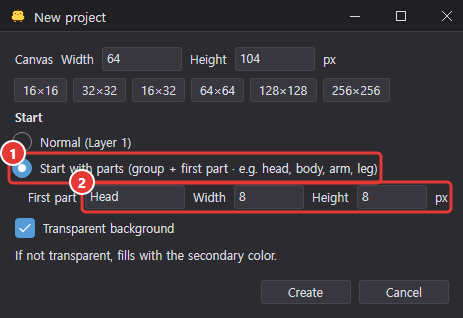
- In a new project (Ctrl+N), choose ① "Start with parts" and set ② the first part's name and size.
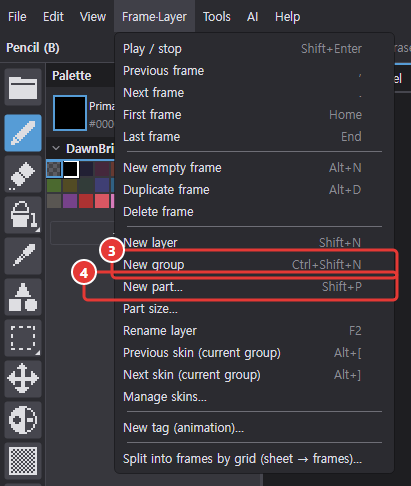
- Frame·Layer > ③ New group (Ctrl+Shift+N)
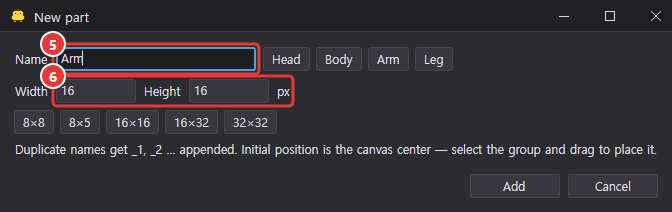
- Frame·Layer > ④ New part… (Shift+P) — adds to the current group, creating a group first if there isn't one. In the dialog, set ⑤ the name and ⑥ the size.
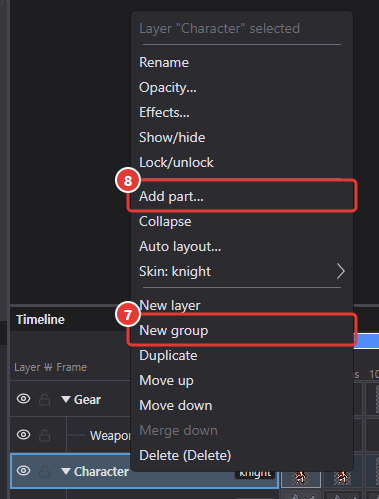
- Right-click a layer name in the timeline → ⑦ "New group / New part…", or right-click a group → ⑧ "Add part…"
Viewing in the timeline
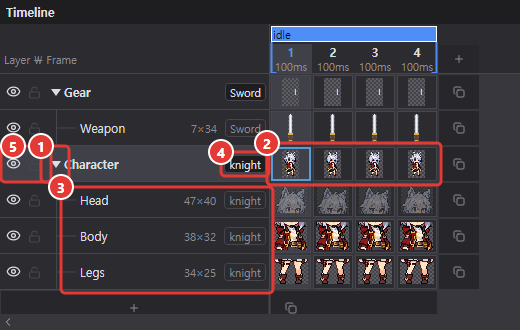
Group rows collapse and expand with ① a triangle, and ② their cells show the group's composite thumbnail. ③ Part rows are indented and show the name and size. ④ The skin chip after the name is the skin currently worn; click it to open the skin manager.
⑤ Hiding or locking a group also hides or locks its parts. Parts can be reordered only within their own group.
Arranging (group selected)
Selecting a group shows the full frame composite on the canvas.
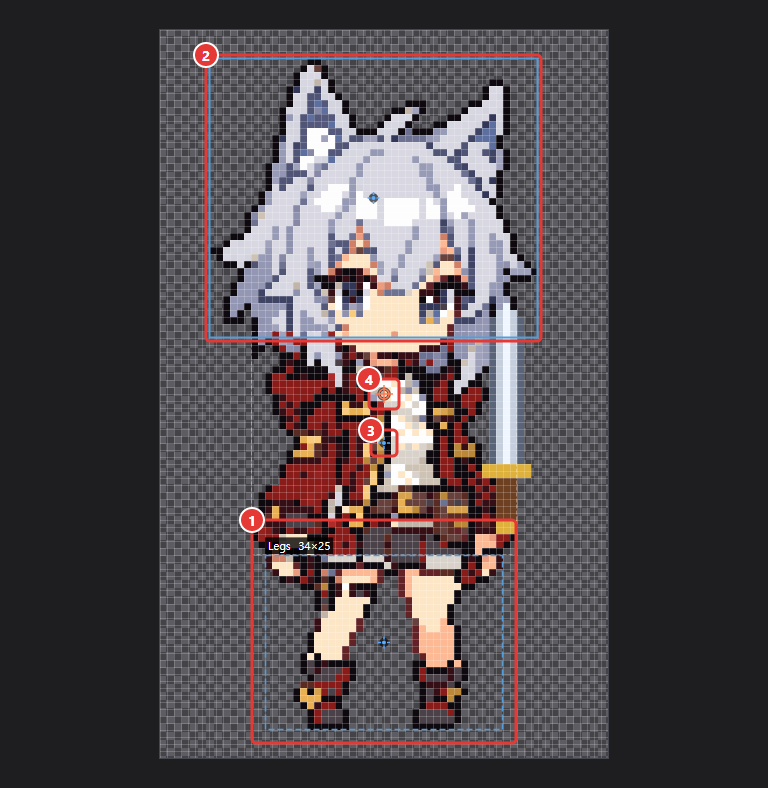
- ① Hover a part to see a dotted border and its name.
- Drag to move it and set its position (applies to all frames; one undo step).
- Click a part to ② select it, then use the arrow keys (Shift+arrow) to move it by 1/8px. Click an empty area or press Esc to deselect.
- Double-click a part to select its layer and switch to drawing.
- ③ Part pivots are shown as blue dots and ④ frame pivots as orange dots.
Drawing (part selected)
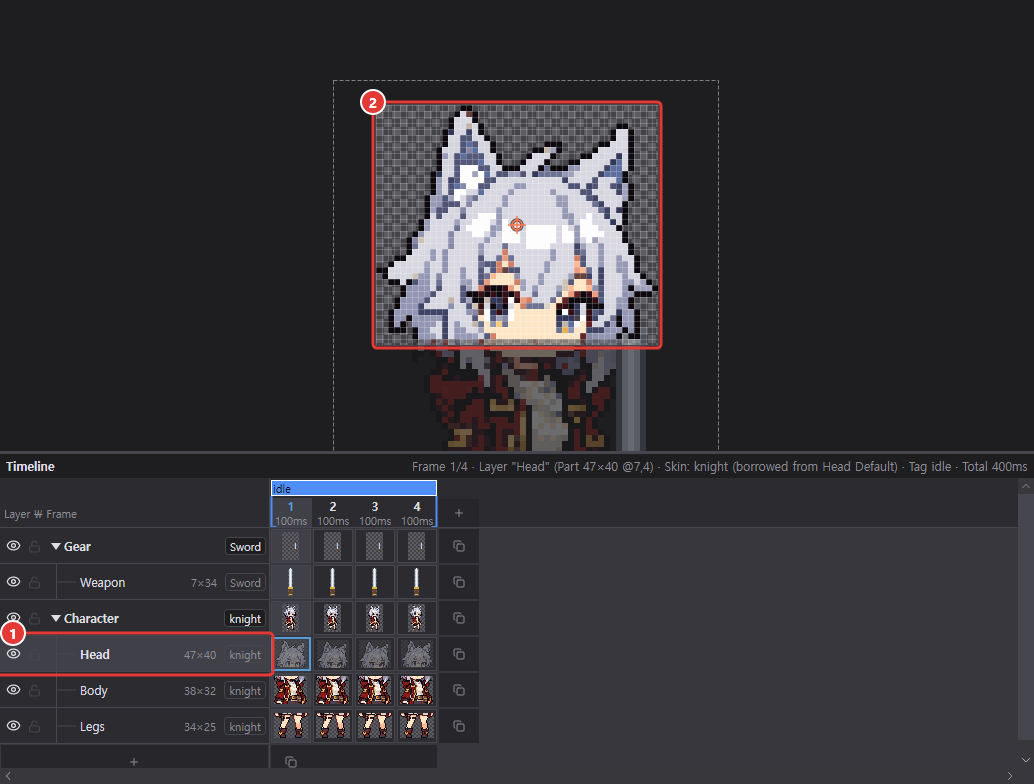
① Selecting a part layer shows ② only that part at its own size, with the rest dimmed around it. Coordinates are relative to the part.
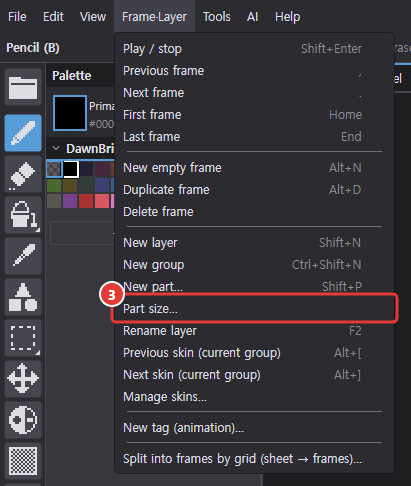
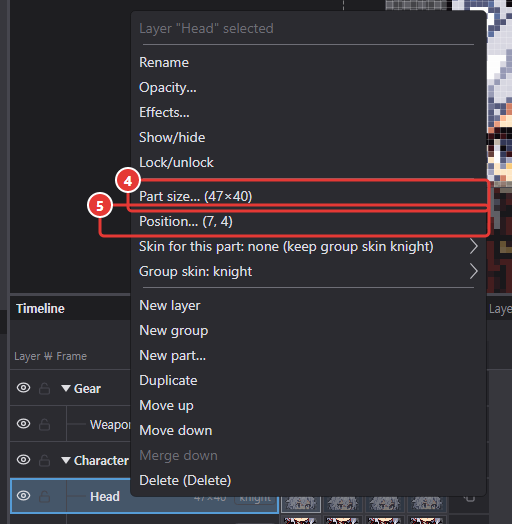
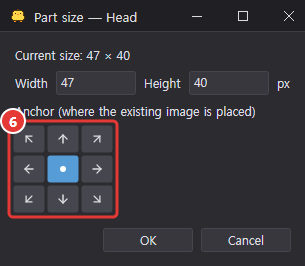
- Resize: Frame·Layer > ③ Part size… or right-click the part → ④ "Size…" (⑥ 9-direction anchor; drawn pixels stay in place).
- Set the position numerically: right-click the part → ⑤ "Position…".
- ⑦ The Pivot tool (K) and 9-slice tool (S) apply to the selected part.
Auto layout
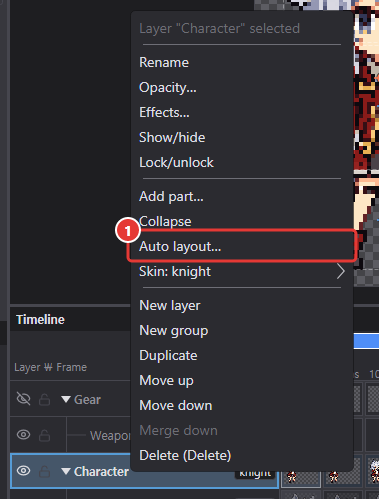
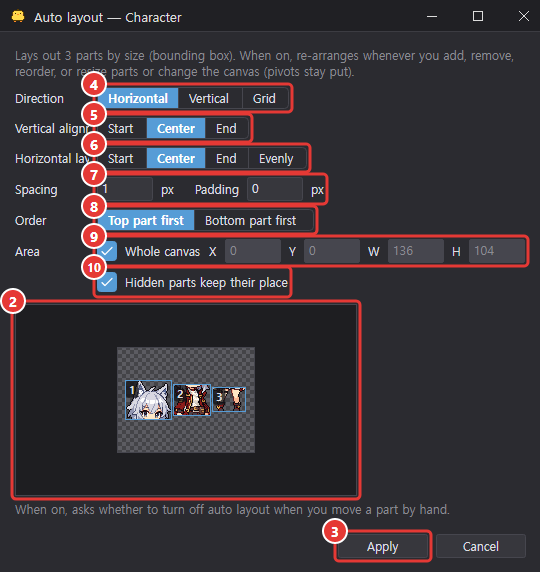
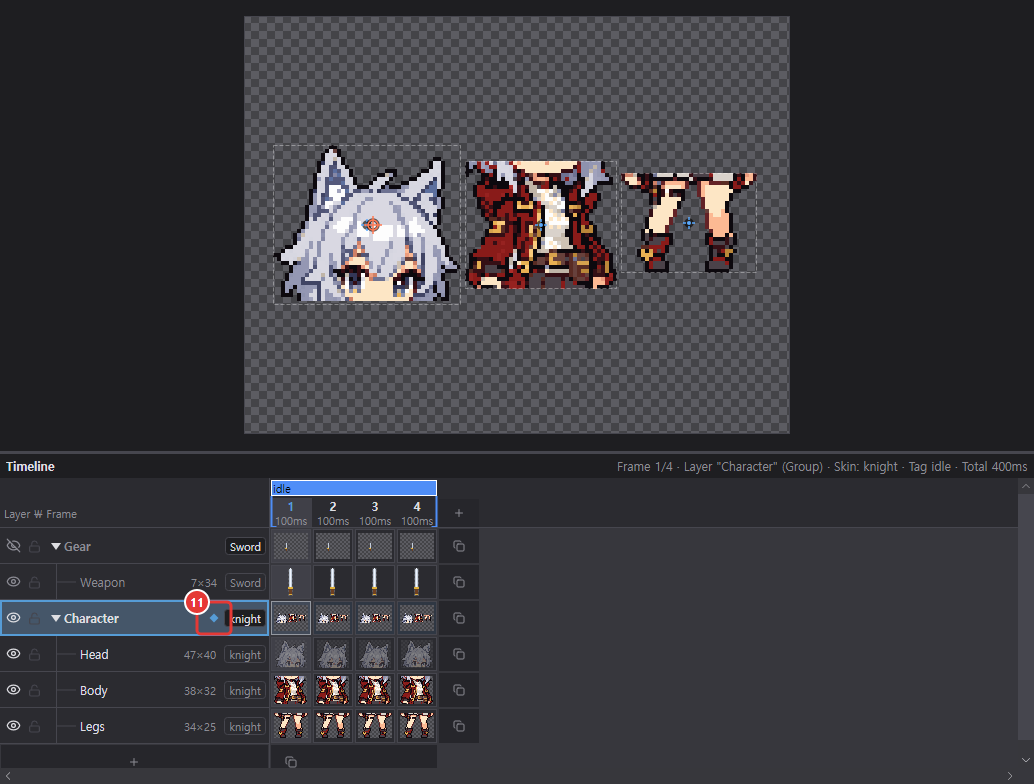
Right-click a group in the timeline and choose ① Auto layout… to lay its parts out automatically by size. Check ② the preview and click ③ Apply for a single undo step. A group with auto layout on is re-laid out whenever you add or remove parts or change their size or order, and shows ⑪ a diamond mark on its timeline row. If you try to move a part by hand in this state, you're asked whether to turn auto layout off.
| Setting | Description |
|---|---|
| ④ Direction | Horizontal · vertical · grid (set column count) |
| ⑤ Align | Top/center/bottom or left/center/right |
| ⑥ Distribution | Start · center · end · even |
| ⑦ Spacing · padding | In px |
| ⑧ Order | From top part · from bottom part |
| ⑨ Area | Whole canvas by default; X, Y, W, H can be set manually |
| ⑩ Hidden parts keep their space | On by default — toggling visibility doesn't move other parts |
Export: frame sheet and part atlas
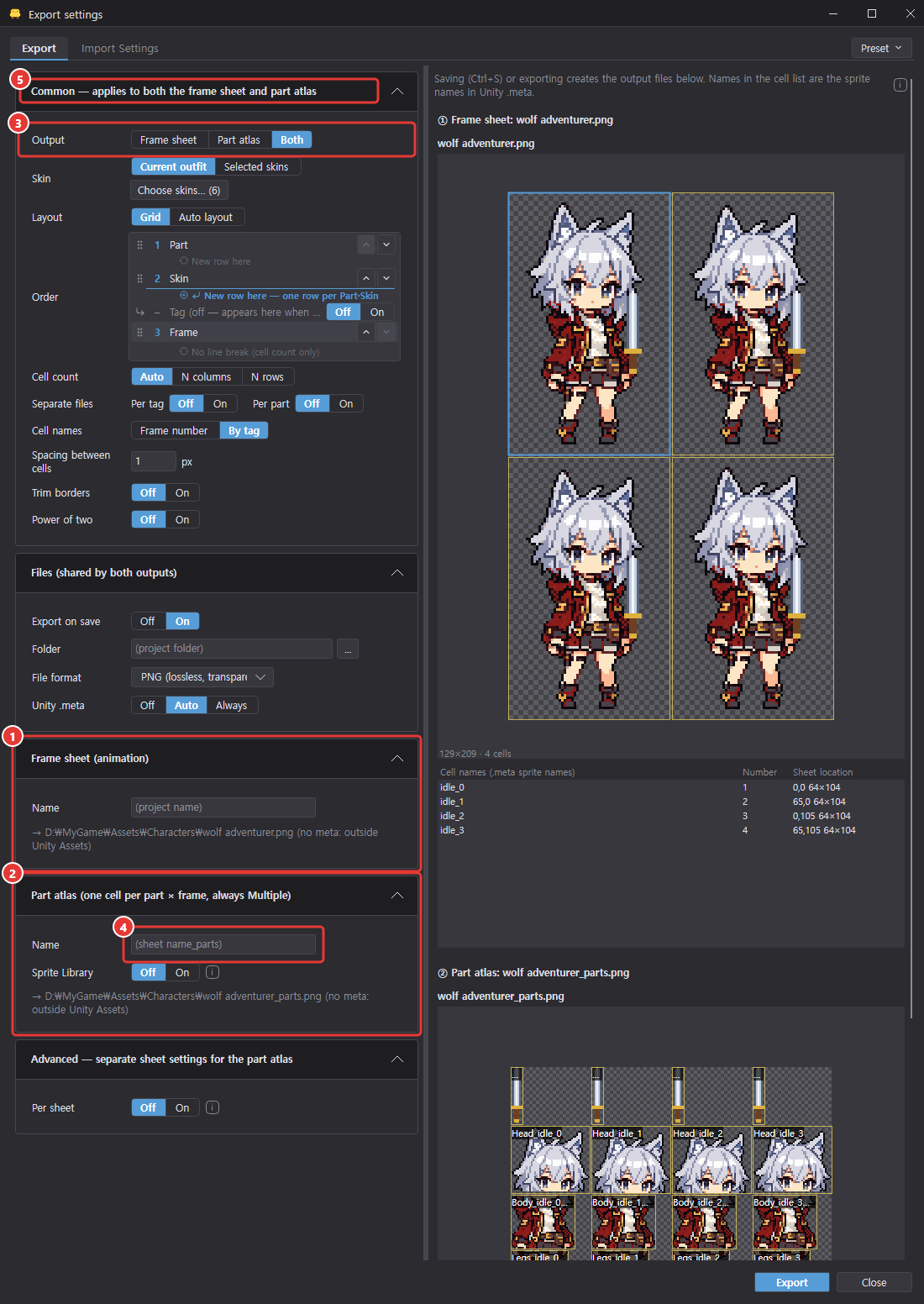
On save, the following two outputs can each be turned on or off (③ Output). Both are produced as an image + .meta.
- ① Frame sheet: an animation sheet with each frame composited.
- ② Part atlas: one cell per part × frame with content. If ④ the name is empty,
<frame sheet name>_parts.
Layout, sort order and cell names follow ⑤ the common sheet settings in the export dialog. Old files that are no longer produced are cleaned up into the app trash (see Files).
Skins and slots
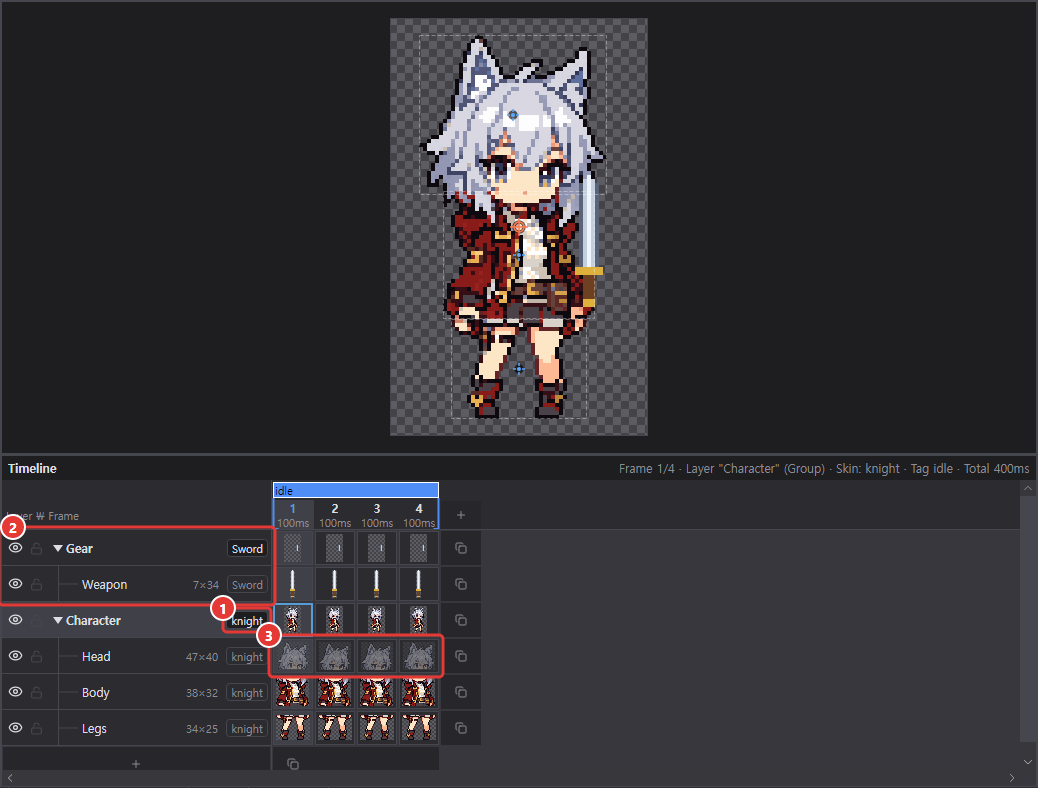
Each group has a list of named skins (at least one, "Default" at first), and ① only one of them is shown.
- Skins in the same group replace each other (swap).
- ② Different groups stack in layer order (overlay).
Example: a "base body" group at the bottom (skins: default, muscular, zombie), with "hair" and "armor" groups above it (the first skin, "none", is left empty and gear is drawn in the other skins).
The only thing that differs between skins is the image. The part list, sizes, positions, pivots and 9-slice are shared by all skins. Empty cells in skins other than the first inherit the first skin's image, so you only need to redraw the parts that change. ③ Inherited cells appear dimmed in the timeline, and once you start drawing on one it becomes that skin's own image.
Per-part choices and part-only skins
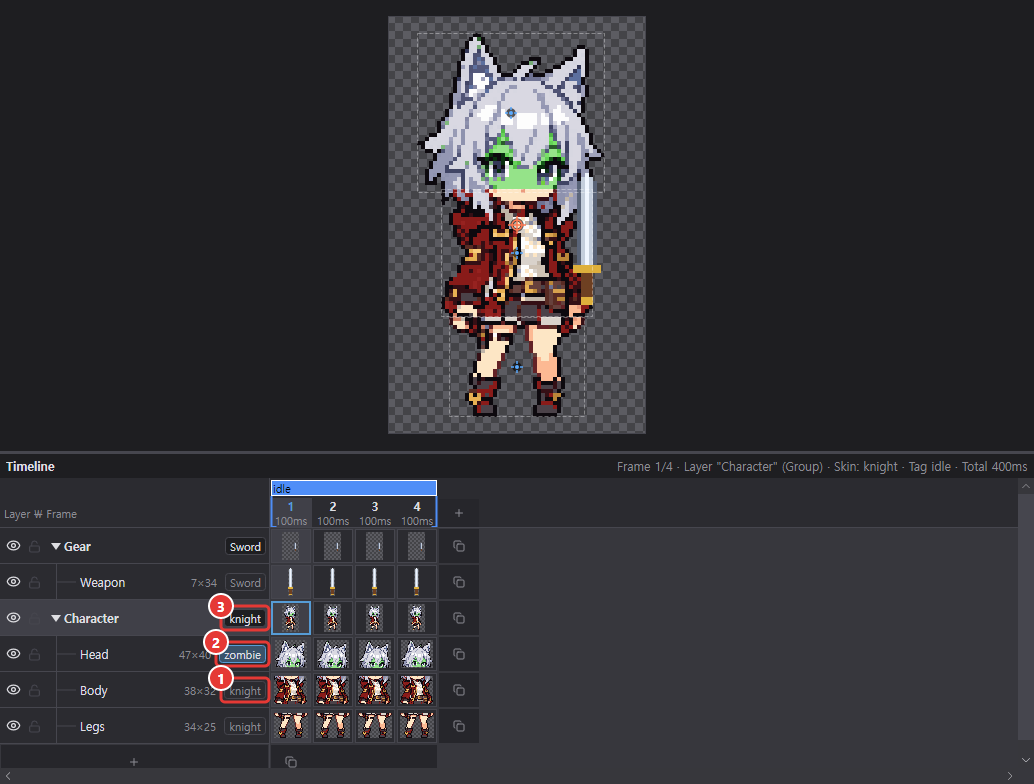
Within a group, a single part can wear a different skin (e.g. the body stays in ① the group skin "knight" and only the head wears ② "zombie"). The visible skin is decided in the order part override → ③ group's current skin → first skin.
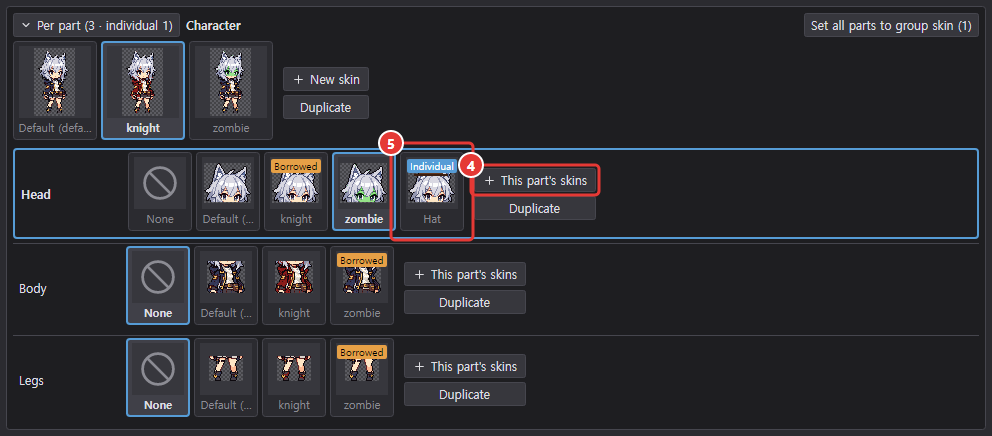
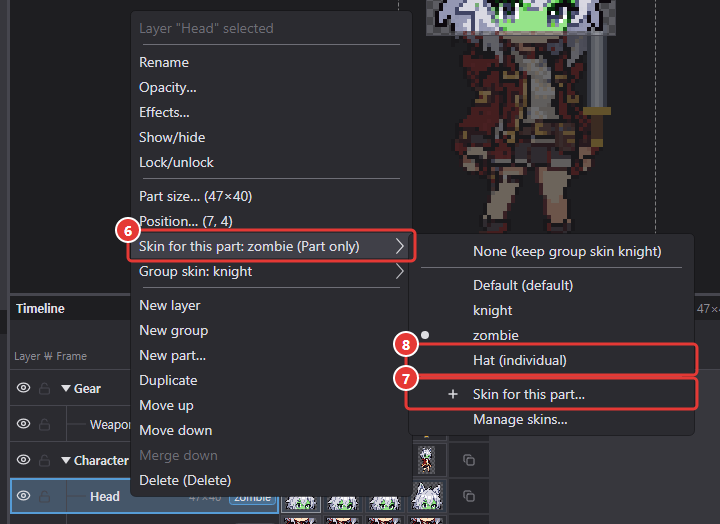
You can also create a part-only skin that exists for just one part (e.g. a "hat" for Head). Create it with ④ This part's skins on the part row in the skin manager or from the part's right-click menu (⑥ → ⑦); it's marked "Individual" only in that part's list (⑤, ⑧).
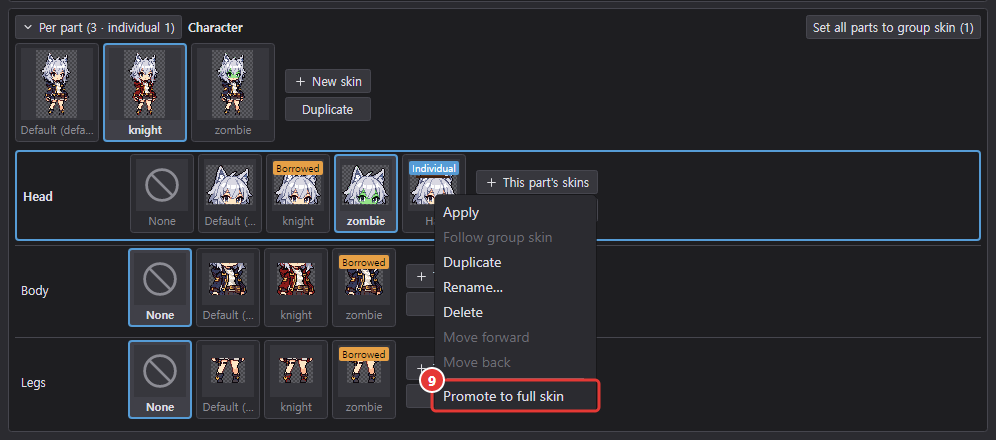
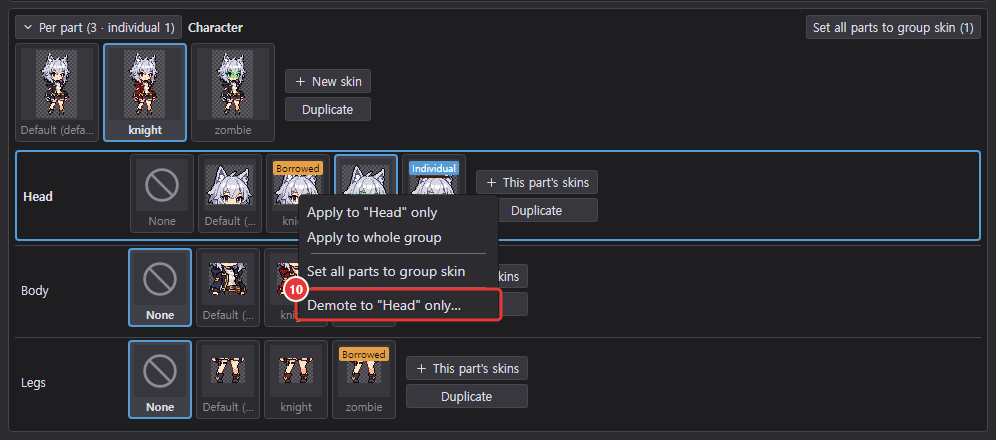
Right-click a part-only skin card to ⑨ Promote to full skin, or right-click a full skin to ⑩ Demote to part-only.
Skin manager
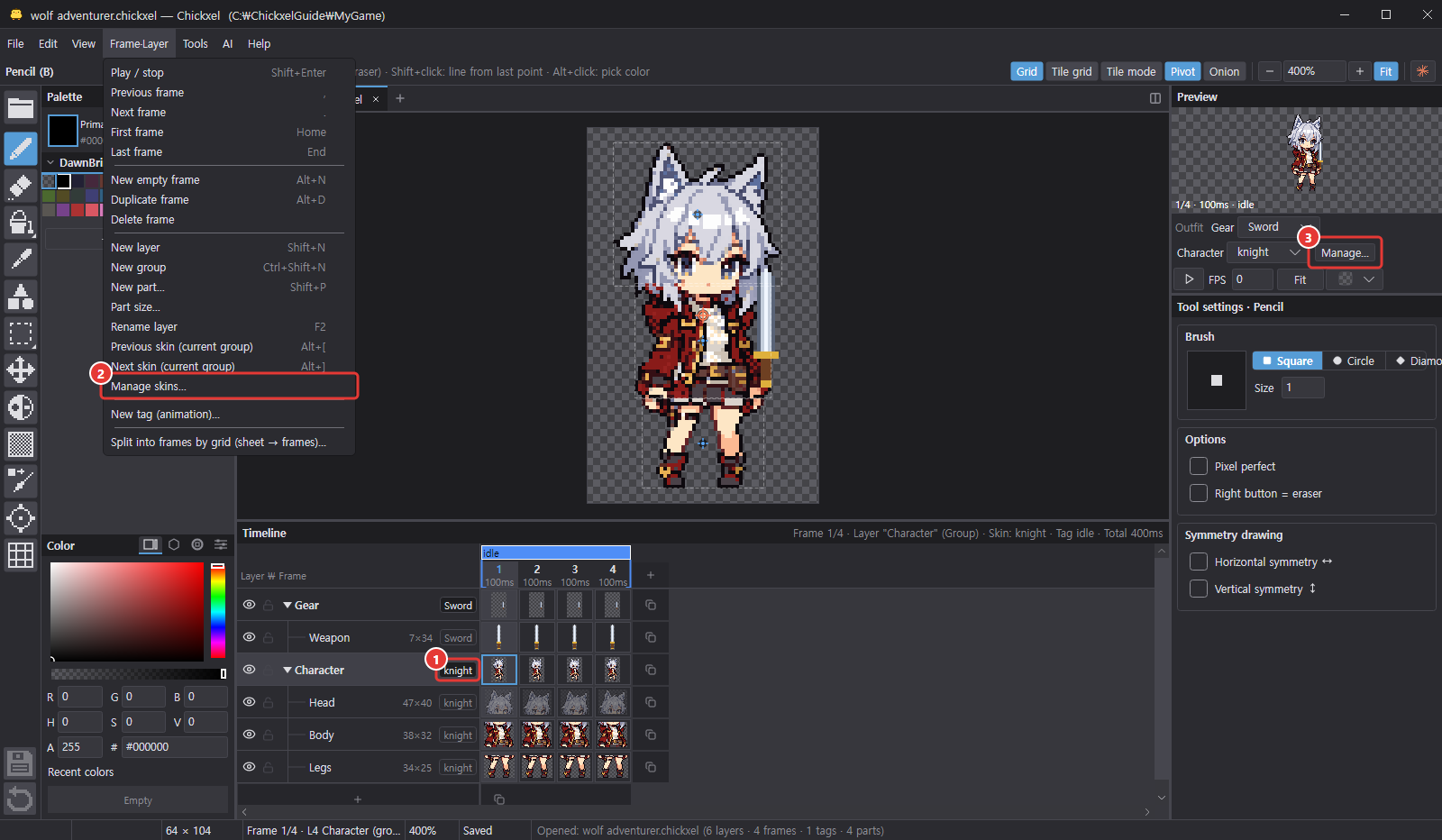
Open it by ① clicking a skin chip, from ② Frame·Layer > Manage skins…, or with ③ Manage… in the outfit row below the preview. You can keep it open beside you while editing.
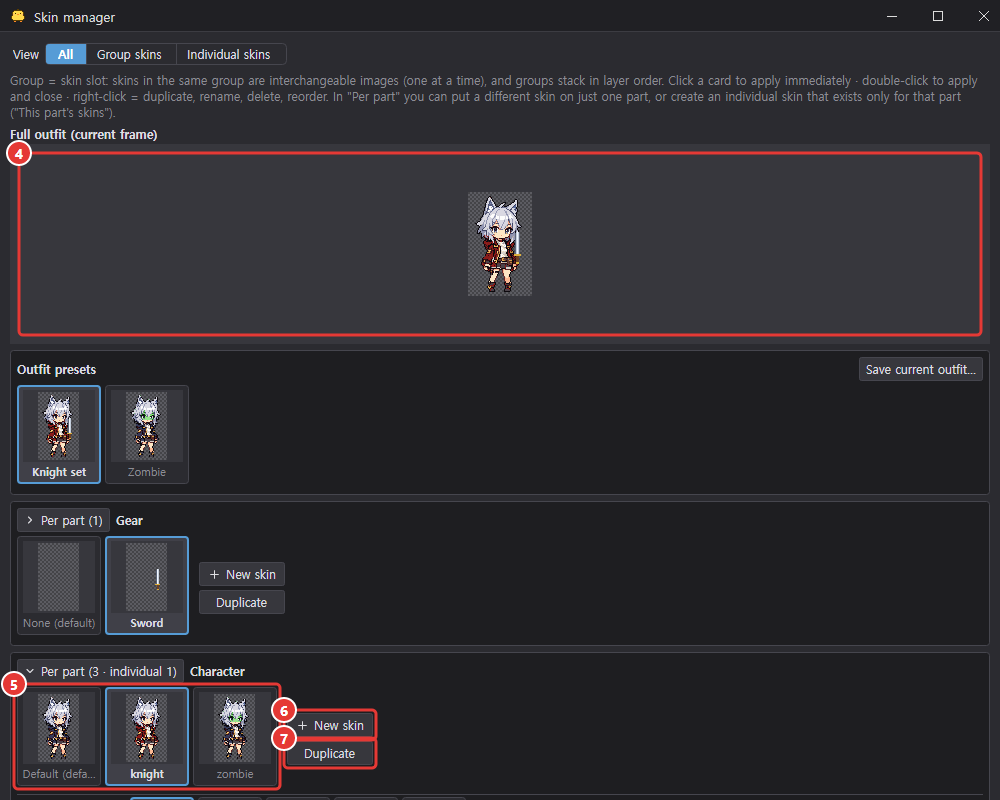
- ④ Full outfits are at the top, followed by ⑤ skin cards for each group. Click a card to apply it immediately; double-click to apply and close the window.
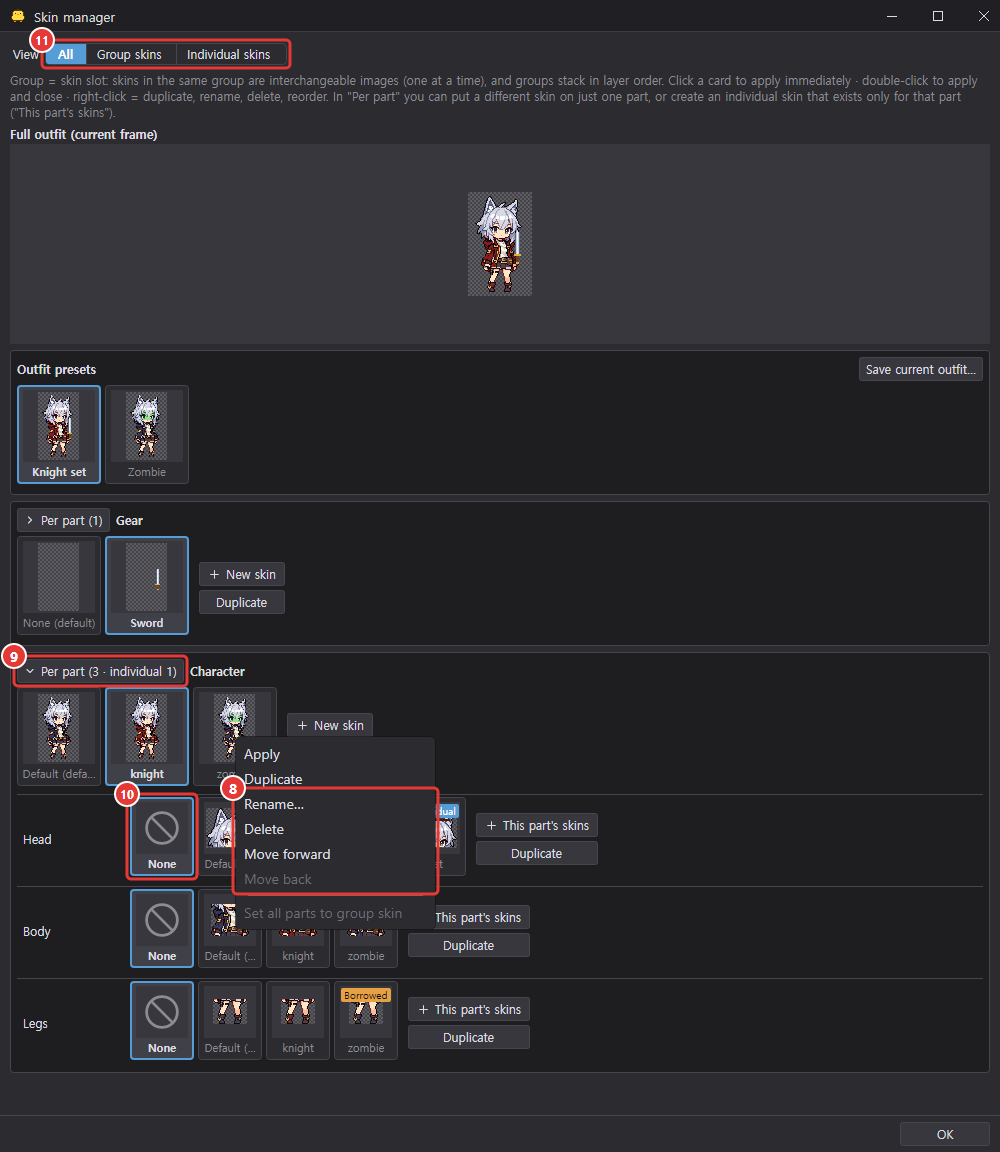
- ⑥ New skin (empty), ⑦ Duplicate, and in the card's right-click menu (⑧) Rename…, Delete, Move forward/back. You can also drag cards to reorder them; the first skin becomes the default skin. All of these can be undone.
- Expand ⑨ Per part to see skin cards for each part; click one to put just that part in that skin. The leading ⑩ None card follows the group skin.
- Use the ⑪ All | Group skins | Individual skins toggle at the top to filter the cards shown.
Changing outfits and outfit presets
Besides the skin manager, you can change outfits these ways:
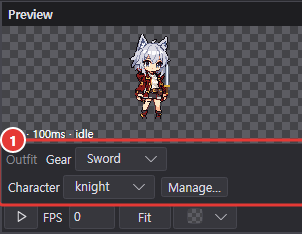
- ① The Outfit row below the preview (a skin picker per group)
- Previous/next skin (current group): Alt+[ / Alt+]
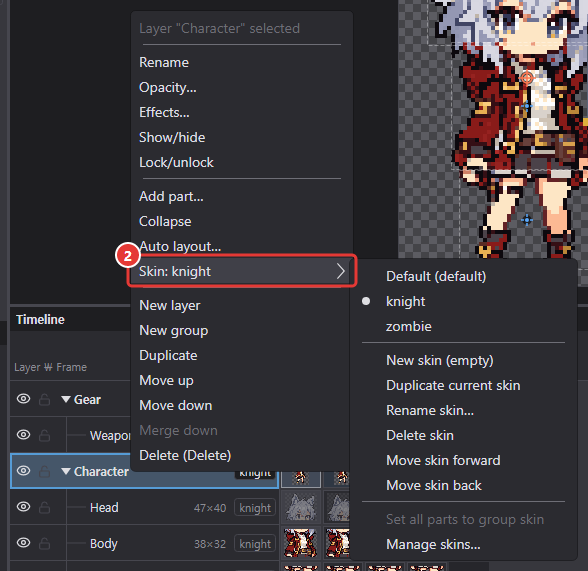
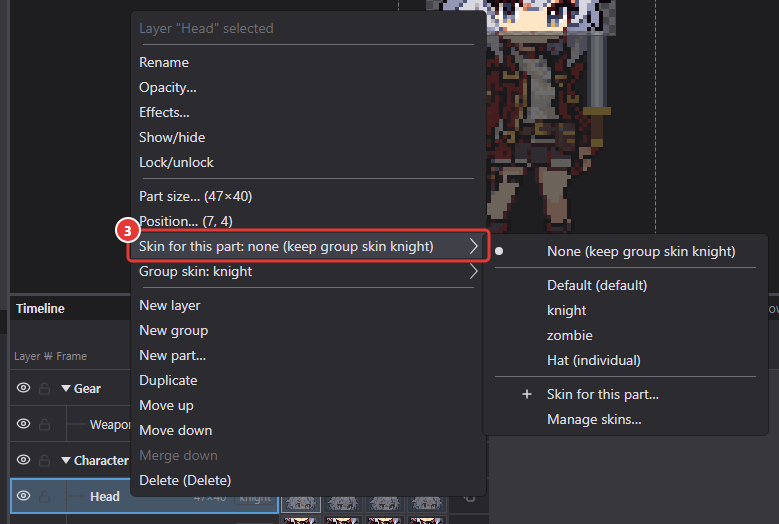
- Right-click a group → ② "Skin", or right-click a part → ③ "Skin for this part"
Changing outfits is a view switch, so it isn't recorded in undo history, but it is saved in the file.
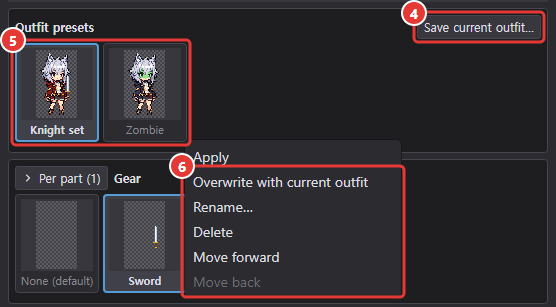
Outfit presets: use ④ Save current outfit… in the skin manager to save the current combination under a name, then click ⑤ its card to switch to that outfit. ⑥ Right-click to overwrite, rename, delete or reorder. Any deleted groups or skins are skipped and you're told.
Exporting skins
Choose under Skin in the common export settings.
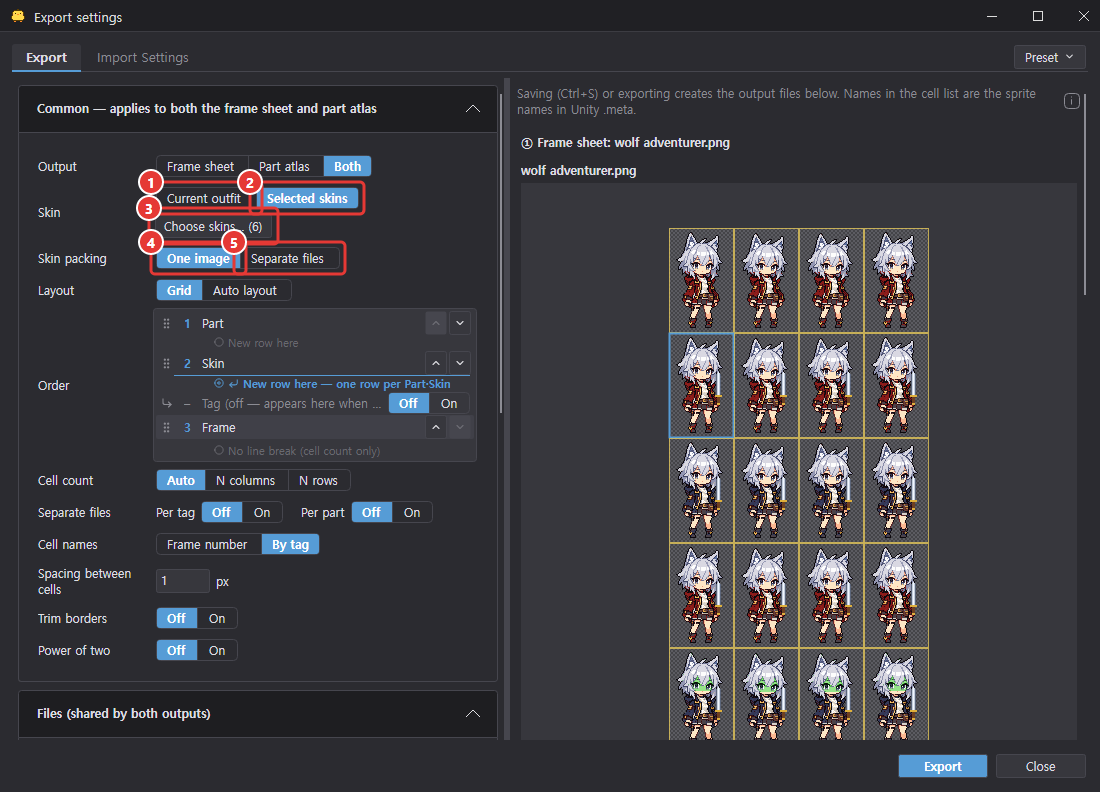
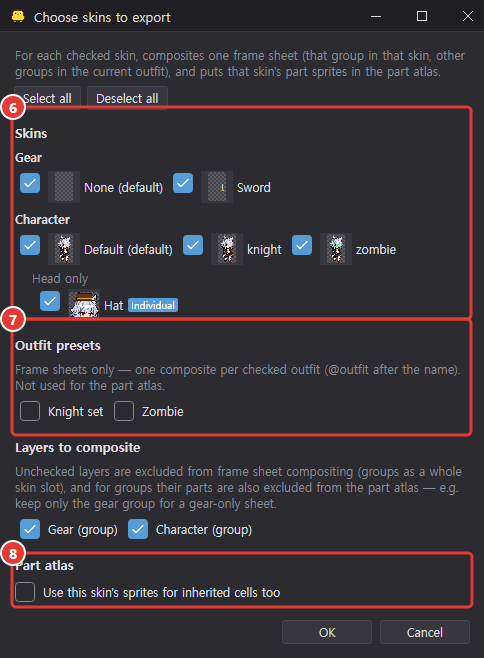
| Setting | Result |
|---|---|
| ① Current outfit (default) | Exports only the outfit currently shown. |
| ② Selected skins | Exports each ⑥ skin and ⑦ outfit preset checked in the ③ Choose skins dialog. Combine them in ④ one image (cell names <name>@<skin>) or split them into ⑤ separate files (<sheet>@<skin>.png). |
In the part atlas, the first skin keeps the original names (Head, Head_1 …), and other skins add only the cells actually drawn, like Head@knight. To include inherited cells under that skin's name too, turn on ⑧ Use this skin's sprites for inherited cells too in the Choose skins dialog.
Unity Sprite Library
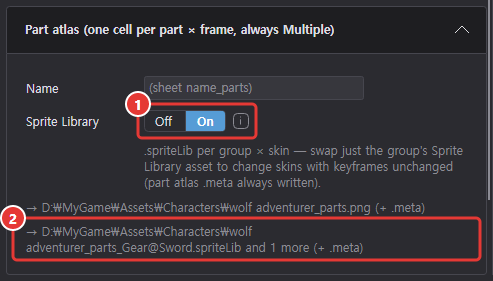
Turn on ① Sprite Library in the part atlas section of the Export tab to create a Sprite Library Asset for the Unity 2D Animation package per group × skin, named ② <part atlas name>_<group>@<skin>.spriteLib.
- Category = part, Label = frame (
0,1… oridle_0…). - Libraries for the same group all share the same Categories and Labels; only the sprites differ. So one animation works for every skin.
In Unity, put a Sprite Library component on the parent of each group's part objects, and keyframe the Label (frame) with a Sprite Resolver (Category = part) on each part. To switch skins, just swap the asset on that group's Sprite Library component.
Importing old files and PNGs
- Opening an atlas
.chickxelfrom an older version converts it into a "parts" group with one part per sprite. Unity guids and spriteIDs carry over.
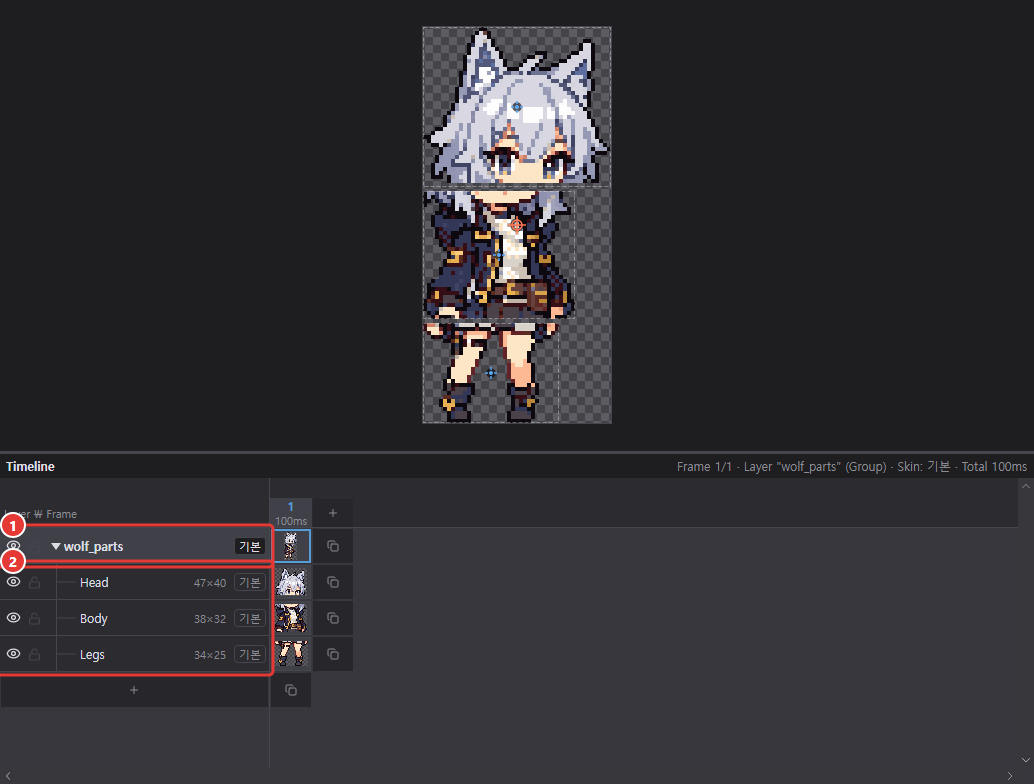
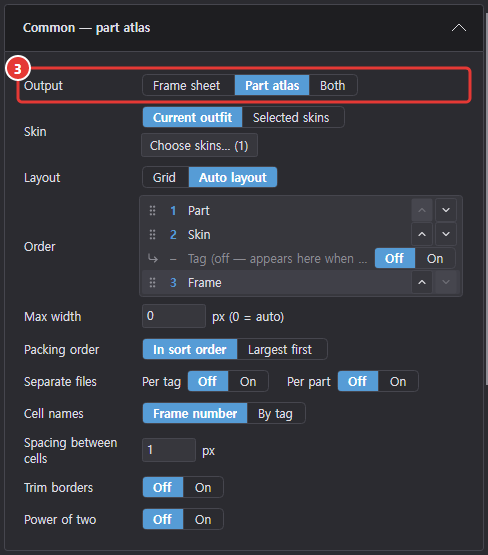
- PNG sheets with cells of different sizes are imported as ① one group + ② one part per cell. In this case ③ frame sheet export starts turned off.
AI chat (Claude · Codex)
What it can do
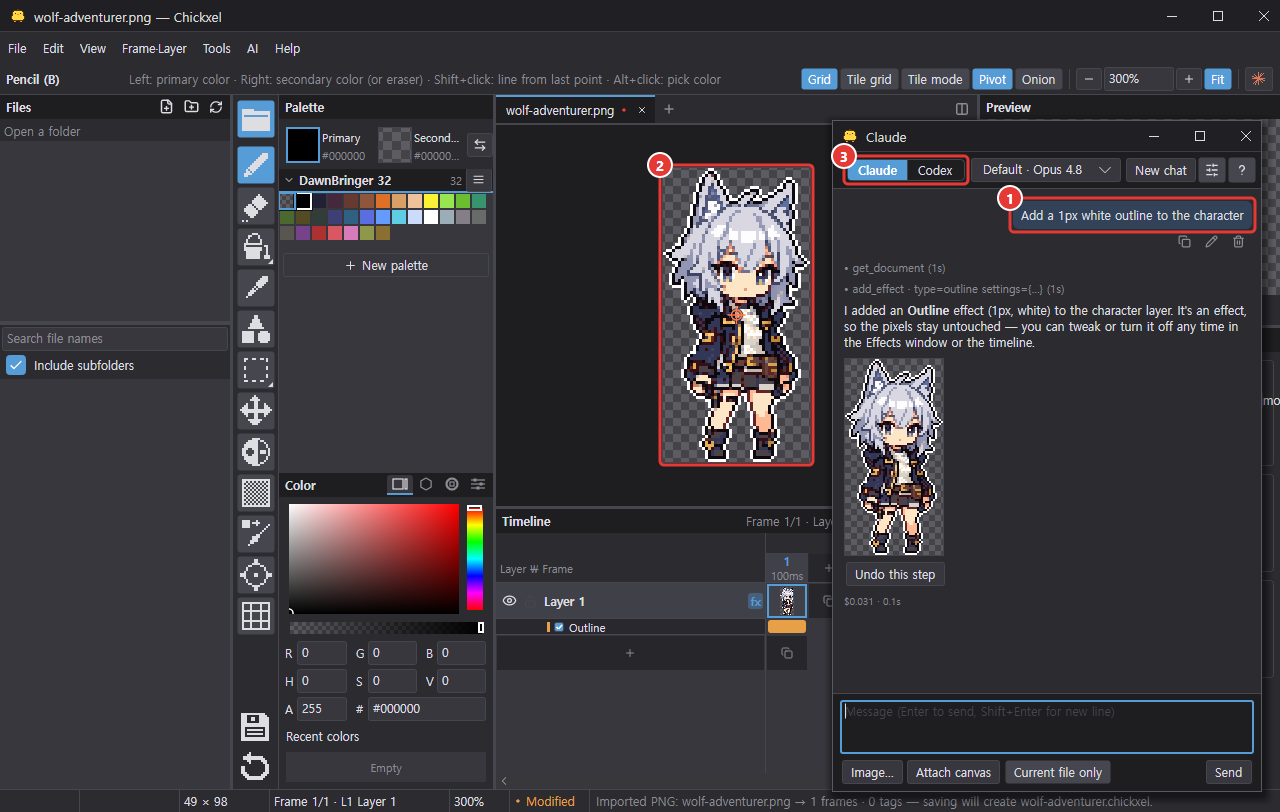
Chat with an AI inside the editor to create and edit images. Ask in plain words, like "add a black outline" or "draw 4 walking frames" (①), and the AI edits the open image directly (②).
No API key is needed. It uses Claude Code (Claude subscription login) or Codex CLI (ChatGPT subscription login) installed on your computer. Usage counts against each subscription. Pick which one to use with the ③ tabs at the top of the chat window.
Opening the chat window

- ① The AI chat button on the right of the bar below the menu
- Menu ② AI > ③ AI chat
- Ctrl+L (shown next to ③)
The chat opens in its own small window and remembers its position and size. If it was open when you closed the app, it reopens next time.
One-time setup: install and log in
The Chickxel download doesn't include Claude Code or Codex CLI. The first time, follow these steps.
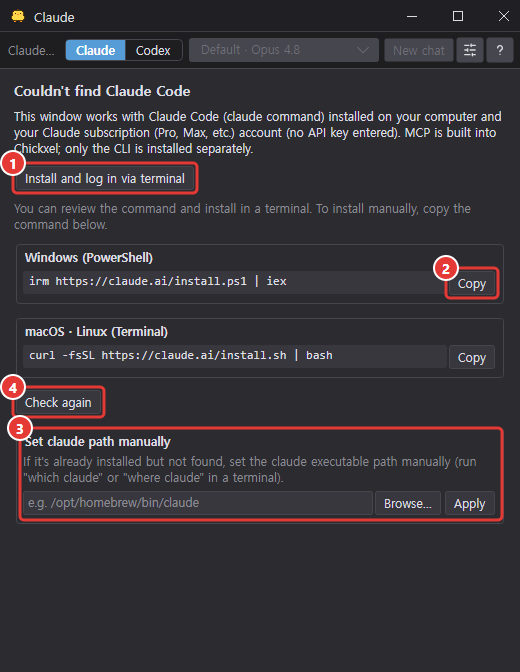
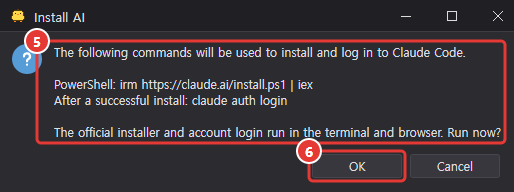
- If the CLI is missing, click ① Install and log in via terminal, then review ⑤ the command to run and approve it (⑥).
- The official install command runs in a terminal, followed by the login command if it succeeds. Finish the browser authentication yourself.
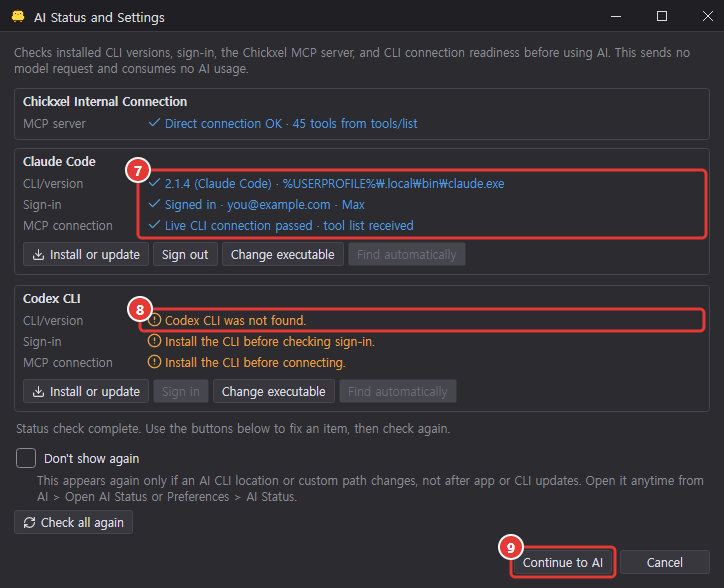
- Chickxel checks the install and login status (⑦ ready, ⑧ not installed) and moves on to the chat screen (⑨).
- If Node.js, which Codex needs, is missing, it's installed too (winget or the official ZIP on Windows, Homebrew or nvm on macOS).
- In the AI Status window, CLI/version is the result of actually running the CLI executable Chickxel picked (
--version), with the executable's full path next to the version. Chickxel runs the executable it found by its full path and adds its folder to the PATH the CLI uses, so you don't need to change your terminal PATH or choose the executable yourself. - MCP connection: Claude Code is actually started, without any message or model request, with the same connection settings as the chat, and the row shows ⑦ Live CLI connection passed · tool list received only when Chickxel receives its tool list request (
tools/list). For Codex CLI it checks that the real CLI can read the connection settings, and the tool connection is confirmed on the first message. If the saved path fails to run or to connect, other known locations are checked and a working CLI is switched in automatically. These checks use no AI usage. - After pressing Install or update, keep the AI Status window open: it checks again automatically when a new CLI appears or the existing file changes, and again when you finish signing in. If the chat fails to connect over MCP, it also shows the CLI path it tried, so you can compare it with the path in the AI Status window.
- Don't show again is remembered however you close the window — OK, Cancel or the close button. The window appears again when an AI CLI location or a custom path changes, not just because the app or a CLI was updated. Open it anytime from AI > Open AI Status… or Preferences > AI Status.
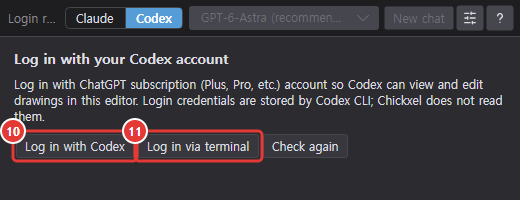

- If it's installed but not logged in, click ⑩ Log in with Claude / Log in with Codex or ⑪ Log in via terminal. The logged-in account is shown at the top of the window (⑫).
- If installation fails, check the error in the terminal and use the on-screen ② copy command, ③ set path manually or ④ Check again options.
- The Codex CLI bundled with the ChatGPT app on macOS is found automatically. Nothing else needs to be installed.
- On Windows, a Codex CLI installed with npm is started from the package's
codex.exedirectly instead of throughcodex.cmd, so long chats and attached images don't hit the cmd.exe command-line limit (8191 characters). If a command is still over the limit (about 32,000 characters), it isn't started and a "command line is too long" error is shown.
Claude and Codex tabs
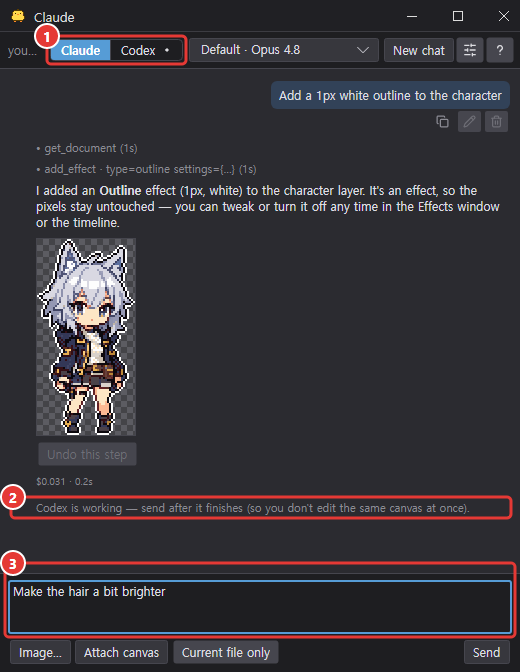
① [Claude | Codex] at the top of the window are tabs. Each tab has its own conversation, input box, attachments, model and undo buttons, and conversations continue when you switch tabs.
- Switching tabs while a reply is coming in doesn't stop the work; a dot appears after the tab name while it runs (Codex in ①).
- To keep two AIs from editing the same image at once, only one tab works at a time. While one tab is busy, messages from the other tab aren't sent (② notice) and stay in the ③ input box.
Chatting
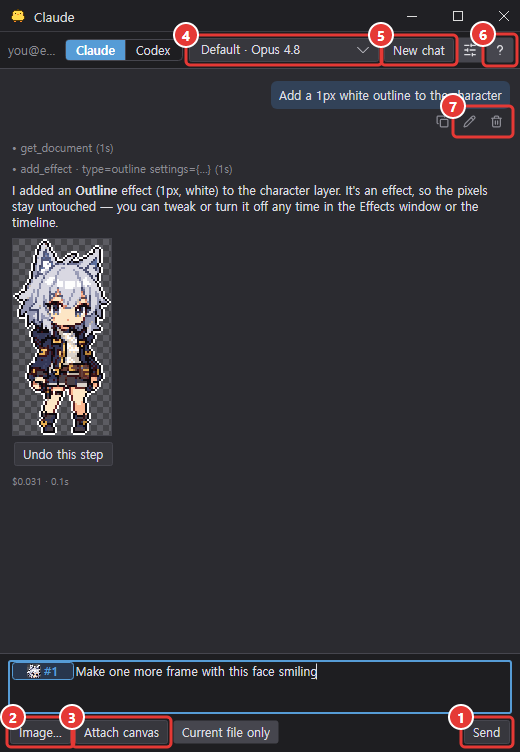
| To do this | How |
|---|---|
| Send / new line | Enter (or ① Send) / Shift+Enter |
| Attach a reference image | ② Image…, paste a picture (Ctrl/⌘+V), or drop image files on the input box |
| Show the current frame | ③ Attach canvas |
| Change model | The ④ Model list at the top (remembered per AI; applies from the next message) |
| See past chats / start a new one | ⑤ New chat (shows the list; type below to start a new chat) |
| See what the AI can do, examples, and tips | The ⑥ question mark button next to New chat |
| Edit or delete the last message | The ⑦ pencil (edit) and trash (delete) icons under the last message — see Editing or deleting the last message |
| Stop the reply | ⑧ Stop (shown in place of Send while a reply is coming in) |
The first entry in the model list, ⑨ Default, also shows the name of the model that will actually be used.
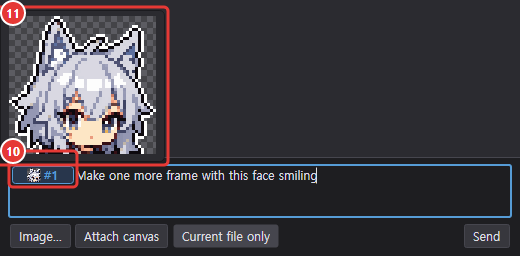
Attached images no longer line up above the input box: each one goes into the text at the cursor as an ⑩ image chip (a small square thumbnail on a checkerboard and an accent-colored #1, #2… in a rounded accent border, sized to the text line). Pixel-art thumbnails are scaled pixel-exact so they stay sharp. You can type before and after chips, and they're numbered from 1 in text order within the message.
- A chip is one unit. Backspace right after it or Delete right before it removes the chip and its attachment, and arrow keys skip over it. When chips are removed or reordered, the remaining ones are renumbered.
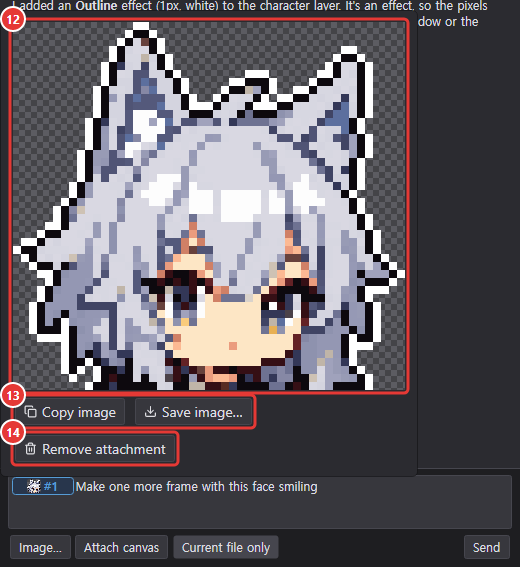
- Hover a chip for a ⑪ thumbnail preview; click it to see ⑫ the image large with ⑬ Copy image and Save image… buttons and a ⑭ Remove attachment button.
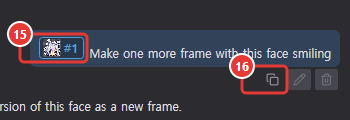
- The sent message shows chips (⑮) with the same look (square checkerboard thumbnail and #number) in the same places; hover to preview, click to open the same enlarged view. The AI receives the images as attachments in chip order, and the text says
[Image #1]where each chip was, so it knows which image you mean. - Reopened past chats show the chips in the same places; clicking one shows the saved 64 px thumbnail enlarged. Chats saved before this feature still show their thumbnails above the text.
- ⑯ Every message you sent has a Copy message text button under its bubble. It copies only the text, without the image chips. The pencil and trash icons still appear only under the last message.
- Images in the chat (chips and attached images in sent messages, result images the AI drew, the canvas snapshot at the end of a turn) open in the enlarged view with one click, and right-clicking them shows Save image… and Copy image. The image in the enlarged view can be right-clicked too. Right-clicking a chip inside a sent message opens this image menu instead of the text selection menu. Copy puts the image on the clipboard immediately; Save writes it as a PNG file at the pixel size shown.
Continuing past chats
Chats are saved automatically each time a reply finishes. Claude and Codex keep separate lists.
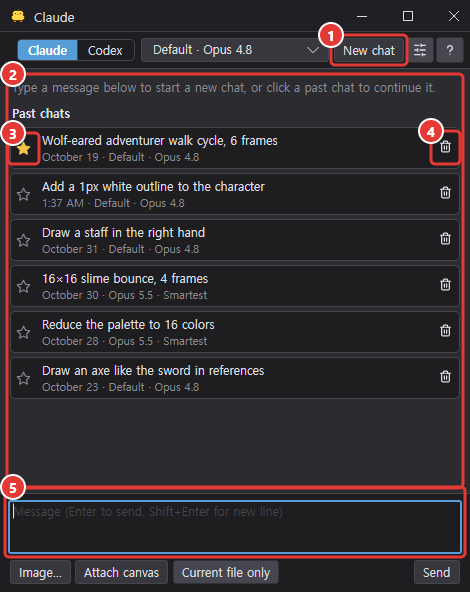
- Press ① New chat to show the ② past chats list in the chat area. Each row shows the title (first message), date, and model.
- Click a row to see that chat again; messages you send continue the same conversation. The Undo this step buttons of earlier turns aren't recreated.
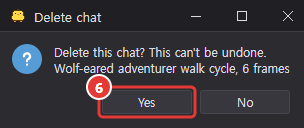
- The ③ star icon makes a chat a favorite: it's pinned to the top and never deleted automatically. The ④ trash icon deletes a chat after asking (⑥).
- Type a message in the ⑤ box below the list and send it to start a new chat.
- Up to 20 chats are kept per AI; beyond that, the oldest non-favorite chat is deleted.
- When you reopen the chat window or restart the app, each tab opens the chat (or the list) you were last on.
Help and example requests
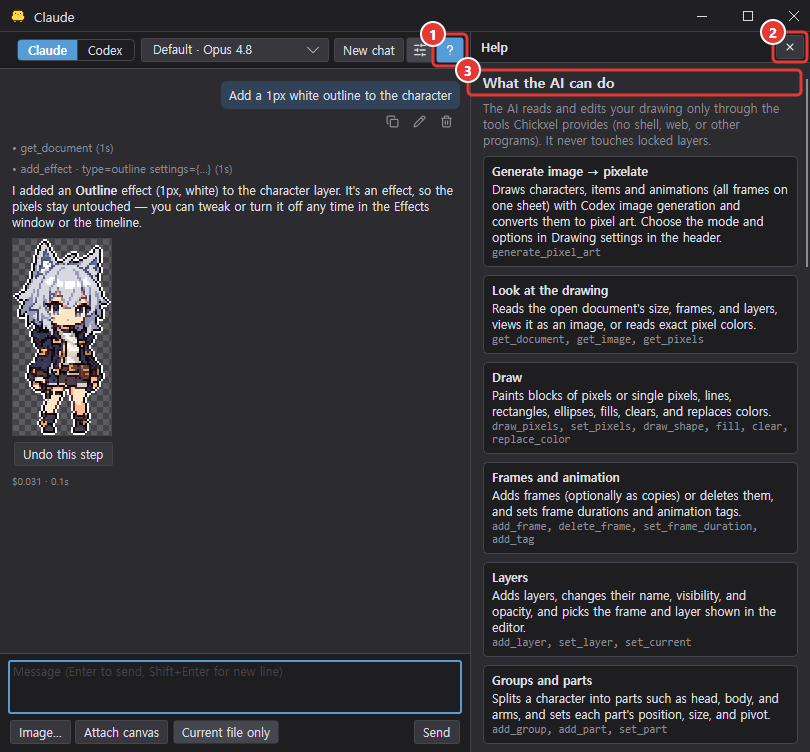
Press the ① question mark button next to New chat to widen the window to the right and open a help panel beside the chat. The chat stays visible and you can keep using it. Press the question mark button again or the ② X at the top of the panel to close it, and the window returns to its original width. If the window is at the right edge of the screen, it moves left so the panel fits and moves back when you close it; in a maximized window the chat area gets narrower instead.
- ③ What the AI can do: the tools for looking at the drawing, generating an image and pixelating it, drawing, frames and animation, layers, groups and parts, skins and outfits, layer effects, references, canvas and colors, and files, explained by group.
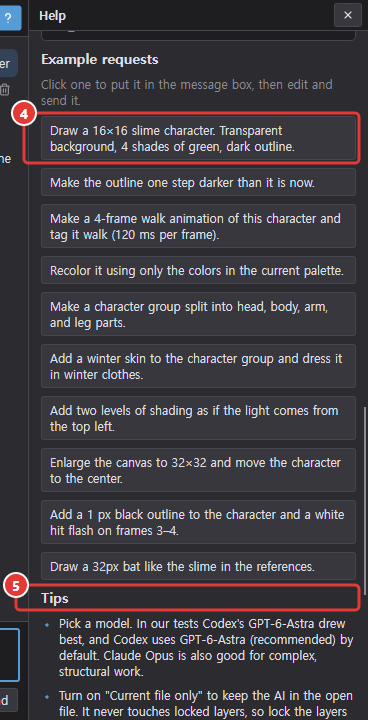
- ④ Example requests: click one to put it in the message box (the help panel stays open), then edit and send it.
- ⑤ Tips: in our tests Codex's GPT-6-Astra drew best, and Codex uses GPT-6-Astra (recommended) by default. Be specific about size, palette, and style, attach a reference picture, and break big jobs into small steps. You can delete or edit the last message and send it again.
Generate image → pixelate
Ask the Codex tab for something like "draw a knight with a sword", and instead of placing pixels one by one the AI calls the generate_pixel_art tool. Chickxel runs the Codex CLI on your computer (codex exec, Codex image generation) with your ChatGPT login (no API key) to generate a high-quality image, then turns it into pixel art the same way as Pixelate AI images (background removal, auto optimize, a shared palette and 1-px outlines) and inserts it. Each image takes about 30–90 seconds.
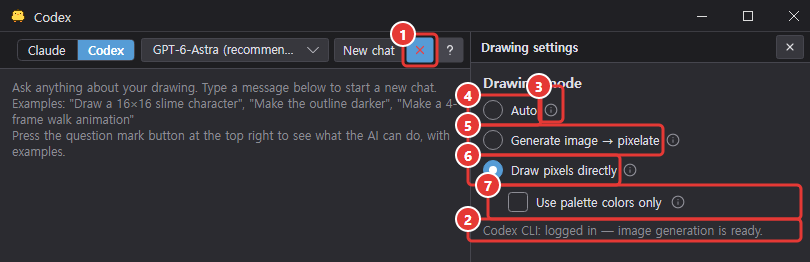
- Drawing settings: the ① Drawing settings button (sliders icon) next to the question mark button at the top of the chat window opens a settings panel on the right, like the help panel. Only one of help and drawing settings is open at a time, and while it's open the button shows a red X. The panel also shows the ② Codex CLI status (logged in / not installed / not logged in).
- Hover over an option or its ③ info icon for the longer explanation. Generate image shows only the generation options, Draw pixels directly shows only Use palette colors only, and Auto shows both.
- Drawing mode: ④ Auto (default) in the Codex tab edits the current picture by placing pixels when the chat's Current file only is on, and otherwise tries Generate image → pixelate first. If it can't generate (no Codex CLI or a generation error), the same request is drawn with the pixel tools, followed by the same whole-picture review as Draw pixels directly. If you press Stop during generation, it doesn't fall back to drawing pixels. ⑤ Generate image → pixelate always generates and converts, and ⑥ Draw pixels directly has the AI place pixels one by one with the pixel tools. If you choose ⑤ or ⑥ yourself, that mode is kept. A Generate image setting saved by an older version switches to Auto once; a saved Draw pixels directly is kept.
- ⑦ Use palette colors only (under Draw pixels directly — shown for Auto and Draw pixels directly, off by default, saved): when on, the colors the AI paints with the pixel tools (the draw_pixels legend, set_pixels, draw_shape, fill, replace_color's target color, the new_project background) are changed to the nearest color of the active palette (the same color distance as the Pixelate tool). Fully transparent (erasing) is still allowed; semi-transparent colors become the nearest opaque palette color. The tool result tells the AI what changed, e.g. "팔레트 색으로 맞춤: #E63228→#C81E1E", and each message also sends the palette colors (up to 64) so the AI draws with them from the start. It works in both the Claude and Codex tabs and doesn't affect generated images (the conversion's palette settings) or layer effects. When off, all colors and alpha are used as before.
- Whole-picture review when drawing pixels: with Draw pixels directly (including Auto's fallback), the AI first reads your words and attached images together, lists the subject, size, proportions, pose, colors, style and anything to avoid, and plans the overall layout and where each part goes. Without an image, it works from the conditions you described. When a turn that changed pixels or parts ends, Chickxel automatically sends the AI the current canvas with all layers combined for a review. The AI scores the silhouette, limb placement and style out of 10 against your original request and images, fixes what's wrong, and looks at the whole picture again (up to three rounds of fixes; if it doesn't improve, it explains the remaining problems). The score is the AI's subjective judgment, not an exact similarity measurement. The review and fixes belong to the same undo step as the turn, and the extra AI turns take more time and usage. Generate image → pixelate doesn't use this review.
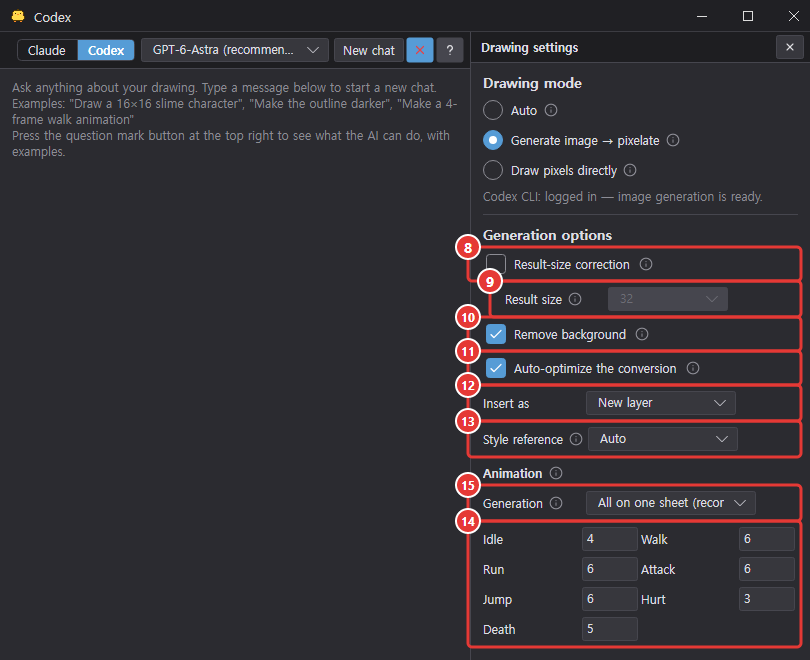
- Inserting (⑫): as a New layer in the current document (one undo step together with the AI's turn) or as a New document. If the generated image is larger than the open canvas, you're asked first whether to expand the canvas or choose a crop position (see Answering the AI's questions).
- Background: unless you mention a background, the image is generated on a plain transparent background with no scenery.
| Generation option | What it does |
|---|---|
| ⑧ Result-size correction | Off by default (older saved settings also load as off). When off, ordinary generated images are converted with the main preset's result-size setting (with Auto, at the pixel grid found in the image), and a size you mention in the chat (e.g. "64×64") or one Codex picks for the subject before generating is only passed to the image generation as a rough scale hint. A turn that converts an attached picture to pixel art fits the result to the chosen size even with correction off (see turning a reference image into pixel art below). When on, other generated images are also fitted to the Result size setting or the size given in the chat. View conversion settings opens with the conversion settings that made the result. |
| ⑨ Result size | 32 · 48 · 64 · Custom (long side in px). Only enabled when Result-size correction is on. |
| ⑩ Remove background | Removes the background when converting (on by default). |
| ⑪ Auto-optimize the conversion | Auto-optimizes the conversion and inserts the top-scoring result as-is (on by default). The conversion starts from the saved stage settings and optimization criteria of the AI image conversion preset — the preset whose Main button is green in the Auto optimize settings window (regardless of that preset's Auto optimize checkbox). If that preset is deleted, the built-in Same hue family preset is used while it exists, otherwise the first preset in the list. When this is off, the main preset's stage settings are still used and only the optimization is skipped. The progress reads "Optimizing conversion… pass p · trial n/N · best x". If the top result is a failed one (empty or too small — wrong pixel size detected), nothing is inserted and an error is reported. |
| ⑫ Insert as | New layer · New document. |
| ⑬ Style reference | Auto · None · Specific reference. A pixel-art example sent along with the generation. Auto picks one from your references (your own; built-in examples only when turned on) when you attach a non-pixel character picture to redraw as pixel art, or when a reference matches what is being drawn. |
| ⑭ Default animation frames | Idle 4 · Walk 6 · Run 6 · Attack 6 · Jump 6 · Hurt 3 · Death 5 (2–12). A count you give in the chat wins. |
| ⑮ Generation (Animation group) | All on one sheet (recommended) (default) · One image per frame (the previous behavior: one frame at a time with frame 1 and the previous frame attached). Choosing one image per frame shows a red warning: per-frame generation often changes the character's look and size between frames and takes as long as the number of frames. |
The options are saved in the settings.
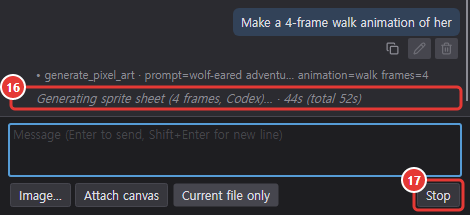
- Animations: ask something like "make a walking animation" and the frames are planned (built-in key poses for each action, or poses the AI chooses), then by default generated in one go as a single sprite sheet: one Codex image generation draws every frame of the same character side by side in one row (from 7 frames a 2-row grid, e.g. 4×2) in one wide image, with the same scale, camera and baseline, a transparent background and no labels or grid lines (the prompt lists each frame's pose). The ⑯ chat progress line shows "Generating sprite sheet (4 frames, Codex)…". The sheet is split automatically by empty columns and rows, and re-split as a grid (N×1, or columns×rows) if that gives a different frame count. The frames are bottom-center aligned (a jump keeps its original offsets) and converted together on one canvas with a shared palette and a 1-px outline by default. The sheet is converted at its original size (up to 4096 px on the long side), so its pixel blocks aren't shrunk and local cell correction stays on. With One image per frame the progress line shows "Generating frame 2/6 (Codex)…" instead. ⑰ Stop cancels it.
- Turning a reference image into pixel art: in the Codex tab with Auto, attaching a picture and asking to turn it into pixel art always generates an image and then pixelates it, even if you give a size. The result size is, in this order, the size you give in the chat, the result-size correction size if that's on, or a square size between 8 and 256 px that Codex picks before generating by looking at the attached picture (or the subject description); meanwhile the progress line shows "Selecting a pixel size from the reference image (Codex)…". The chosen size is written at the start of the generation prompt and in its style, composition and pixel-grid rules, and the prompt asks to keep the attached picture's character, pose, outfit and colors while drawing with an even pixel grid, a limited palette, crisp outlines and cel shading. For an animation sheet each frame has that size, so the whole sheet can be larger.
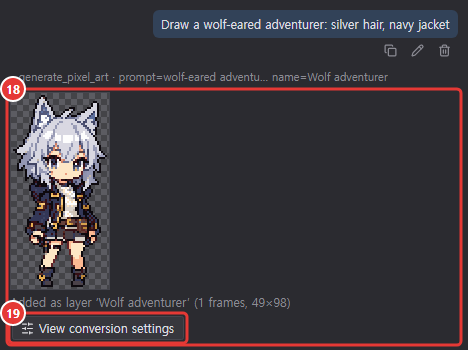
- ⑱ Result card: when it's done, the chat shows a thumbnail (frames side by side), the insert message and a ⑲ View conversion settings button. It opens the Pixelate AI image window with the generated sheet (or per-frame images) and the split and conversion settings used, so you can tweak them and insert again. Generation records are kept in
<settings folder>/Chickxel/AiDraw/(the latest 40; the sheet assheet.png, per-frame images asframe-01.png…).
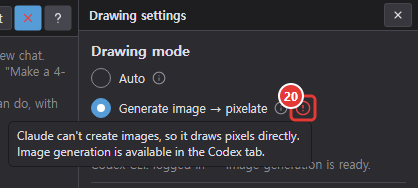
- Claude tab: Claude can't create images, so it always draws pixels directly. In the drawing settings a ⑳ red alert icon appears next to the generate option, with the tooltip "Claude can't create images, so it draws pixels directly. Image generation is available in the Codex tab." If you explicitly ask Claude to "let Codex do it", it calls
generate_pixel_artand that drawing is generated with Codex (Codex CLI must be installed and logged in).
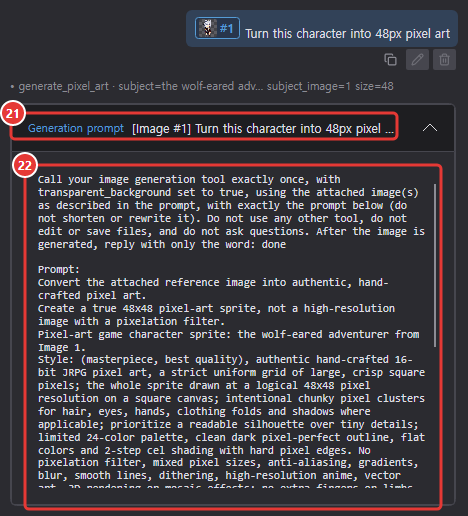
- ㉑ Generation prompt card: when Codex image generation starts, the chat shows a card with your original request on one line. Click it to expand ㉒ the full generation instruction that was actually sent; the card stays when you reopen the saved chat.
What the AI can do in the chat help (question mark button) has a Generate image → pixelate group (generate_pixel_art).
Limiting edits to the current file
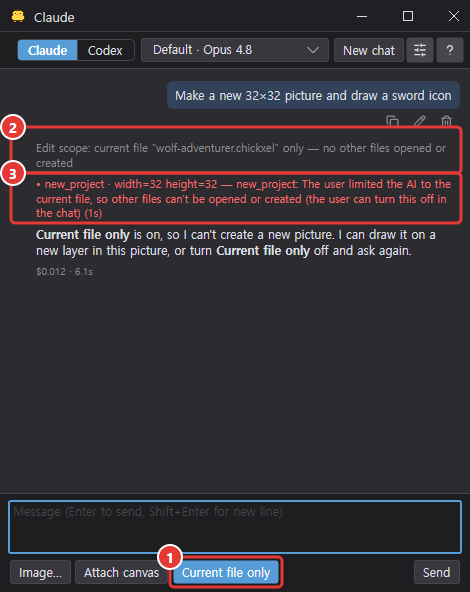
Turn on ① Current file only next to Attach canvas below the input box before sending, and the AI edits only the file that's open when you send.
- Inside that file it can draw, add layers, frames, groups, parts, skins, and layer effects, and tidy up layers.
- Opening or creating other files, such as new projects or opening files, is refused (③ red line; saving still works).
- The chat shows the scope (②), like
Edit scope: current file "slime.chickxel" only. Turn it off to lift the limit from the next message.
Protecting locked layers
The AI never touches locked layers (or the parts of a locked group), whether or not Current file only is on.
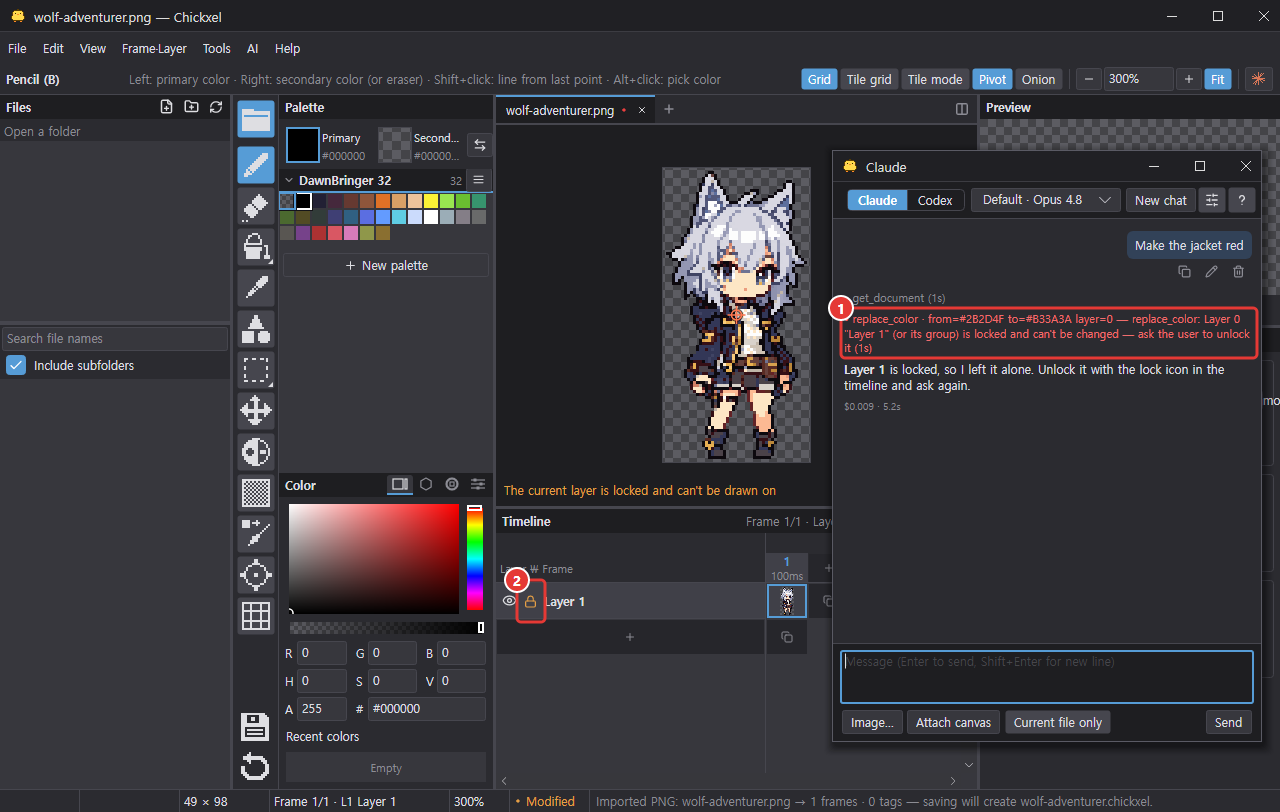
- Changing their pixels, name, visibility, opacity, part position or size, adding, changing, removing, or permanently applying their layer effects, or changing the group's skin or outfit is refused with a "locked" reason (①).
- Deleting a frame where a locked layer has pixels, and resizing the canvas (including enlarging it to fit effects) while any layer is locked, are refused too. Reading still works.
- Lock layers the AI must not change with the ② lock icon in the timeline.
Progress display
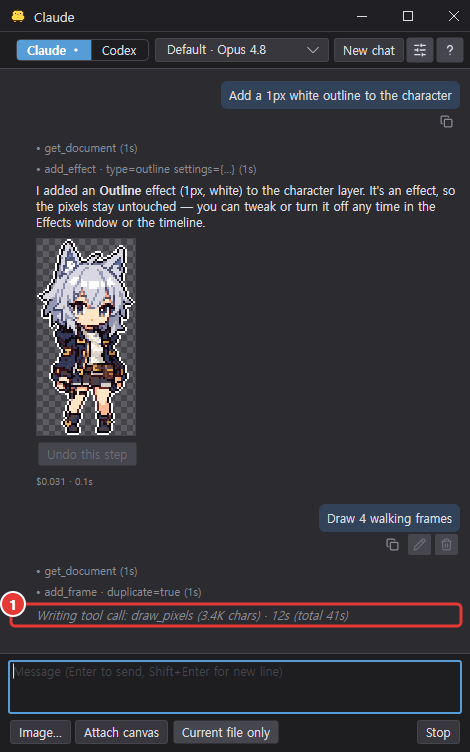
While a reply is coming in, the bottom line (①) shows what's happening (waiting for response, thinking, writing tool call, running in editor, writing reply) and the elapsed time.
Answering the AI's questions
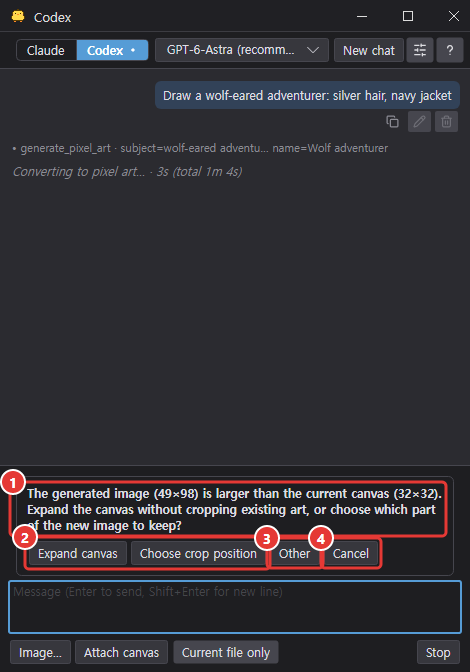
When the AI needs a decision from you, a ① question card appears right above the chat input box. The AI doesn't pick an answer on its own and carry on. If you were on the other tab, the window switches to the tab that asked.
- ② Click one of the options (2–5) to send that answer to the AI; the chosen answer is also added to the chat as a line.
- ③ Other shows an Other answer box and a Submit answer button. Type your answer and press Enter or Submit answer.
- ④ Cancel (or Esc in the answer box) closes the question; the AI won't guess an answer and carry on.
Generated image larger than the canvas: if an image made with image generation is larger than the open canvas, you're first asked to choose ② Expand canvas (keeps the existing art and enlarges the canvas) or Choose crop position. The canvas can't be expanded while a layer is locked. If the open document or the canvas size changes while the question is waiting, nothing is inserted.
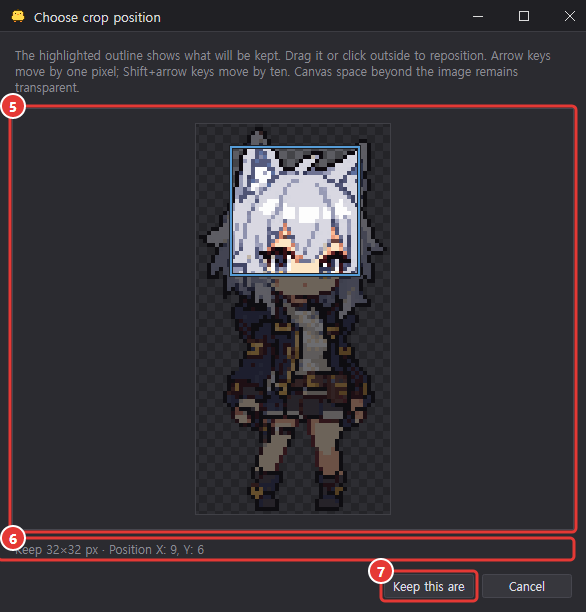
- ⑤ The Choose crop position window (opens when you choose the crop option): the area inside the highlighted outline on the source preview is what's kept. Drag the outline or click outside it to move it; arrow keys move it by 1 pixel and Shift+arrow keys by 10. Canvas space beyond the image stays transparent.
- ⑥ Check the size and position to keep (in source pixels), then press ⑦ Keep this area to crop and insert that area. Cancel inserts nothing and leaves the existing art unchanged.
Chickxel also sends a Windows or macOS system notification when the AI asks a question, finishes, or hits an error (if the operating system allows notifications), so you know when to come back even while working in another window.
Edits the AI can make
The AI looks at the open image and edits it directly.
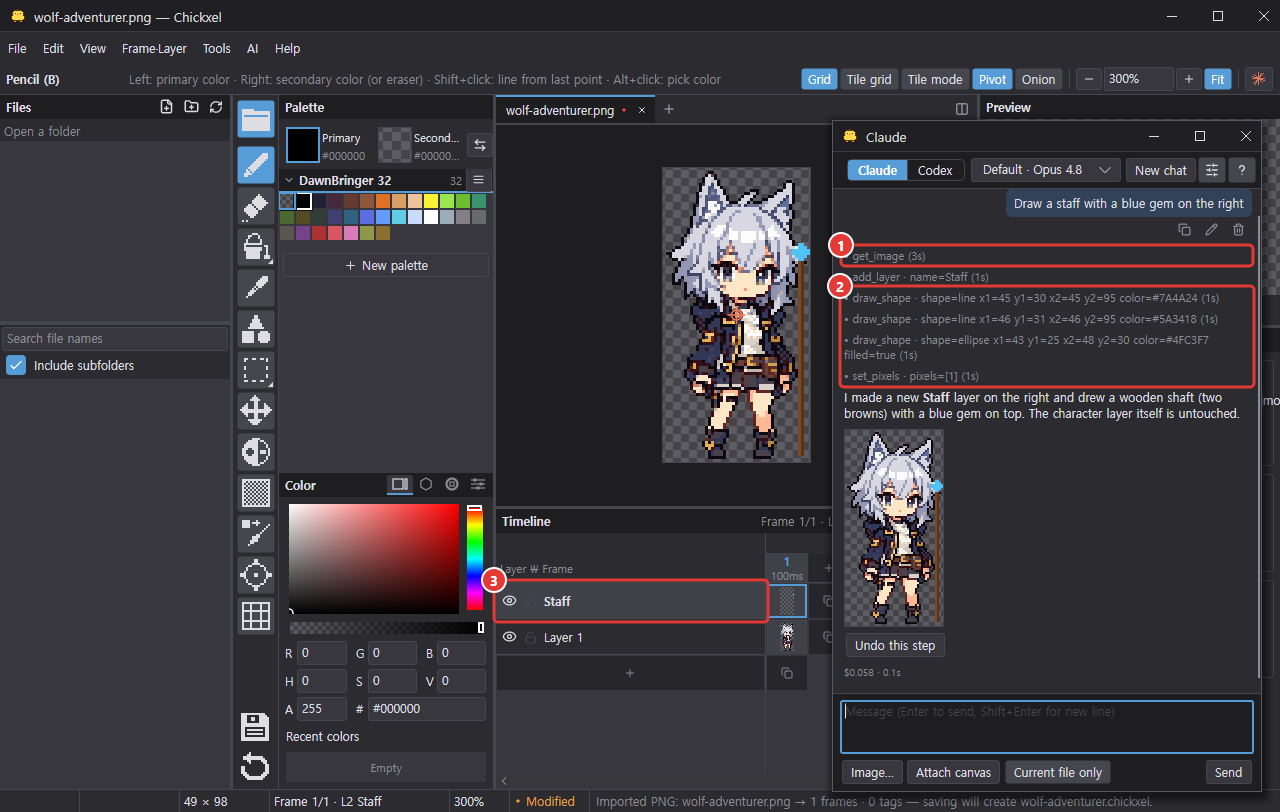
- ① View the image, read pixels
- ② Draw points, lines, rectangles and circles; fill, erase, replace colors
- ③ Create and arrange frames, layers, tags, groups and parts
- Add and switch skins, save and apply outfit presets
- Add, change, and remove layer effects, apply them permanently, enlarge the canvas to fit them
- Search and view references (
search_references,get_reference), read style rules (get_style_rules), save the canvas as a reference and caption it (add_reference,set_reference_info) — see References: teach the AI your style - Canvas size, palette and colors, new project, open, save
The end of each ①② tool line shows in parentheses how long that tool took (e.g. get_image (22s), get_image (1m 20s)). For a failed tool it follows the error text, and it stays when you reopen the chat. A tool that is still running shows no time yet.
It saves only when asked. If a never-saved new project has changes, it asks whether to save before switching to another document.
Asking for layer effects
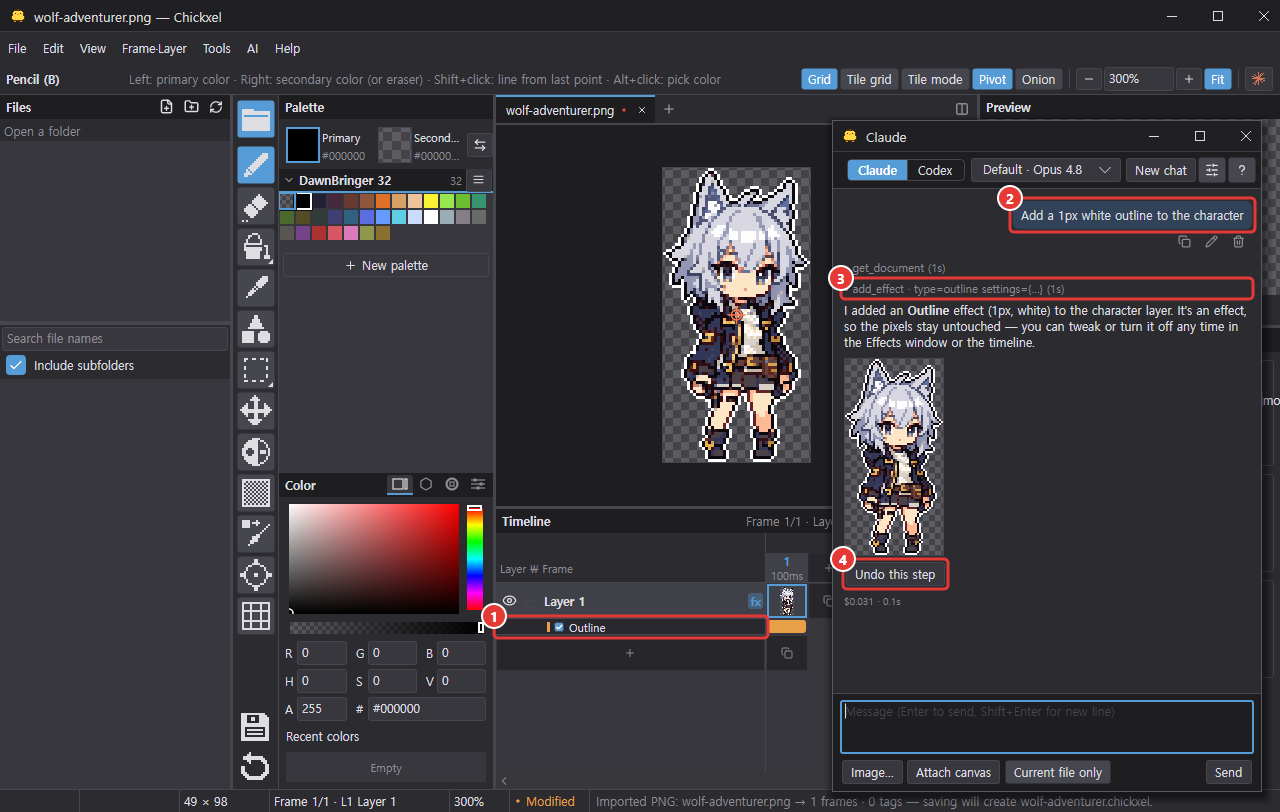
The AI can use the same layer effects as the Effects dialog. Effects don't change the drawing's pixels, so you can still change or remove them later in the Effects dialog or the ① timeline.
- ② Ask things like "add a 1 px black outline to the character", "add a white hit flash on frames 3–4", "make it appear over the first 4 frames", or "put a shadow 2 px to the lower right".
- Animated effects (hit flash, blink, shake, appear, and so on) play over the frame range you give. Without a range they cover the whole animation, as in the Effects dialog.
- Your saved effect recipes and recipes from enabled packages can be added by name too.
- It can also change the settings, frame range, on/off state, order, and clipping of existing effects.
- Applying effects permanently (baking them into the pixels) and enlarging the canvas to fit effects that spill outside it happen only when you ask.
Effect changes (③) are part of the AI's reply, so one undo step (④) undoes them too. Effects on locked layers are never changed.
References: teach the AI your style
References are a library on your computer that the AI looks through before drawing. Put in art you like, your own style rules and technique notes, and the AI finds similar images, follows their proportions and palette, and checks its result against the rules when it's done. It searches this user guide too.
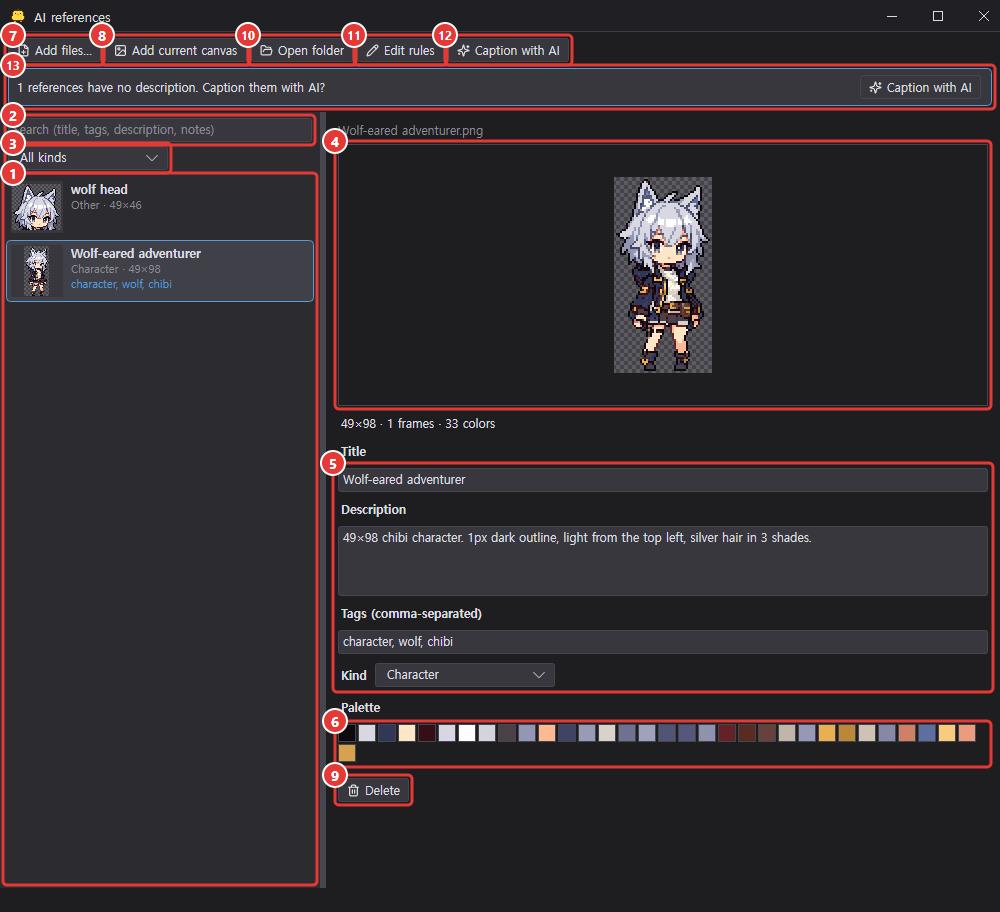
Open the AI references window with AI > References…. On the left are ① thumbnails (pixel-perfect on a checker background, with title and tags), a ② search box (the same search the AI uses) and a ③ kind filter; on the right are a ④ preview (animated when there are several frames), ⑤ editable title, description, tags and kind, and the ⑥ palette swatches.
| Button | What it does |
|---|---|
| ⑦ Add files… | Adds several image or note files at once. You can also drag files onto the window. |
| ⑧ Add current canvas | Adds the open image as a reference. |
| ⑨ Delete | Moves the selected reference file to the app trash (built-in references can't be deleted). |
| ⑩ Open folder | Opens the references folder in Explorer/Finder. |
| ⑪ Edit rules | Opens your own style rules, rules.md (created from a template if missing). The AI reads them together with the default rules. |
| ⑫ Caption with AI | Puts a request to add titles, descriptions and tags to uncaptioned references into the input box of the active AI tab and brings up the chat window. It's sent only when you press send, so nothing is spent automatically. |
When some references have no description, the window shows ⑬ "N references have no description". Descriptions and tags help the AI find them.
- Asking: say something like "Draw a 32px bat like the slime in the references." and the AI looks up the references before drawing. The chat help (question-mark button) has a References tool group and this example.
- Adding from the chat: say "save this to my references" and the AI adds the current canvas (or a layer or frame range) with a title, description and tags. Adding and captioning references only write to the library folder, so they work even with Current file only on.
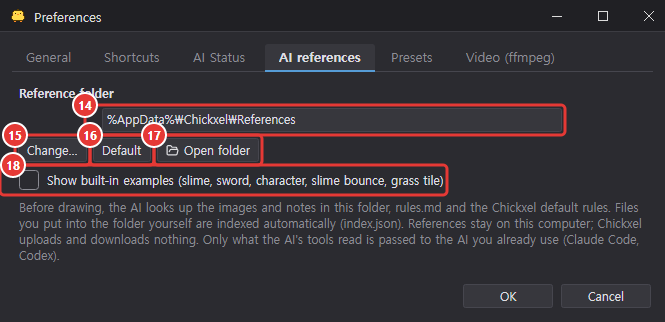
- Folder (⑭): by default
<settings folder>/Chickxel/References(%AppData%\Chickxel\Referenceson Windows). Files you put into this folder outside the app are picked up automatically when the window opens. - Supported files: images (
.png,.gifwith frames,.chickxelprojects — each frame composited, animations keep their frame count) and text notes (.md,.txt). Title, description, tags, kind (character, item, tile, effect, UI, other), size, frame count, palette and similar info are stored inindex.jsonin the same folder. - Built-in references (marked Built-in, can't be deleted): the style rule set Chickxel default rules (1 px or selective outline, a single light direction, 3–4-shade hue-shifted ramps, no orphan or jaggy pixels, a limited palette, a readable silhouette, consistent proportions, and key poses, smears and walk-cycle contacts for animation) and example images — a 16×16 slime, a 16×16 sword, a 32×32 front-facing character, a 4-frame 16×16 slime bounce, and a 16×16 grass tile.
- Preferences: in Edit > Preferences… > AI references you can ⑮ Change… the ⑭ folder, go back to the ⑯ Default folder, ⑰ Open folder, and turn the built-in example images back on with ⑱ Show built-in examples (they are off by default for now because of their low quality; while off they are not used for search or as image-generation style references).
References stay on your computer. Chickxel uploads and downloads nothing; only the AI CLI you already use (Claude Code or Codex) sees what the AI fetches with its tools.
Undoing
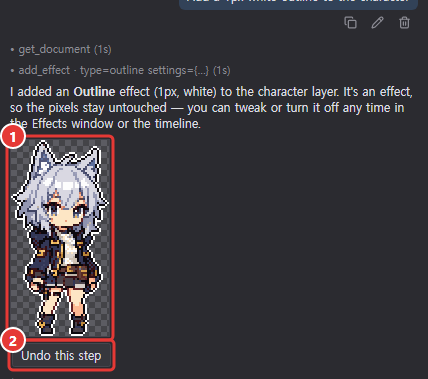
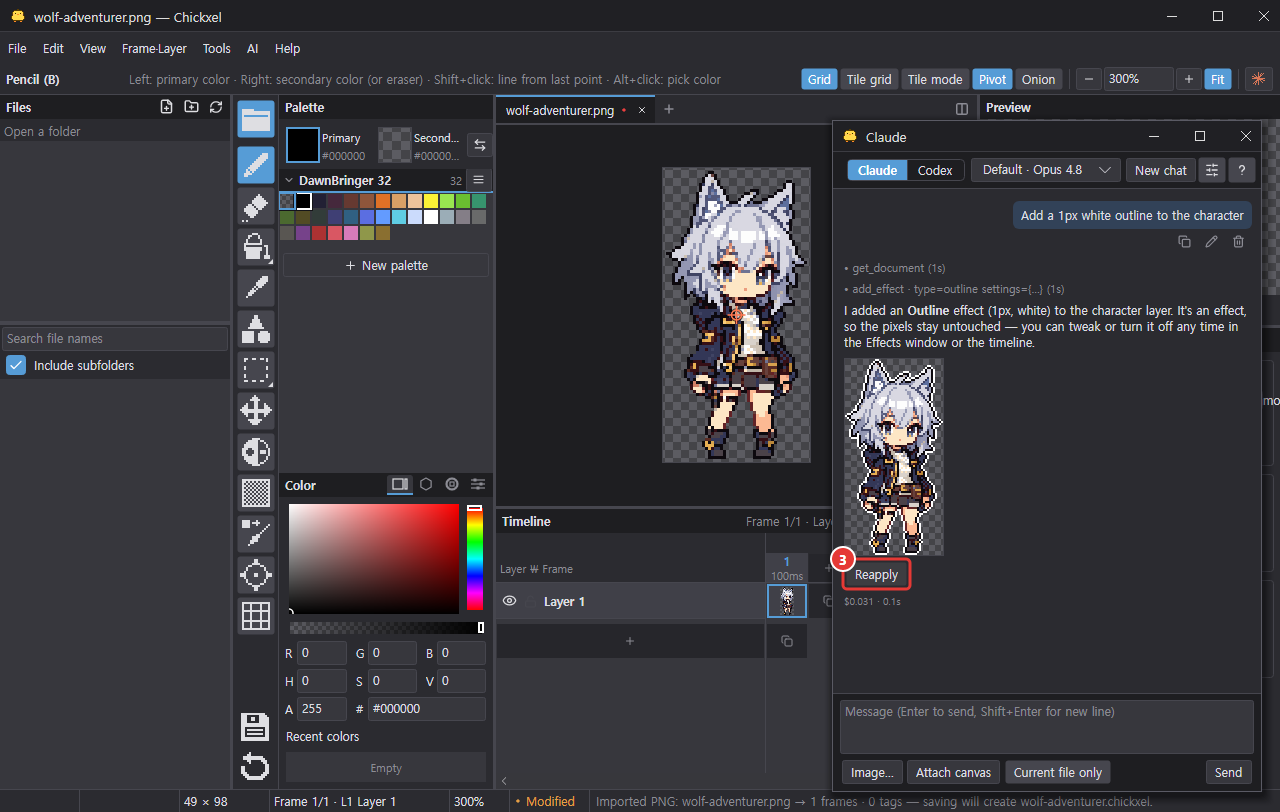
Each AI reply is one undo step, so Ctrl+Z undoes it all at once. Each reply also comes with a ① result image and ② Undo this step / ③ Reapply buttons.
Editing or deleting the last message
Small ① pencil (edit) and ② trash (delete) icons sit under the last message you sent. They're disabled while a reply is coming in; a turn you stopped with Stop can be deleted.
- Delete: removes that message and the reply, tool lines and result image after it. The previous message then gets the icons, so you can press again to step back one message at a time, all the way to the start.
- Edit: removes it the same way, then puts its text and image chips (with the attached pictures, if they're still available) back in the message box so you can change it and send. Images of chats reopened from disk aren't resent.
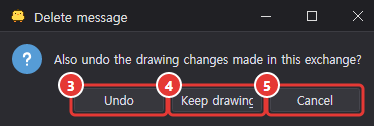
- If that reply changed the drawing and the step can still be undone, you're asked Also undo the drawing changes made in this exchange? — ③ Undo (same as Undo this step), ④ Keep drawing, or ⑤ Cancel (nothing is removed).
- You can also delete or edit the last message of a reopened past chat (the drawing question isn't asked there).
The AI doesn't remember what you removed: after a delete or edit, the next message starts a new AI session and includes a recap of the remaining conversation.
Troubleshooting
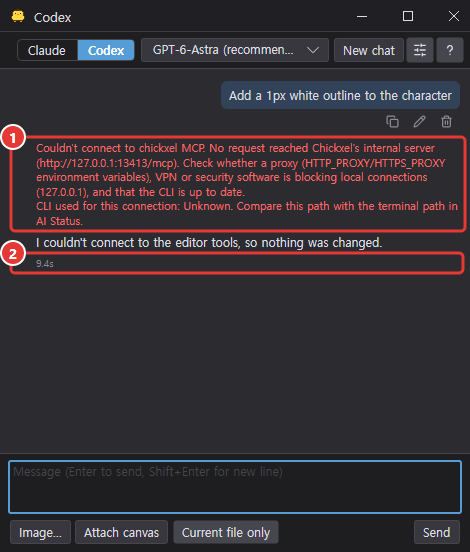
- If the AI can't connect to the editor, the chat shows a ① red line with the likely reason. Common causes are a proxy (
HTTP_PROXY,HTTPS_PROXY), VPN or security software blocking connections to 127.0.0.1, or an outdated CLI. - Codex replies appear all at once after they're fully written, and show only the ② time, not the cost (Claude shows the cost too).
Shortcuts
Common default shortcuts, grouped by category. Press F1 in the app to open this guide (contents and search); the list of default shortcuts is under Help > Shortcut list. You can change shortcuts to any keys you like (Customizing shortcuts).
Customizing shortcuts
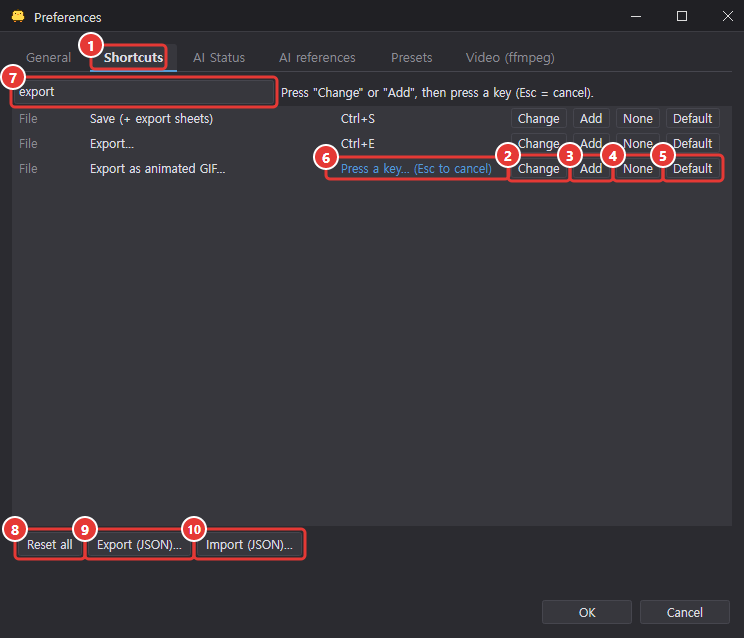
In the ① Shortcuts tab of Edit > Preferences… (Ctrl+,) you can change not only menu commands, tools and tool options but also keys that aren't in any menu (drop selection Enter, arrow-key nudging, peek previous frame H, selection slot M, etc.).
- For each row choose ② Change (use the key you press), ③ Add (one more key), ④ None or ⑤ Default. After Change or Add, the row ⑥ waits for a key (Esc cancels).
- ⑦ Search by command, category or key, and reset everything at once with ⑧ Reset all.
- ⑨ Export (JSON)… saves the current shortcuts to a file, and ⑩ Import (JSON)… applies them again. The same file works on both Windows and macOS.
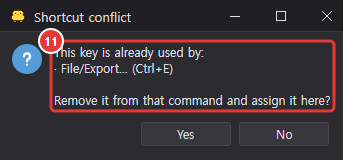
- If you assign a key used by another command, ⑪ you're asked whether to remove it from that command.
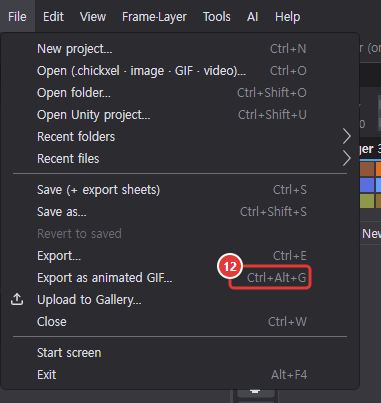
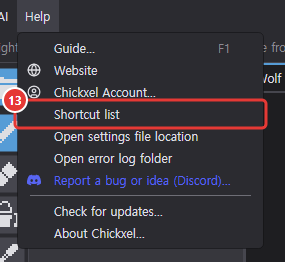
- Changed keys are reflected immediately in menus (see ⑫) and toolbar tooltips. ⑬ Help > Shortcut list shows the defaults.
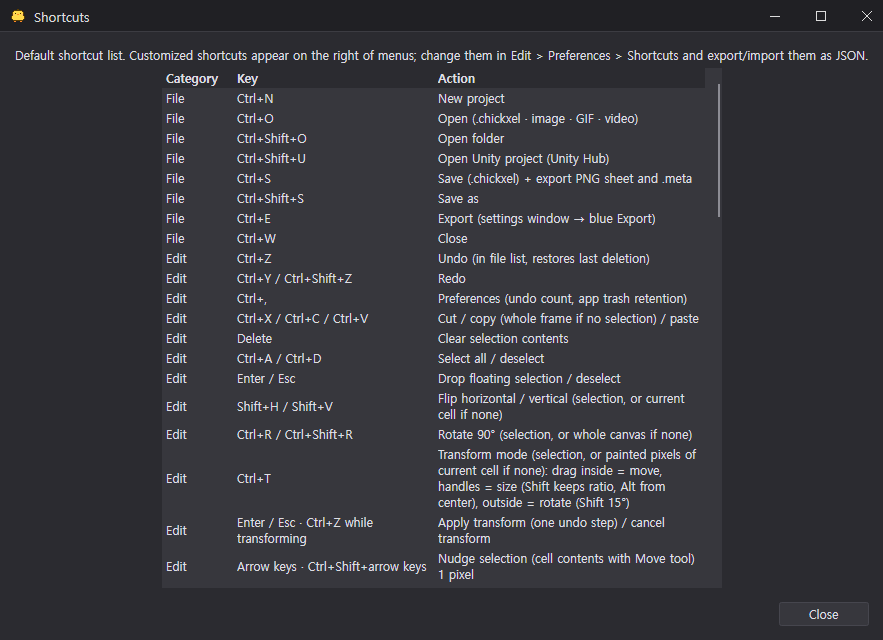
Files and windows
| Action | Keys |
|---|---|
| New project | Ctrl+N |
| Open | Ctrl+O |
| Open folder | Ctrl+Shift+O |
| Open Unity project | Ctrl+Shift+U |
| Save (including export) | Ctrl+S |
| Save as | Ctrl+Shift+S |
| Export dialog | Ctrl+E |
| Close the current tab | Ctrl+W |
| Preferences | Ctrl+, |
| Next / previous document tab (main window), next / previous tab (Preferences, export dialog) | Ctrl+Tab / Ctrl+Shift+Tab |
| File browser | F8 |
| AI chat (Claude · Codex) | Ctrl+L |
| Movement test | F5 |
| Guide | F1 |
When a tab row or an option group such as off/on has focus, you can also switch with ←/→ and Home/End.
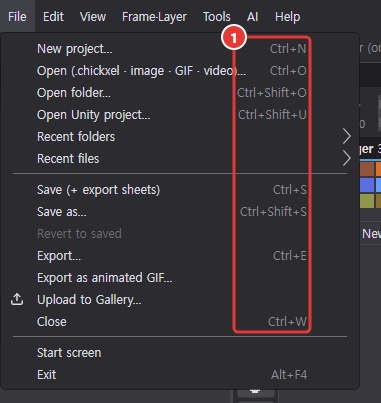
Open the File menu to see the current key to the right of each command at ① (changed keys show up there too).
Editing and selection
| Action | Keys |
|---|---|
| Undo / redo | Ctrl+Z / Ctrl+Y |
| Cut / copy / paste | Ctrl+X / Ctrl+C / Ctrl+V |
| Delete | Delete |
| Select all | Ctrl+A |
| Deselect | Ctrl+D or Esc |
| Drop (floating selection) | Enter |
| Move 1 pixel | Arrow keys |
| Move 8 pixels | Shift+arrow keys or Ctrl+Shift+arrow keys |
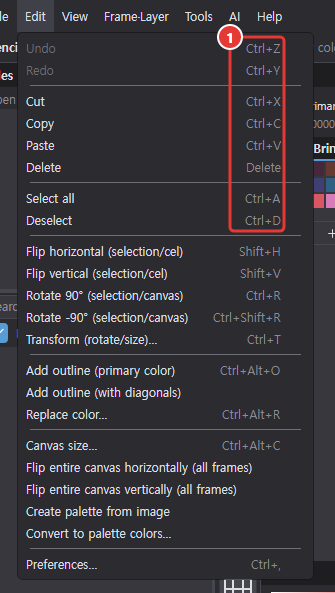
The Edit menu shows the keys from Undo to Deselect at ①.
Transform and image
| Action | Keys |
|---|---|
| Flip horizontal / vertical (selection, or current cel if none) | Shift+H / Shift+V |
| Rotate 90° (selection, or whole canvas if none) | Ctrl+R / Ctrl+Shift+R |
| Transform mode (rotate, size, move) | Ctrl+T |
| Outline | Ctrl+Alt+O |
| Replace color | Ctrl+Alt+R |
| Canvas size mode | Ctrl+Alt+C |
| Apply transform / canvas size mode | Enter |
| Cancel transform / canvas size mode | Esc or Ctrl+Z |
In canvas size mode, dragging a handle changes that edge, Ctrl+drag also resizes the image, and dragging inside the image moves it.
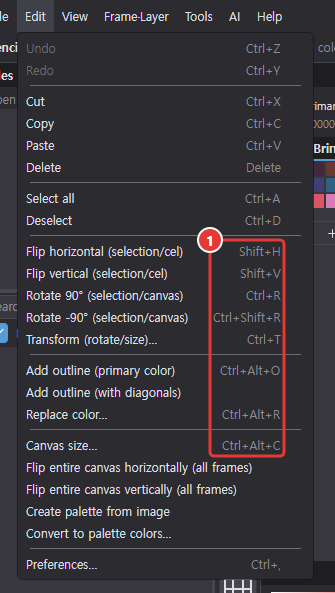
The same keys appear at ① in the Edit menu, from the flips to Canvas size.
Tools
| Action | Keys |
|---|---|
| Selection slot tool / cycle selection shape | M |
| Lasso select | Q |
| Magic wand | W |
| Gradient | F |
| Shape | R |
| Shape: line | L |
| Decrease / increase brush size | [ / ] |
| Pixel perfect | P |
| Filled shapes | U |
| Swap primary and secondary colors | X |
| All matching colors | Shift+G |
| Horizontal / vertical symmetry | Shift+X / Shift+Y |
| Expand and switch grouped tools (fill, select) | Long-press or right-click the tool slot |
Pressing M from another tool switches to the selection slot tool. While using a selection tool, each press within 10 seconds cycles rectangle → ellipse → lasso → magic wand (the first press after 10 seconds only shows a hint).
![The Tools menu open: tool keys from Pencil B through Shape R to 9-slice S, then Filled shapes U, Fill all matching colors Shift+G, Pixel perfect P, mirror Shift+X and Shift+Y, brush size ] and [, and color swap X](../assets/guide/shortcuts-tools.png)
The Tools menu shows the keys of ① the tools and ② the tool options, brush size and color swap.
View and canvas
| Action | Keys |
|---|---|
| Zoom in/out | Wheel |
| Brush (pen) size | Ctrl+wheel |
| Pan | Space+drag or middle-button drag |
| Fit to window / 1× | Ctrl+0 / Ctrl+1 |
| Pixel grid | Ctrl+G |
| Tile grid | Ctrl+Shift+G |
| Tiled mode | Ctrl+Shift+T |
| Onion skin | Ctrl+J |
| Peek previous frame | H (hold) |
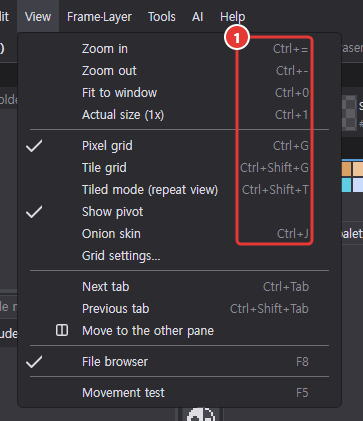
The View menu shows the keys from Zoom in to Onion skin at ①.
Timeline · layers · groups
| Action | Keys |
|---|---|
| Play / stop | Shift+Enter |
| Previous / next frame | , / . |
| First / last frame | Home / End |
| New empty frame | Alt+N |
| Duplicate frame | Alt+D |
| New layer | Shift+N |
| Rename layer | F2 |
| New group | Ctrl+Shift+N |
| New part | Shift+P |
| Previous / next skin (change outfit) | Alt+[ / Alt+] |
| Scroll layers up/down (in the timeline) | Wheel |
| Scroll frames left/right (in the timeline) | Ctrl+wheel |
Skin switching applies to the current group (or the selected part's group) and isn't recorded in undo history. For groups, parts and skins, see the Parts and groups chapter.
![The Frame·Layer menu open: the keys to the right of Play / stop Shift+Enter through Previous and Next skin Alt+[ and Alt+]](../assets/guide/shortcuts-timeline.png)
The Frame·Layer menu shows the keys from Play / stop to Next skin at ①.
Language
Chickxel includes Korean and English. On first launch it picks the language that matches your computer, or starts in English if there's no match. You can add other languages yourself with a CSV file.
Changing the display language
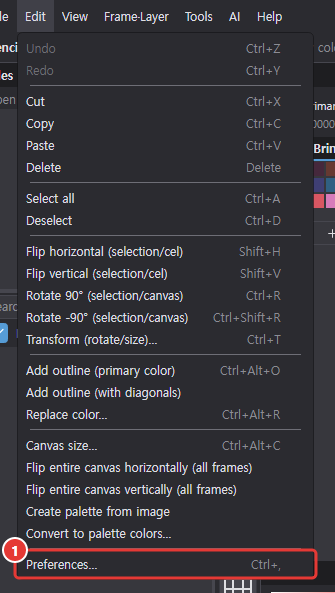
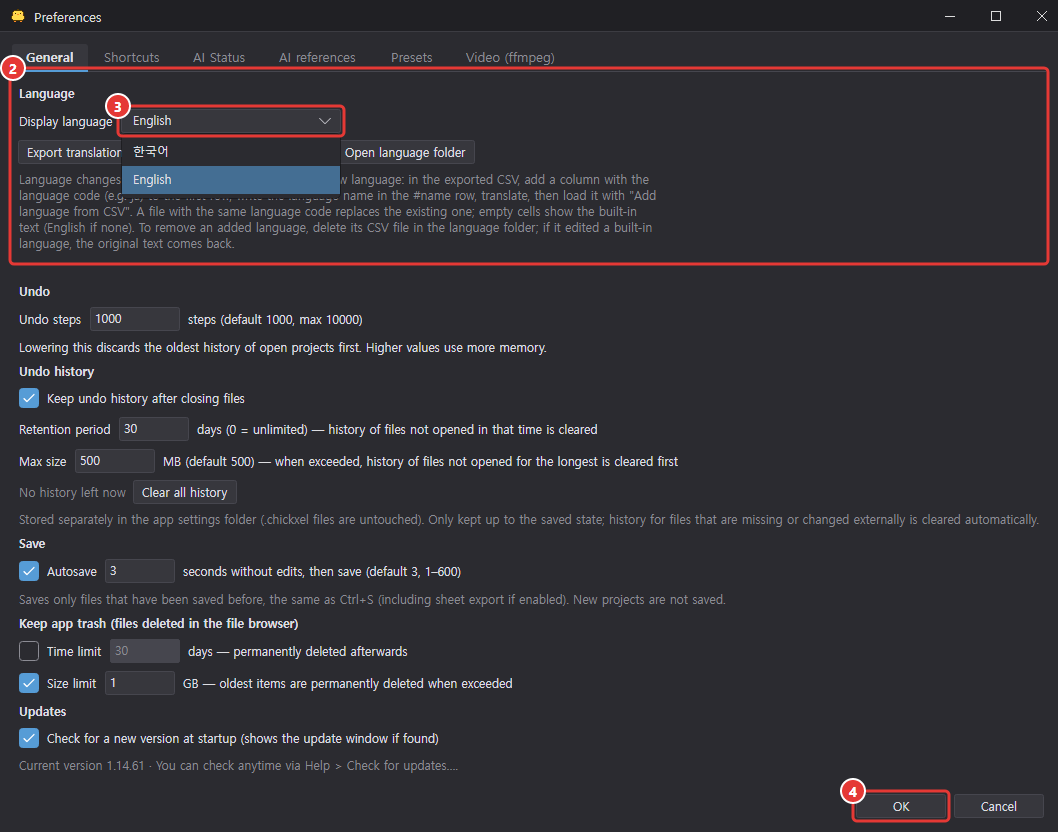
- Open ① Edit > Preferences… (Ctrl+,). ② Language is at the top.
- Choose from the ③ Display language list and click ④ OK.
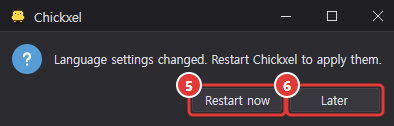
- Click ⑤ Restart now to close the app and reopen it in the new language. If there are unsaved documents, you're asked first, just like when closing. Choose ⑥ Later to apply it the next time you launch.
Creating a new language

- Save a CSV file with ① Export translation CSV… in Preferences. You can open it in Excel, Google Sheets and so on.
- The first row is
key,ko,enand the second row is#name,한국어,English. Add a new column at the far right with the language code in the first row (e.g.ja) and the language name in the second row (e.g.日本語). - Translate the text in that column. Braces such as
{0}and{name}are placeholders for values, so keep them as they are (you may change their order).
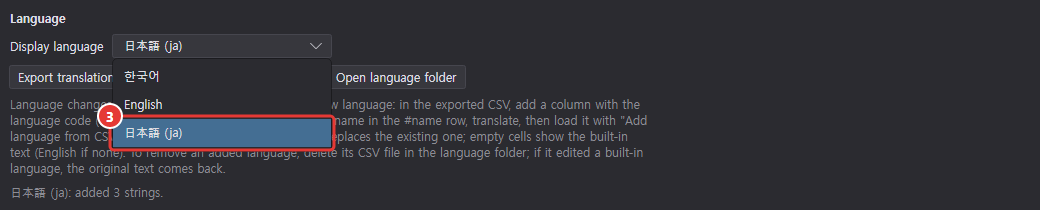
- Choose the file with ② Add language from CSV… and it appears in the ③ language list. Select it and restart to apply it.
Empty cells show the English text, so you can add your translation bit by bit. Adding the same language code again overwrites it.
Editing and removing built-in text
- If you edit the
koorencolumn in an exported CSV and add it, only the edited cells override the built-in text.

- ① Open language folder opens the folder containing the CSV files of added languages. Deleting a file removes that language from the list, or, for a file that edited a built-in language, restores the original text.